
Deals are now Pipelines, and simpler property filters
A few things have new names and new places, and nothing was lost. Also in this release: forms that branch, a tidier Fields page, and texts that send the moment you press Send.
Deals are now Pipelines
Section titled “Deals are now Pipelines”The Deals area is now called Pipelines, in the left rail and at the top of the board, with a new board icon. Your pipelines, stages and deals are all where they were.
Settings live in two menus
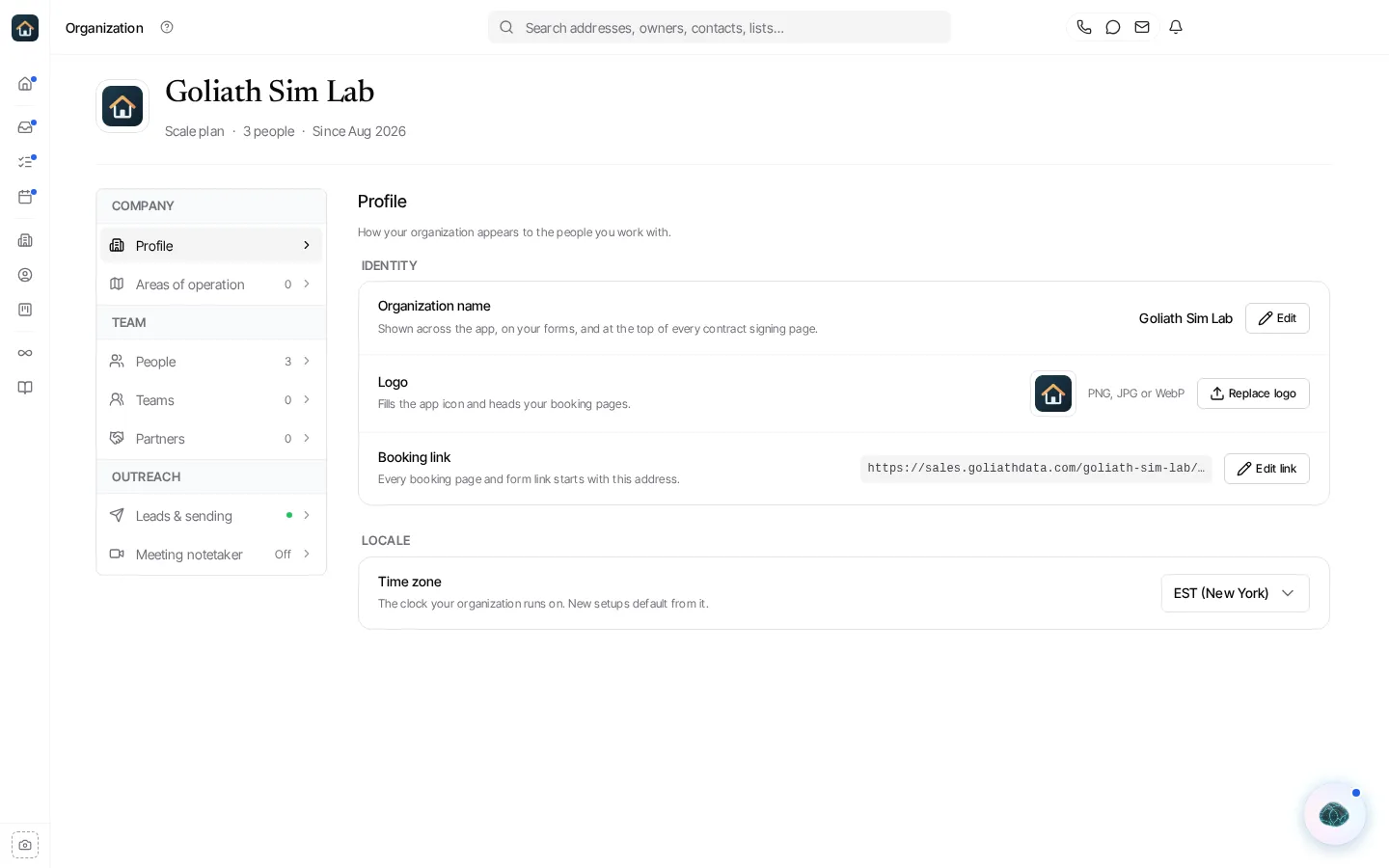
Section titled “Settings live in two menus”Company settings are in the menu at the top of the left rail: Organization, Billing & Plans, Integrations and Phone. Your own are in the menu at the bottom: My Profile and Notifications, which used to be called Notification Preferences. Organization opens as a list of panels such as Profile, Areas of operation, People and Leads & sending. Old links still work.
Simpler property filters
Section titled “Simpler property filters”The property filter menu has seven sections: Location, Property, Owner, Equity & mortgage, Listing, Signals and My lists. Each section opens on its most-used filters, with the rest under More filters, and one search box finds any filter. Signals is one picker with Any signal on top, and a heading picks a whole category. Listing status, Listed by and Listing date replace the old listing filters, Equity is one filter in dollars or percent, and Owner lives replaces the occupancy filters. The contact filter uses the same sections, and saved filters keep working.
Saved filters and lists in folders
Section titled “Saved filters and lists in folders”Manage on Properties and Contacts now shows your saved filters and lists in folders, with who can see each one and a panel for the one you pick. A saved contact filter opens with the sort it was saved with. The built-in Upcoming auctions view is gone, and a saved filter on Auction date does the same job.
New filters for owners and replies
Section titled “New filters for owners and replies”Filter properties by Deceased owner on title, Tired landlord and Long-time owner, with quick filters for condos, townhouses, mobile homes, apartments, commercial and vacant properties. On contacts, Awaiting Reply finds the people whose last text or email to you nobody has answered yet.
Forms that branch, with their own endings
Section titled “Forms that branch, with their own endings”A multi-step form can jump to a later step or finish early based on an answer, and each form can have several endings, each with its own final screen, workflows, AI employees, tags and lists. Forms can be kept in folders, and a form you send to one contact opens with their details filled in and saves the answers on that contact.
A tidier Fields page, and fields you can hide
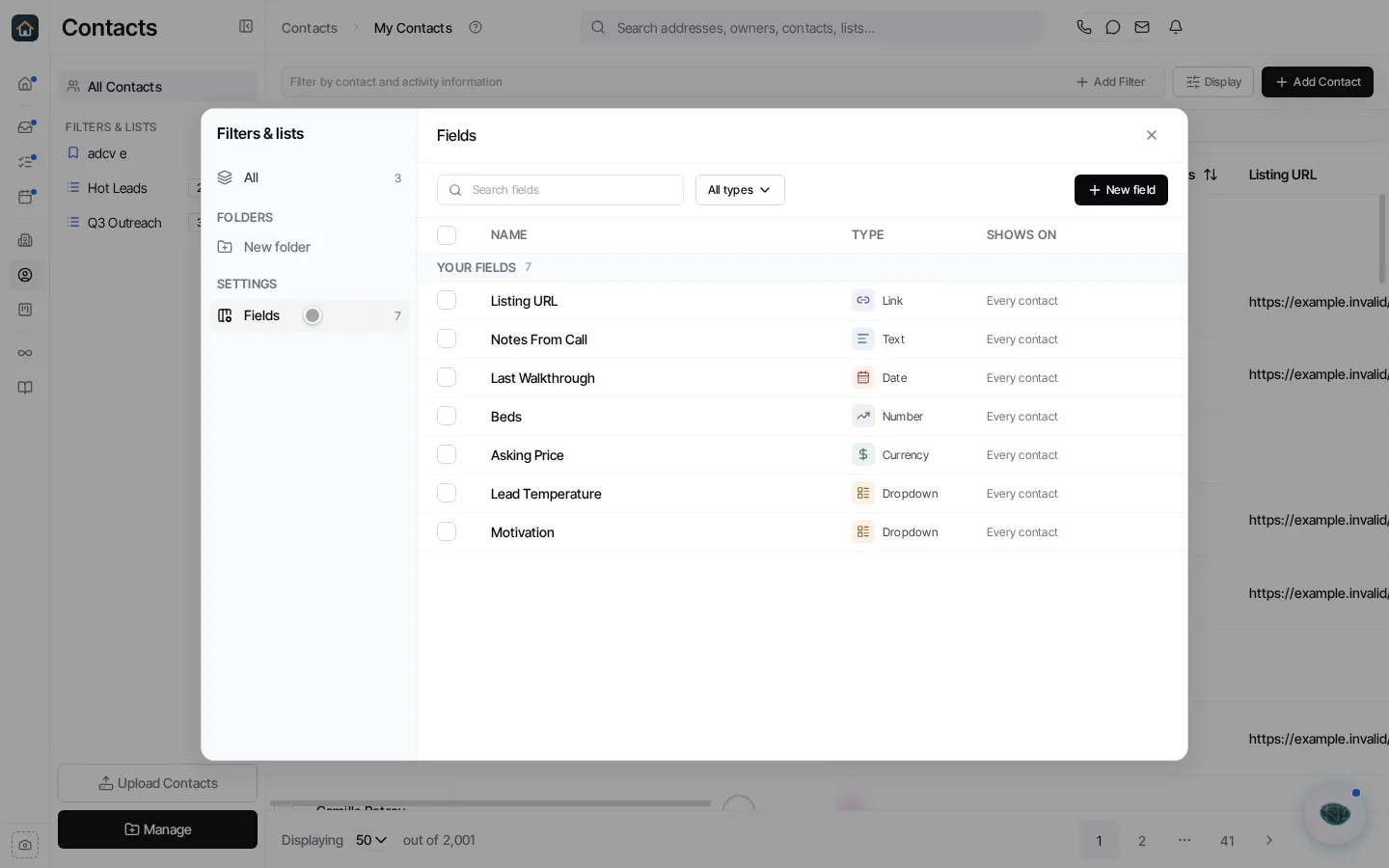
Section titled “A tidier Fields page, and fields you can hide”Contacts, then Manage, then Fields is one compact table. Click a field to edit it in a panel beside the list, or tick several to choose where they show all at once. Most fields, built-in ones like Source included, can be hidden from the contact record with Hide on contact records.
Auction dates in your messages
Section titled “Auction dates in your messages”Workflow texts and emails, team alerts and saved templates can insert Auction Date, the contact’s next scheduled foreclosure sale, from the Foreclosure group of the insert menu.
AI employees can attach files
Section titled “AI employees can attach files”AI employees can attach files from the contact’s Files tab or your content library to the emails and texts they send or suggest.
Texts send instantly, and calls go to the right number
Section titled “Texts send instantly, and calls go to the right number”A text from a contact shows the moment you press Send, and if it cannot go out it says why and offers Retry, so nothing is lost. When a lead calls from their second number, the Call button on their contact dials that number back. To see your Goliath number instead of the caller when a call rings your cell, turn on Show my Goliath number as caller ID in My Profile, under Time & calls.