
Search Properties on the Map

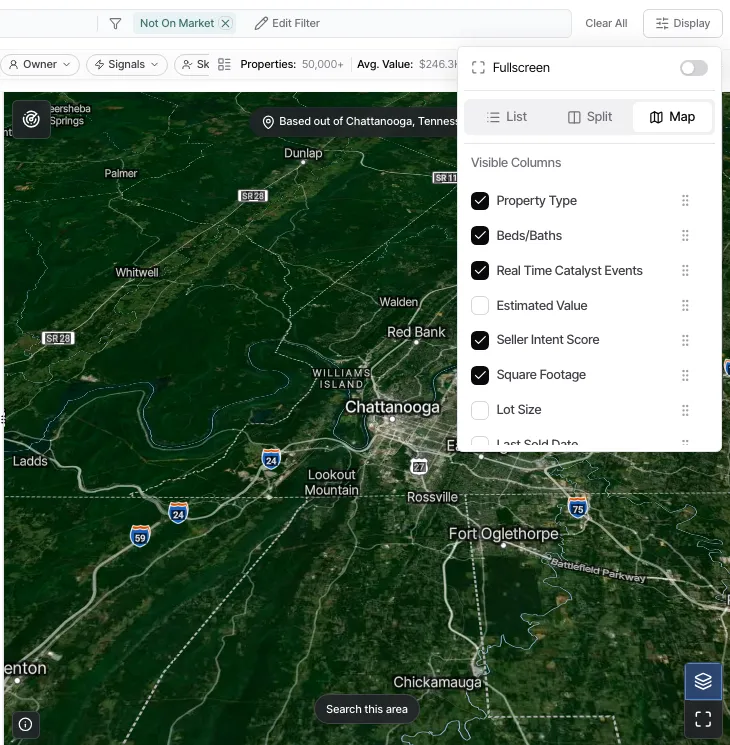
Search the current map area
Section titled “Search the current map area”- Open Properties and switch to a map or split layout using Display.
- Pan and zoom to the area you want to investigate.
- Select Search this area when it appears on the map.
- Review the resulting property set, then add further filters or select records for a bulk action.
The map viewport is separate from a named location filter. If you have both a named location and a viewport boundary, Goliath shows their overlap. Use the in-product location notice to clear the named location when you intend to search only the visible map area.
Draw an area
Section titled “Draw an area”The property map also supports polygon drawing. Use a polygon when a rectangular viewport would include too much territory. The drawn area becomes part of the property search, so verify the resulting records before saving a filter or starting a skip trace.
Open properties from the map
Section titled “Open properties from the map”Select a marker or map card to open that property’s details. Return to the results to continue searching without rebuilding your filters.
Related guides
Section titled “Related guides” Ask Goliath Reading: Search Properties on the Map