
Manage teams
Open the organization menu → Organization → Teams. The Teams section is available to organization administrators. It lists the teams in the organization and is the place to create, edit, or delete a team.

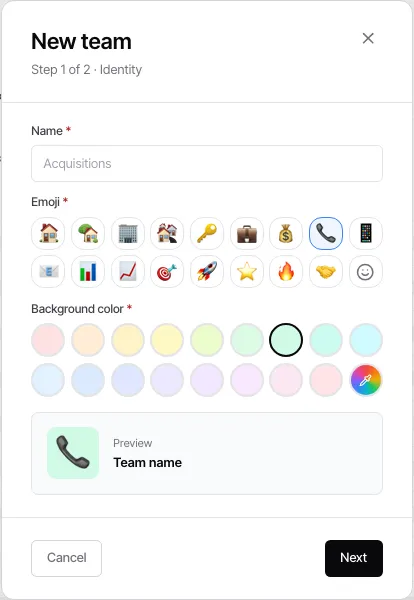
Create or edit a team
Section titled “Create or edit a team”Select New team to create a team, or use a team’s edit action to change it. Choose the people who belong in the team and save the dialog. Team membership is managed separately from the organization roster: adding someone to the organization does not automatically put them in a team.
Use teams where Goliath offers a team as an assignment or routing choice. They help you target group work without changing a person’s individual membership.
Delete a team carefully
Section titled “Delete a team carefully”Use a team’s delete action only after reviewing its dependencies. Goliath asks you to choose how to resolve references before it removes the team. Contacts assigned to that team lose the team assignment; assignments that explicitly name individual people are not changed.
If a team is still used by workflow steps, saved filters, or form-routing pools, resolve those references in the deletion flow rather than assuming the removal is isolated.
If you cannot see Teams
Section titled “If you cannot see Teams”Teams is restricted to organization administrators. Ask an administrator to make the team change or to review your organization role. For membership and number assignment, use Manage people.