
Publish, Pause, and Resume Workflows

Publish a workflow
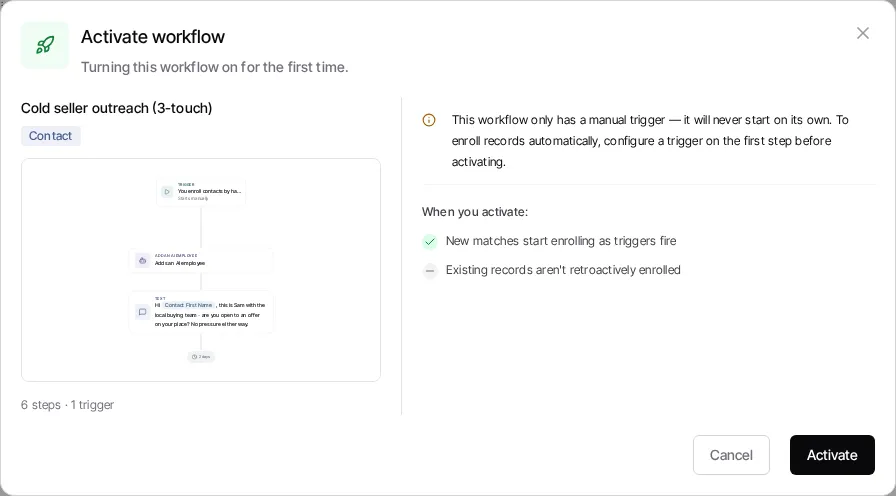
Section titled “Publish a workflow”Open the Workflows tab of Automations, create or open a workflow, and work in its draft. Only drafts are editable. When the graph is ready, select Activate for the first live version. If the workflow already has a live or paused version, choose Publish changes instead.
Selecting Activate first runs the draft readiness check. If the editor shows Fix these before activating, open and correct those items; the activation confirmation is available only after the draft passes that check. Where existing runs are affected, the confirmation presents the available in-flight-run choice. Read that choice before confirming: publishing a new version is not the same as editing a historical run.
The workflows Goliath set up for you during setup (your text campaign, skip trace and status workflows) stay off until an organization admin taps Go live. You can activate one sooner, the same way as any other workflow. See Go live.
Pause and resume
Section titled “Pause and resume”From a workflow’s row or detail view, select Pause to stop the current live version from enrolling new records. Select Resume to restart the most recently paused live version. Resume revives that paused live version; it does not publish an unfinished draft.
Pausing always stops new records from entering. The Pause workflow? dialog also asks what should happen to the ones already going through the workflow: Let them finish lets them keep going until they reach the end, and Pause them too pauses each one at its current step. When you resume the workflow, the ones paused with it pick up at the step they had reached. When there are any, the Resume confirmation tells you first, with the number when Goliath has it. The pause dialog does not show a count. Anyone paused for another reason stays paused.
If a draft exists when you resume, Goliath explains that distinction in the confirmation flow. Publish the draft separately when you want those edits to become live.
Suspended workflows
Section titled “Suspended workflows”A Suspended workflow is one that Goliath stopped, not one a teammate paused, so its row on the Workflows tab of Automations offers no Resume.
The row shows Suspended, the date, and a short reason. Open the workflow and a Workflow suspended panel appears over the editor and explains what happened and what to do. A blocked sending number can pause every text workflow on your account, not only one, and the panel says so when it does. The row buttons named below are in the desktop list; on a phone the row shows the reason only. What to do depends on the reason:
- Sending number blocked: carriers are blocking one of your sending numbers. Remove this number & resume retires that number permanently, along with any other number blocked the same way, and restarts the suspended workflows. If some contacts could not be moved to another number, the confirmation says they are still paused. If Goliath cannot do any of this, for example because you need a replacement number first, it tells you why.
- Texts blocked by carriers: Goliath stopped it early to protect your numbers and drafts carrier-friendlier wording. While it is drafting, the row says so. When the wording is ready, the row offers Review new wording: review the draft, then publish it, and the contacts the suspension held pick up at the step they were on.
- No texts are getting through: every text this workflow has sent was blocked by the carrier. This usually means the number’s carrier registration has not taken effect yet, so check it in the organization menu → Phone → Registration before changing the message. See SMS carrier compliance. The row may say it is preparing carrier-friendlier wording, but none is drafted for this reason, and no button on the row restarts the workflow. Once the registration is sorted out, edit the workflow and publish a new version: that makes the workflow live again for new contacts. The contacts the suspension held stay paused, and you cannot resume them yourself, so text support at (413) 486-5740 to get them going again.
- A step needs a setting or We changed a setting: a step can no longer run because a setting is missing, or because an update on our side changed one you had chosen. Fix the step opens the draft; fix that step, then publish again.
- Your plan ended: an organization administrator can select Restart plan on the row to open billing. Once the plan is active again, check the row: if the workflow still reads Suspended, text support at (413) 486-5740.
- Sending is paused: Goliath did not recognize the cause. Text support at (413) 486-5740.
Inspect and control individual runs
Section titled “Inspect and control individual runs”A workflow may have many runs, one per record journey. The workflow detail view lets you inspect run activity. Individual runs can be paused or resumed; the page also supports bulk run controls. A run marked Waiting to send is queued for a message, while Needs attention signals a stopped run that may have a recoverable reason.
Some workflows are system-managed. Their banner starts with System-managed automation and names what creates and maintains the workflow, for example your appointment reminders, your property signal automations, or Goliath. You can review the workflow and its history, but you cannot edit it or pause or resume its individual runs.