
Phone routing
Open the organization menu → Phone → Routing. This page holds organization defaults; a number can still have its own inbound-contact override.
Call routing (who rings when someone calls, for how long, in which hours, and which AI employee picks up a missed call) is not on this page. It is on the Automations Map, under Phone calls. See Call routing below.

New contacts
Section titled “New contacts”The When someone new texts or calls in card starts at Someone new reaches out, then:
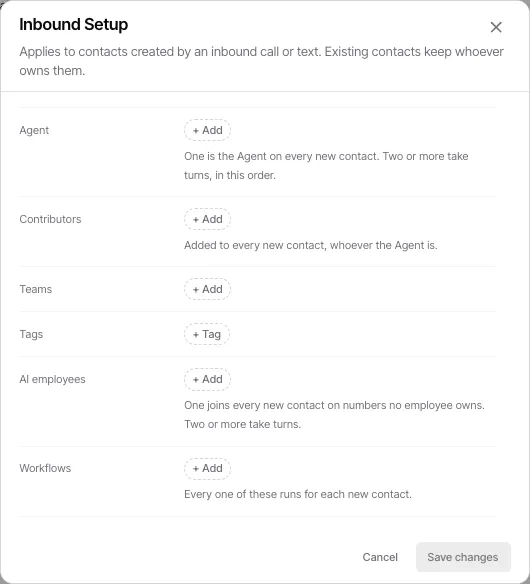
- Who gets the new contact decides who owns and follows up with a contact created by an inbound call or text. See Inbound setup.
- Teammate gets first shot, shown to organization administrators, decides how long a teammate who shares a number with an AI employee has to reply to a brand-new texter before the AI employee steps in. Select Change to set it in Head start on shared lines.
Show what happens on, at the top right, switches between Every number (team default) and one number’s own setup.
Call routing
Section titled “Call routing”Open Automations, then the Map. Under the journeys, the Phone calls area has one row for Calls to every number (the team default) and one row for each number with its own setup.
- Open a row to see its steps: who rings first, for how long, in which hours, and which AI employee picks up a missed call.
- Click a step, then Edit call routing.
- Change who rings, the ringing hours, or who picks up, and save.
Any member can change call routing. You can also ask the Automations chat to change it: it shows you the new path, and the change goes live when you select Publish.
A number with no setup of its own follows Calls to every number.
Outbound defaults
Section titled “Outbound defaults”For organization administrators, the When your team reaches out card provides two policies:
- Text replies go out from controls how Goliath chooses a line for outbound text replies.
- Calls go out from controls how Goliath chooses a line for outbound calls.
Those defaults are applied when a person opens a call or text composer. A person can be offered an appropriate line to choose from, and an active conversation can affect which line is appropriate, so the policy is a default rather than a promise that every communication uses one fixed number.
Administrators also see Suggestions go to: The whole team (everyone who can see a contact works its suggestions together) or The contact’s Agent (each teammate gets the suggestions for the contacts they’re the Agent on; contacts without an Agent go to the whole team).
Caller ID on forwarded calls
Section titled “Caller ID on forwarded calls”Teammates who turn on Show my Goliath number as caller ID in their profile see a Goliath number on their cell when a call is forwarded to it, instead of the caller’s number. Administrators choose which number in the Caller ID on forwarded calls card:
- The number they called shows the line the caller dialed.
- Pick one of your lines to show that one number on every forwarded call, so a teammate who takes calls from several lines saves just one contact.
The chosen number shows only when it is on the same Twilio account as the line that was called. If your organization has numbers on two accounts, a call to a number on the other account shows the number that was called.
Override contact intake for a number
Section titled “Override contact intake for a number”To give one number different new-contact ownership, an organization administrator picks that number in Show what happens on and changes Who gets the new contact: the number then has its own setup. Use team default returns it to the organization default. You can also open the number owner’s phone management sheet under the organization menu → Organization → People, edit its inbound setup, and save.