
Contracts
Contracts turns the PDFs you already use, such as a purchase agreement or an assignment, into templates that fill in from a deal and collect signatures. Open Library → Contracts.
Build a contract template
Section titled “Build a contract template”- Select New contract, then Upload a PDF, and choose your contract PDFs. You can also drop PDFs onto the Contracts page. A contract template is built on a PDF of up to 25 MB.
- Goliath reads the PDF and places the boxes: signatures, dates and the values that fill from a deal or contact. Boxes it wasn’t sure about are marked for you to check.
- Check each marked box, move or rename any that are wrong, and choose who signs and in what order.
- Preview the contract with a real deal, then publish it.
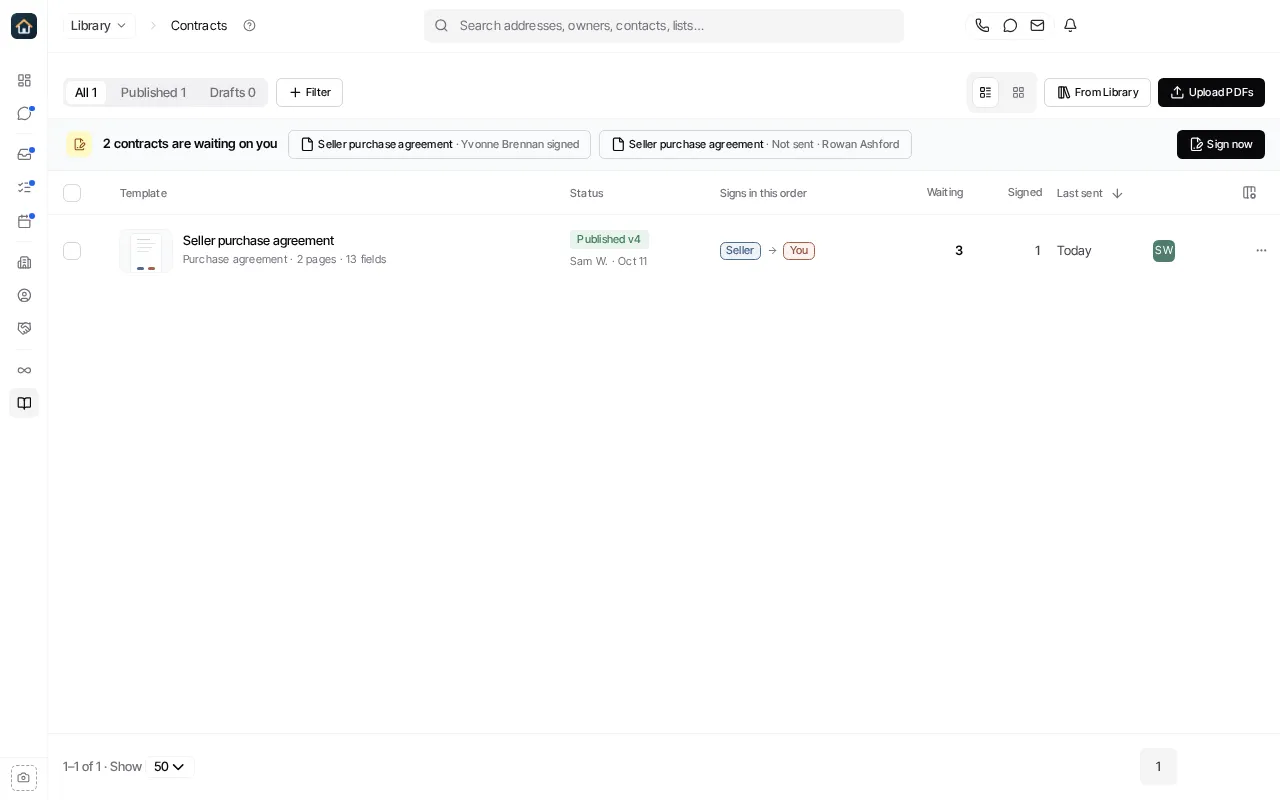
Templates you are still working on are under Drafts; published ones under Published. A template shows its signing order, how many contracts are waiting, how many are signed, and when one was last sent.
Contracts waiting on you
Section titled “Contracts waiting on you”When a contract needs your signature, it is listed under Waiting on your signature at the top of Contracts, and Library’s home page shows it under Needs you. Select Sign beside it to sign. When more than three are waiting, See all lists every one.
Sending contracts
Section titled “Sending contracts”To send one from a template you already published, select New contract, then From your library, and choose the template and who it is for.
Open a published template to see every contract sent from it and where each one stands: not sent yet, out for signature, partially signed, completed, declined or expired.
Sending a contract to signers is opening in stages. If your account can’t send yet, the send button says Contract sending opens soon; you can still build, check and publish templates.