
Test and monitor an AI Employee
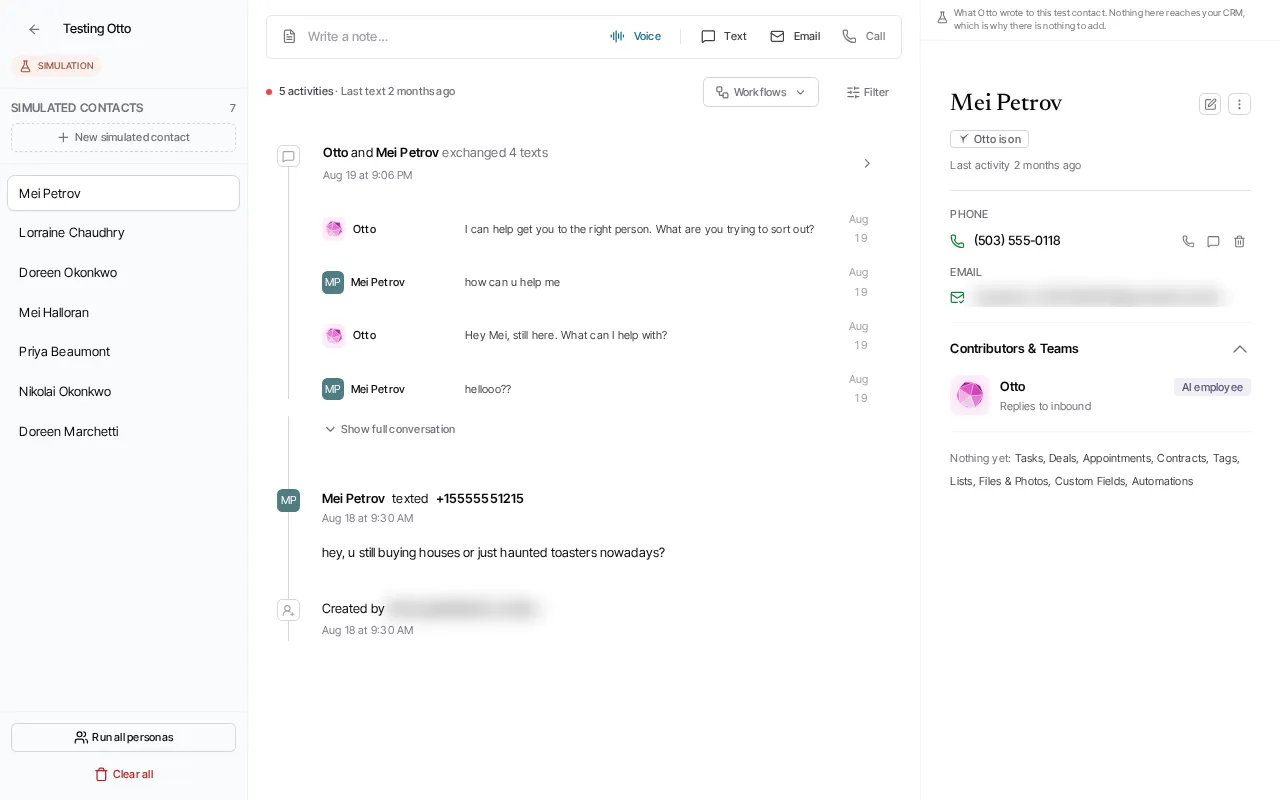
Test an AI Employee before activating it for live contacts, then follow its work where the rest of your team’s work is.
Rehearse before going live
Section titled “Rehearse before going live”- Open the employee from the AI employees tab of Automations and select Test in its header.
- Start a simulated contact conversation and inspect the employee’s responses and resulting workspace activity.
- Use the test view’s call rehearsal when you need to hear a voice interaction.
- Clear the simulated contacts when you are finished.
Simulation data is isolated from your CRM. The test view explicitly shows that its contacts and conversations do not reach the real CRM, so it is the right place to tune an employee before live use.
Monitor live work
Section titled “Monitor live work”- Conversations are on each contact’s timeline and in the workspace Inbox, alongside your team’s.
- Which workflows use the employee is the Map at the top of its page. Select a step to open that workflow.
- A session link (one with
?session=) opens that session over the employee’s page, with the conversation and a plain-language story of what the employee did. If the session belongs to a different employee or is unavailable, the page says so.
There is no separate results screen, contact list, or inbox for one employee.
To change how the employee works, edit its page: Instructions, Reaches by, and Also. You can also tell it what to change in its chat rail.
If you need to stop further work while you investigate, pause the employee first. Review its channel switches and your phone routing before you turn it back on.
Ask Goliath Reading: Test and monitor an AI Employee