
Add waits and conditional branches to a workflow
Use a Wait step to hold a run before its next step. Use a Condition step to split records into Yes and No paths. Both are configured from the workflow draft’s editor.

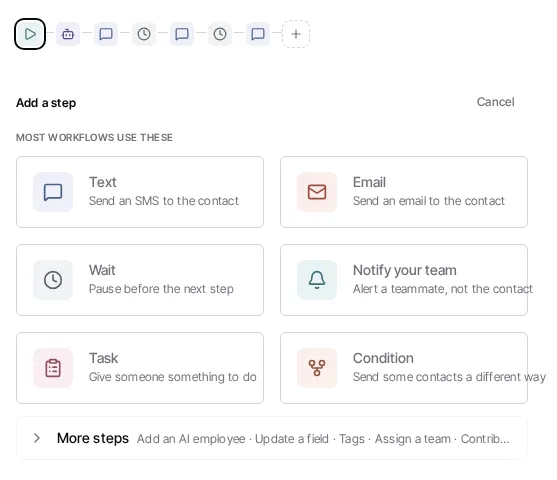
Add a wait
Section titled “Add a wait”- Open the workflow draft and select Steps.
- Select Add a step (the +) at the point where the delay belongs.
- Choose Wait.
- Select the condition that should end the wait and complete its settings.
Every workflow domain can use a fixed duration, including a range. A range spreads release times instead of starting every waiting record at the same moment.
Contact workflows can also wait until the contact replies or until conditions you configure are met. An appointment workflow can offer Until a date on this record when it has a date field that can be in the future. The editor deliberately does not offer those modes where the workflow type cannot run them.
If you use a record-date wait, choose the behavior for a date that has already passed. A record without a usable value in the selected date field stops at that wait instead of continuing to later steps.
Add a branch
Section titled “Add a branch”- Select Add a step where the record should split.
- Choose Condition.
- Set the condition in the panel that opens.
- Add the next steps to the Yes and No paths.
Records that match the condition continue down Yes; all others continue down No. The condition controls are tailored to the workflow domain, so use the filter builder shown in that workflow rather than copying a condition from another domain.
The condition controls are tailored to the workflow domain. For example, an appointment workflow presents appointment-specific conditions rather than the contact controls.
Repeat steps with Go to
Section titled “Repeat steps with Go to”Contact workflows can loop. A Go to step sends the contact back to an earlier step on the same path, so a follow-up sequence repeats until the contact meets one of the workflow’s exit conditions. For example, to check in with a seller every six months until they reply:
- Add a Wait of six months.
- Add a Text step with the check-in message.
- Select Add a step below the text and choose Go to.
- In the panel, set Go back to to the six-month wait.
The contact then waits six months, gets the text, and goes back to the wait. The canvas draws a dashed arrow from the Go to step back up to the step it returns to.
A few rules keep a loop safe:
- Go to is always the last step of its path. The chooser only offers it where a path ends. The End below it closes the path, and nothing can be added between them.
- It can only go back to a step above it on the same path, never to the trigger or to a step on another branch.
- Each round of the loop must wait at least 1 hour. Add Waits with a set delay between the step Go to returns to and the Go to step, adding up to an hour or more, so a contact is never sent around more than once an hour. The workflow shows a warning, and can’t be activated or have its changes published, until it does.
- The contact needs a way out. Keep the exit for when the contact replies turned on, or give a condition inside the loop a branch that ends the workflow.
- Physical mail, email campaign, AI employee, send contract and machine session steps can’t be inside a loop. They run only once per enrollment, so move them above the step Go to returns to.
A loop has no lap limit. The contact keeps looping until they meet one of the workflow’s exit conditions, or the workflow is turned off.
Add an action after the path is clear
Section titled “Add an action after the path is clear”After a wait or either condition branch, choose Add a step again. The chooser shows only actions supported by that workflow’s domain and by your access. Depending on the workflow, this can include sending an SMS or email, notifying a teammate, creating a task, assigning a deal, writing record values, or enrolling a record in another workflow.
Configure each action before publishing. A step chooser is intentionally not a fixed catalog: the exact actions vary by workflow domain and enabled capability.
For safe activation and run review, see Publish, pause, and resume workflows and Monitor and recover workflow runs.