
Organize and Find Workflows
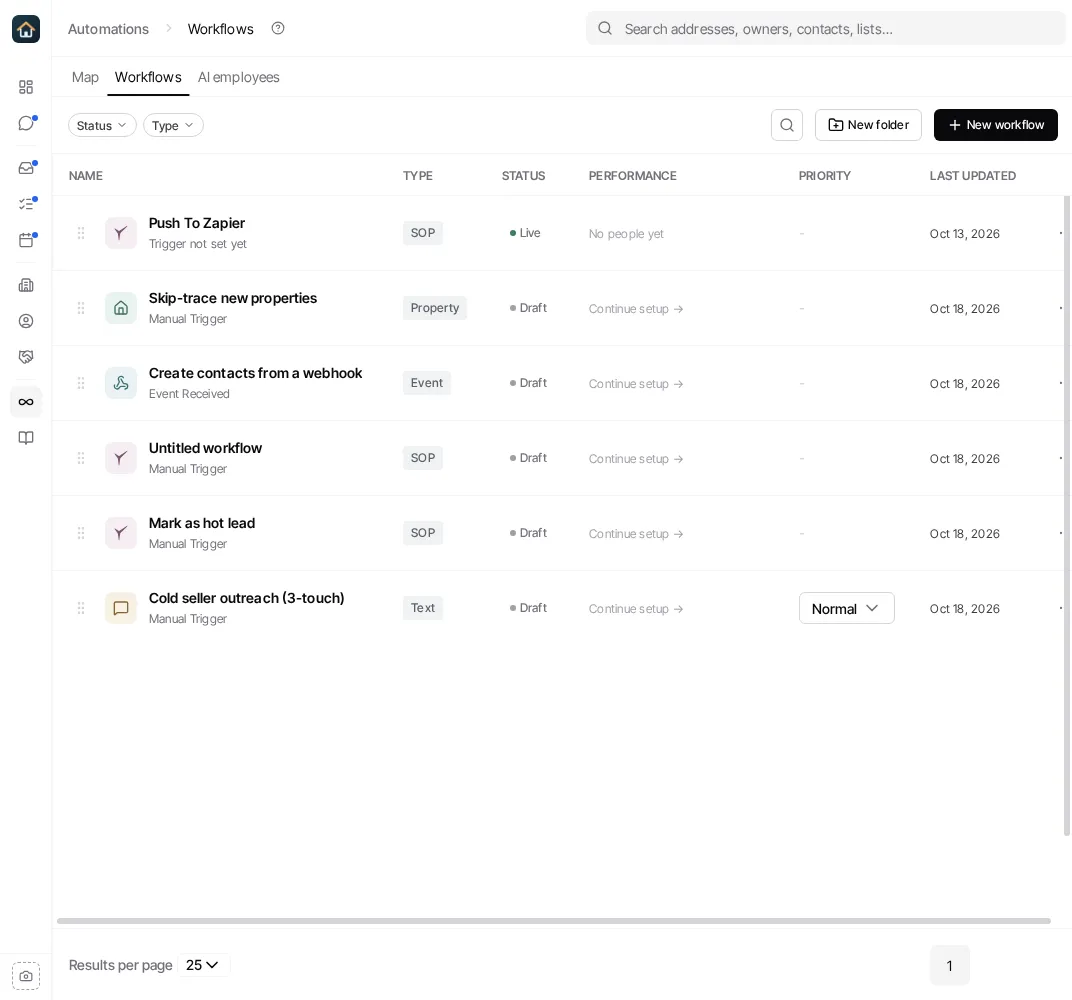
Open Automations in the main sidebar and select the Workflows tab to organize the workflows your organization can use. The list shows workflow folders alongside individual workflows, with the workflow’s type, status, performance summary, priority where applicable, and last-updated date.
Create and use folders
Section titled “Create and use folders”Select New folder to make a folder at the level you are currently viewing. Open a folder to see its contents; the breadcrumb and Back control return you to its parent. You can nest folders by creating a new folder while a folder is open.
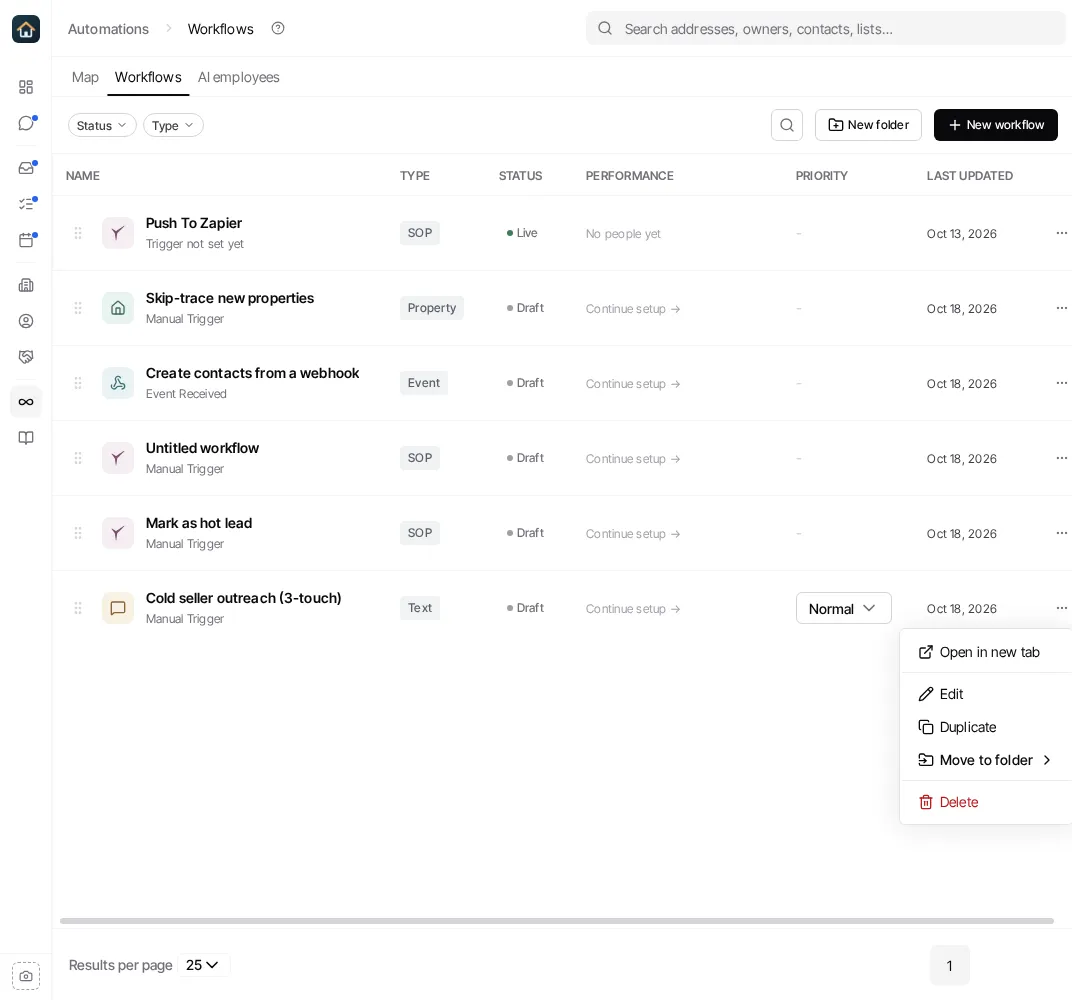
To rename or delete a folder, open that folder’s Folder actions menu. To move a workflow, use its More options menu and select Move to folder. The same menu lets you remove a workflow from its current folder. You can also use the drag handle beside a workflow or folder to move it in the library.
Deleting a folder is a separate action from deleting a workflow. Check the confirmation prompt before you continue so you understand what will happen to its contents.
Narrow the library
Section titled “Narrow the library”Use the search button to find a workflow by name. The two filters at the left of the toolbar narrow the list, each showing how many workflows match:
- Type filters by workflow type, offering the types present for your organization. All types clears it.
- Status filters by status. All statuses clears it.
The statuses are:
- Live shows workflows with an active published version.
- Drafts shows workflows that have not been made live.
- Paused shows workflows whose most recently published version is paused.
- Suspended shows workflows Goliath has stopped, as opposed to workflows a teammate paused. See Publish, pause, and resume workflows for what each reason means and what to do about it.
Folder, type, status, and name filters answer different questions. If a workflow does not appear where you expect, clear both filters and the search before assuming it was deleted.
Keep the library safe to operate
Section titled “Keep the library safe to operate”Use a clear name and a folder that describe the business process, then open the workflow before changing it. The row’s More options menu includes Edit, Duplicate, Pause or Resume when available, and Delete. A workflow can also have an unpublished draft while a previous version remains live; use the status and the workflow detail view to distinguish those states.
For the publishing model, see Publish, pause, and resume workflows. For run-level activity, see Monitor and recover workflow runs.