
Move a Deal to Another Stage
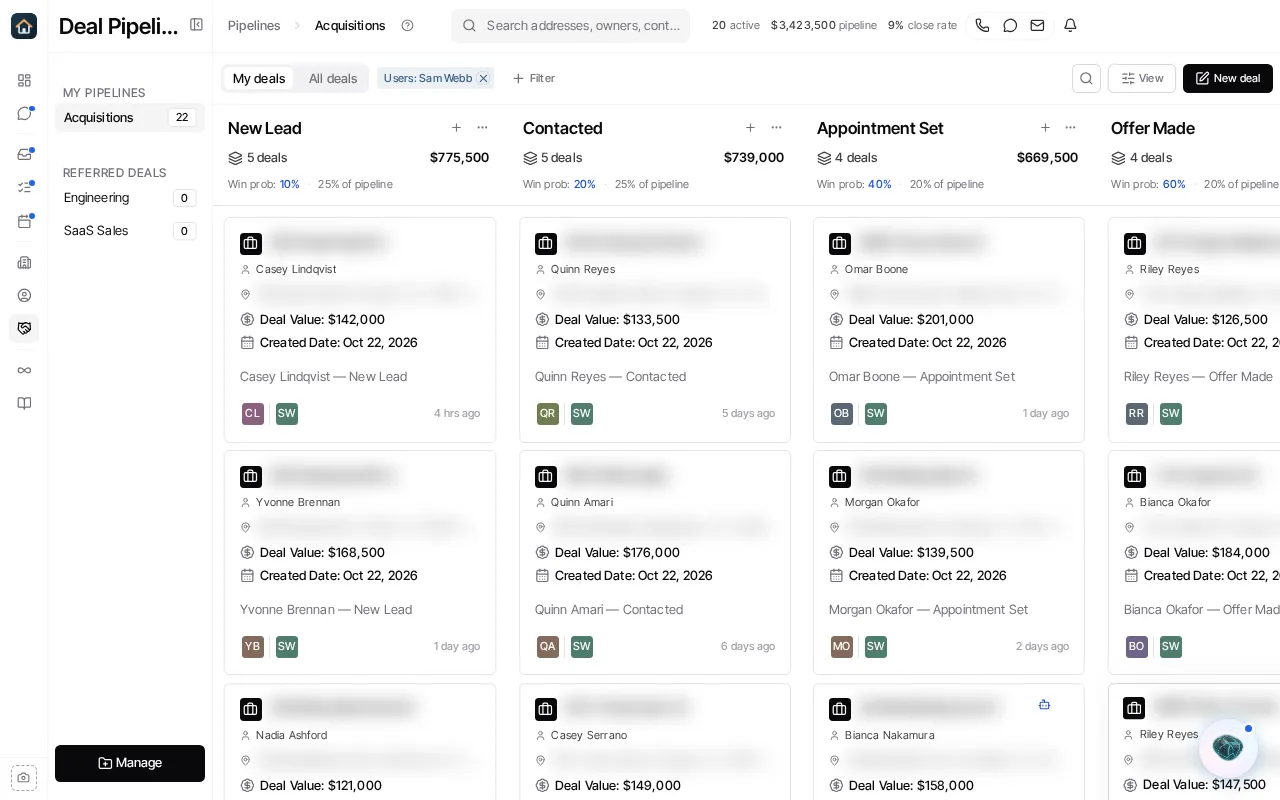
Move a deal on the Board
Section titled “Move a deal on the Board”- Open Pipelines and choose the pipeline that contains the deal.
- Under View, choose Board.
- Drag the deal card to the target stage column.
The available stages come from that pipeline. Goliath saves the move when the card is dropped; there is no separate save button for a Board move.
Change the stage from the deal record
Section titled “Change the stage from the deal record”- Select the deal from Board or List view.
- In the deal record, change the Stage field.
- If you also change the pipeline, choose a valid stage in the new pipeline.
The deal editor uses the selected pipeline to determine its valid stages and saves detail changes automatically. Use this method when you are already reviewing the deal’s other fields.
Move several deals
Section titled “Move several deals”To apply one stage to several deals, check them in Deals (a deal’s checkbox appears when you point at it), then select Edit in the selection bar. Change Stage and apply the bulk update. Fields you leave untouched are not replaced.
Final stages and stage deletion
Section titled “Final stages and stage deletion”Moving a deal to a pipeline’s final stage classifies its outcome. It does not lock the deal or create a separate Reopen action: move it to an active stage when work resumes.
When deleting a stage, use the stage deletion flow. Goliath asks you to resolve affected deals and workflow dependencies; it does not promise a universal automatic destination for those deals.