
Creating Workflows
Open Automations in the main sidebar, select the Workflows tab, then select New workflow. The What do you want to automate? dialog offers goal cards for common starting points and a Start from scratch path for a blank workflow.
You can also describe what you want in the Automations chat beside the list, and Goliath builds the workflow for you. See The Automations page.
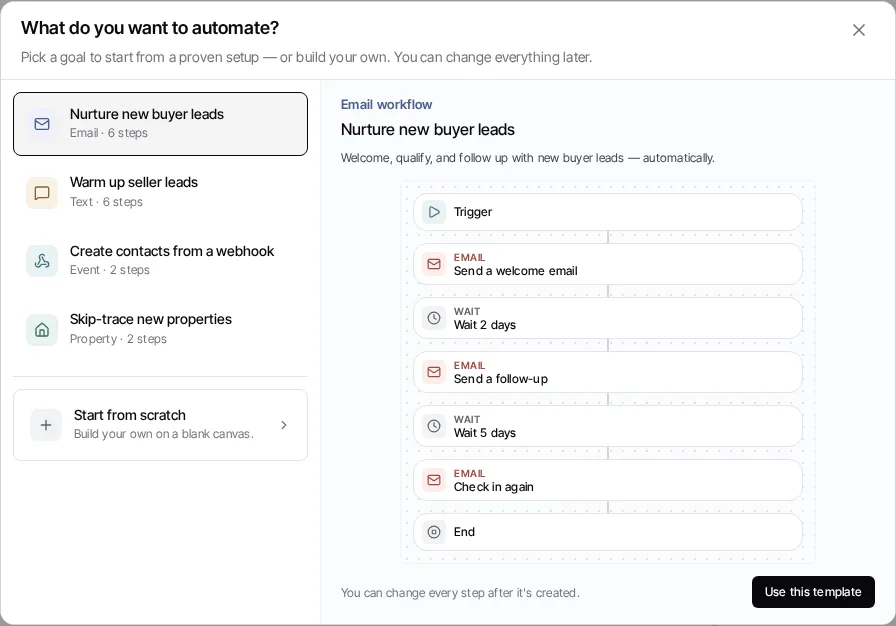
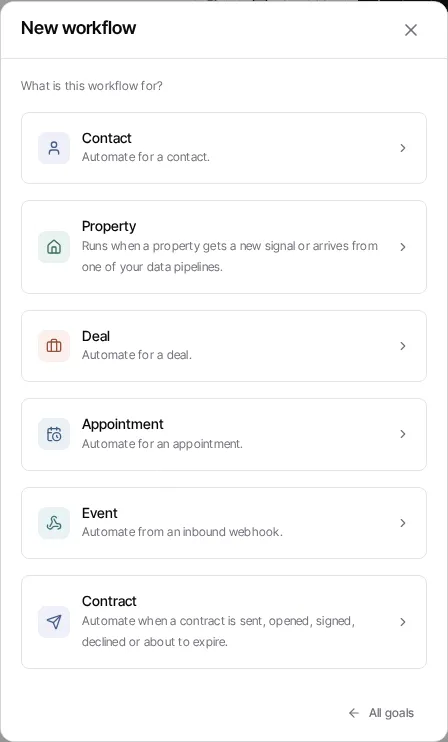
Choose a starting point
Section titled “Choose a starting point”A goal card creates a workflow with a useful initial structure. Select a card to preview its steps, then select Use this template when the goal is close to your use case, and adjust its draft in the editor.
For a blank workflow, select Start from scratch, choose one of the domains available in the picker, and continue. The selected domain changes which triggers and steps the editor offers. The domains shown can vary with your organization’s enabled capabilities and access.
The trigger a new workflow starts with
Section titled “The trigger a new workflow starts with”The starting trigger depends on the workflow type:
| Workflow type | Starts with this trigger |
|---|---|
| Contact, Deal, Property | Manual (“I trigger it manually”). It runs only when someone starts it. |
| Appointment | An appointment is created, or a contact is added to one. |
| Event | Its webhook endpoint receives a request. |
| Slack | A message in a Slack channel. No channel is selected yet, so it runs nothing until you add one. |
| Contract | A contract is signed by everyone, on any template. Created from a contract template’s Add a workflow, it listens to that template only. |
Goal cards follow the same rule for their workflow type.
A workflow whose only trigger is Manual does not enroll records automatically. Set the trigger you want in the editor before activation.
Build, validate, then activate
Section titled “Build, validate, then activate”Build the path in the editor, save the draft, and inspect the workflow before publishing. A contact workflow can also repeat a follow-up: end a path with a Go to step that sends the contact back to an earlier step (see Repeat steps with Go to). The activation dialog validates the graph and warns when the only trigger remains Manual. If your workflow has a live predecessor, the final button is Publish changes rather than Activate.
For a step-by-step walkthrough, see How do I create a workflow?. For the distinction between a draft, a live version, and a run, see Workflow lifecycle.