
Files: My files and Team files
Files is the drive inside Library. Open Library → Files.
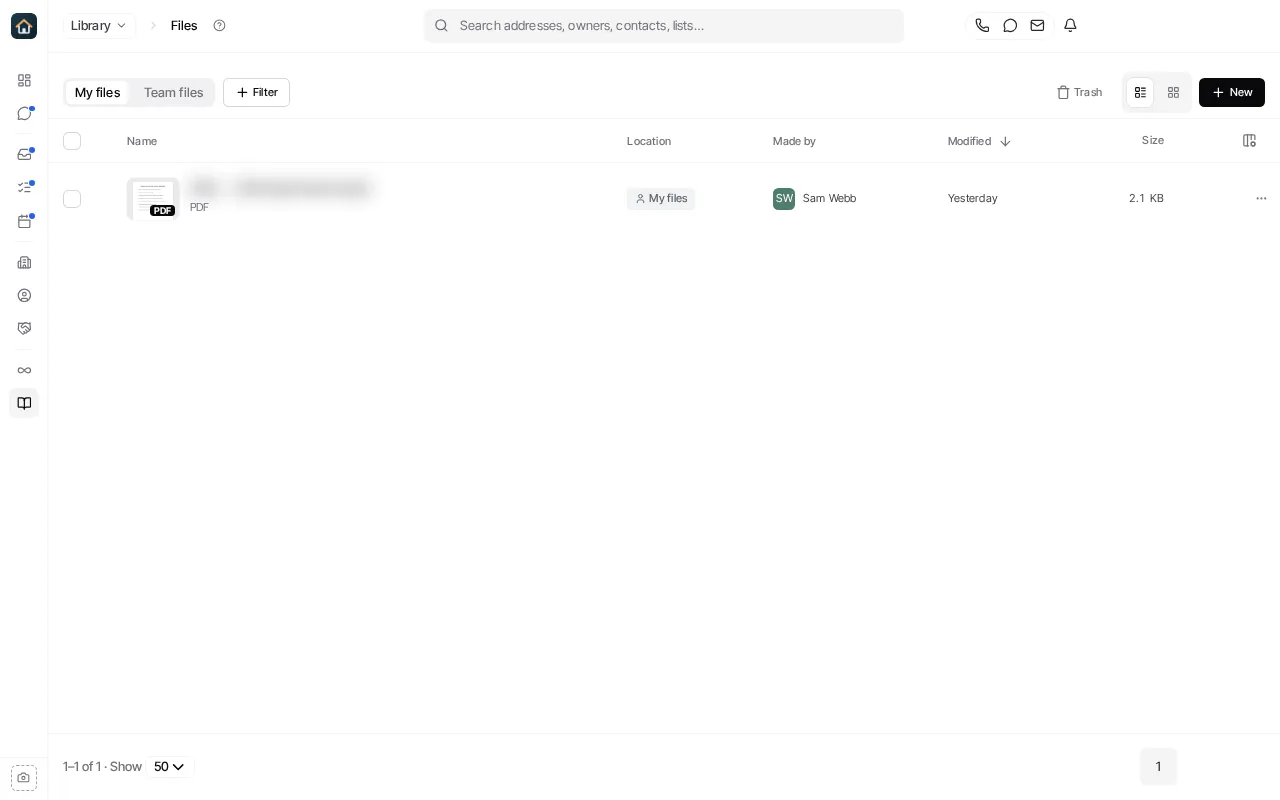
My files and Team files
Section titled “My files and Team files”- My files is yours. Only you see what you put there until you share it.
- Team files is shared with everyone on your team. Anything you add there, everyone on your team will see.
When a teammate shares a file or folder with you, it shows up in My files, marked with who shared it.
Use Filter to narrow the list, and the List and Grid buttons to change how it is laid out.
Add files
Section titled “Add files”- Drag files from your computer onto the page. They go into the folder you have open.
- Select New for Goliath to make a spreadsheet or document from your data: describe what you want (for example “every seller who replied this month, with phone and property”) and Goliath saves it for you. You can also drop in your own files there.
- From the Library home page, New offers Upload files, Document, Spreadsheet and Folder, each made in My files.
Open and edit a file
Section titled “Open and edit a file”Select a file to open it on its own page. Documents and spreadsheets made in Library can be edited in place. PDFs, images and other files open in a preview.
Work with a file or folder
Section titled “Work with a file or folder”Open a file’s or folder’s menu (⋯) for:
| Action | What it does |
|---|---|
| Download | Saves a copy to your computer. |
| Rename | Changes its name. |
| Move to… | Moves it to another folder, in My files or Team files. |
| Make a copy | Makes a copy beside it. |
| Share | Chooses who can open it (below). |
| Details and history | Shows who made it, when, and what changed. |
| Move to trash | Moves it to Trash. |
Share a file or folder
Section titled “Share a file or folder”Select Share to open the sharing panel:
- Under Add people, pick teammates and choose what they can do: Can view (open, preview and download), Can edit (also upload, rename, move and trash) or Can manage (also share and change who has access). Then select Invite. Picking someone only stages them; nobody gets access until you invite them.
- People with access lists everyone who can open it and their access. Change someone’s access or choose Remove access.
- General access sets who else can open it: Only people added, Everyone on your team, or Same as its folder.
- Copy link copies a link teammates can use to open it.
Only someone who can manage an item can change its sharing. Everyone else sees the same panel without the controls.
Select Trash to see what you deleted. Things you trash stay there for 30 days, then they are deleted for good.
- Restore puts an item back.
- Delete forever deletes it now. This can’t be undone.
- Empty trash deletes everything in Trash forever.
Related guides
Section titled “Related guides”- Library overview
- Records: copy a photo or document from a conversation into My files.
- Spreadsheets from Ask Goliath
Ask Goliath Reading: Files: My files and Team files