
The Automations page
Select Automations in the main sidebar. The page has two halves: the automations themselves on the left, and the Automations chat on the right. Three tabs across the top of the left half switch what you see:
- Map: every workflow and AI employee in your organization, drawn as the journeys a lead goes through.
- Workflows: the list of your workflows, where you create, open, organize, publish and pause them.
- AI employees: your AI employees, where you hire one, open it and change its settings.
There is no separate Employees page and no Automations menu any more. Your templates, forms, lookup tables and letters are in Library.
Read the Map
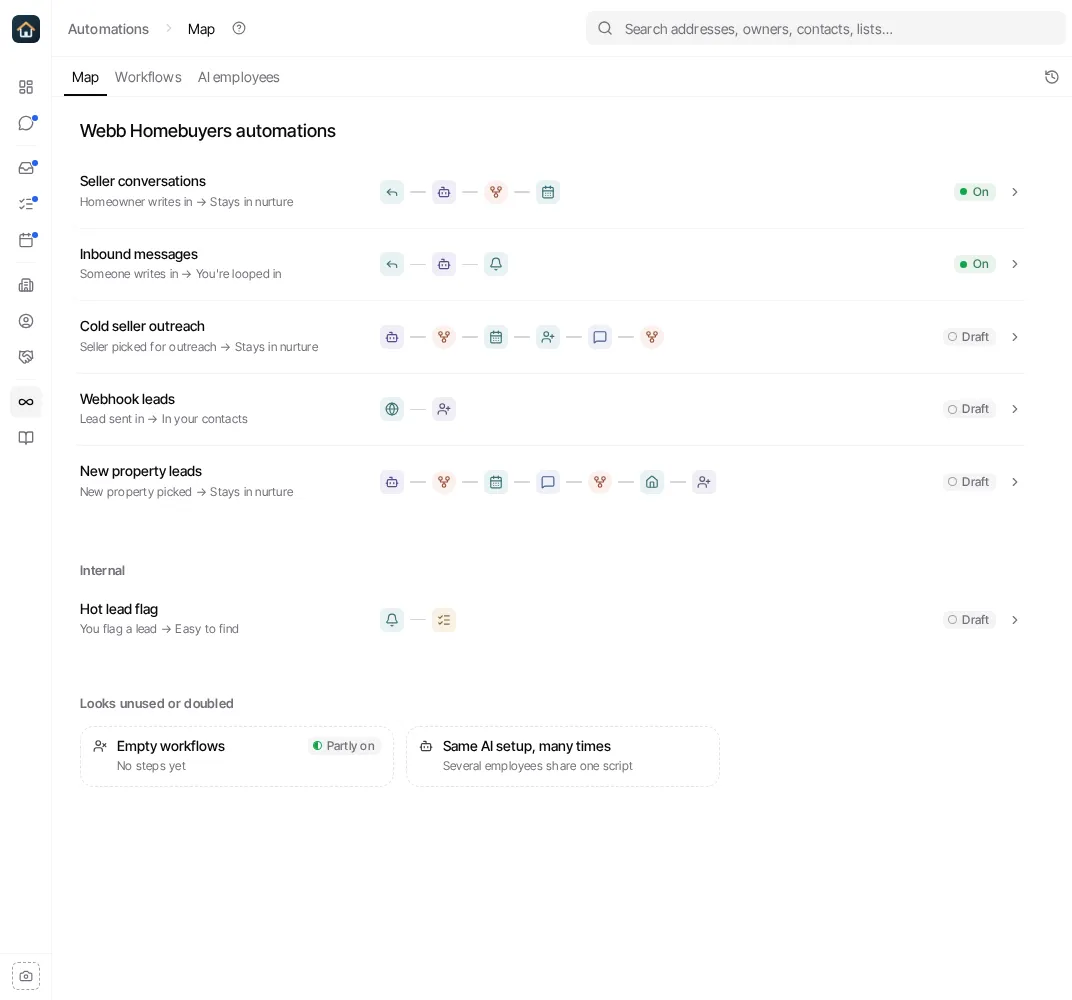
Section titled “Read the Map”The Map is a page Goliath draws from your workflows and AI employees. It is titled with your organization’s name, followed by “automations”.
Each row is a journey: what happens to a lead from the moment something starts it to where it ends up. The row’s name says what the journey is for, the line under it says how it starts and where it ends (for example “Homeowner writes in → Stays in nurture”), and the icons are its steps in order. Workflows and AI employees that hand work to each other, start each other or react to the same tag are drawn as one journey.
The tag at the end of the row says whether it runs:
| Tag | Meaning |
|---|---|
| On | Everything in the journey is live. |
| Partly on | Some of its workflows or employees are live and some are not. |
| Draft | It is built but not live yet. |
| Off | It is switched off. |
The Map can have more groups below the lead journeys:
- Phone calls: what happens when someone calls one of your numbers, drawn from your call routing. Open a row to see who picks up and to change it.
- Internal: journeys that run for your team rather than for a lead, such as flagging a hot lead for a teammate.
- Looks unused or doubled: notes on things worth a look: workflows with no steps, or several AI employees set up the same way. Open a note for its details.
Open a journey
Section titled “Open a journey”Select a row to open the journey as a diagram. A journey that branches shows each path with its label, such as Yes and Not yet. Select a step to see what it does, how it runs and what it runs on, and use Open workflow or Open AI employee to go to the record behind it. The back arrow returns you to the list of journeys.
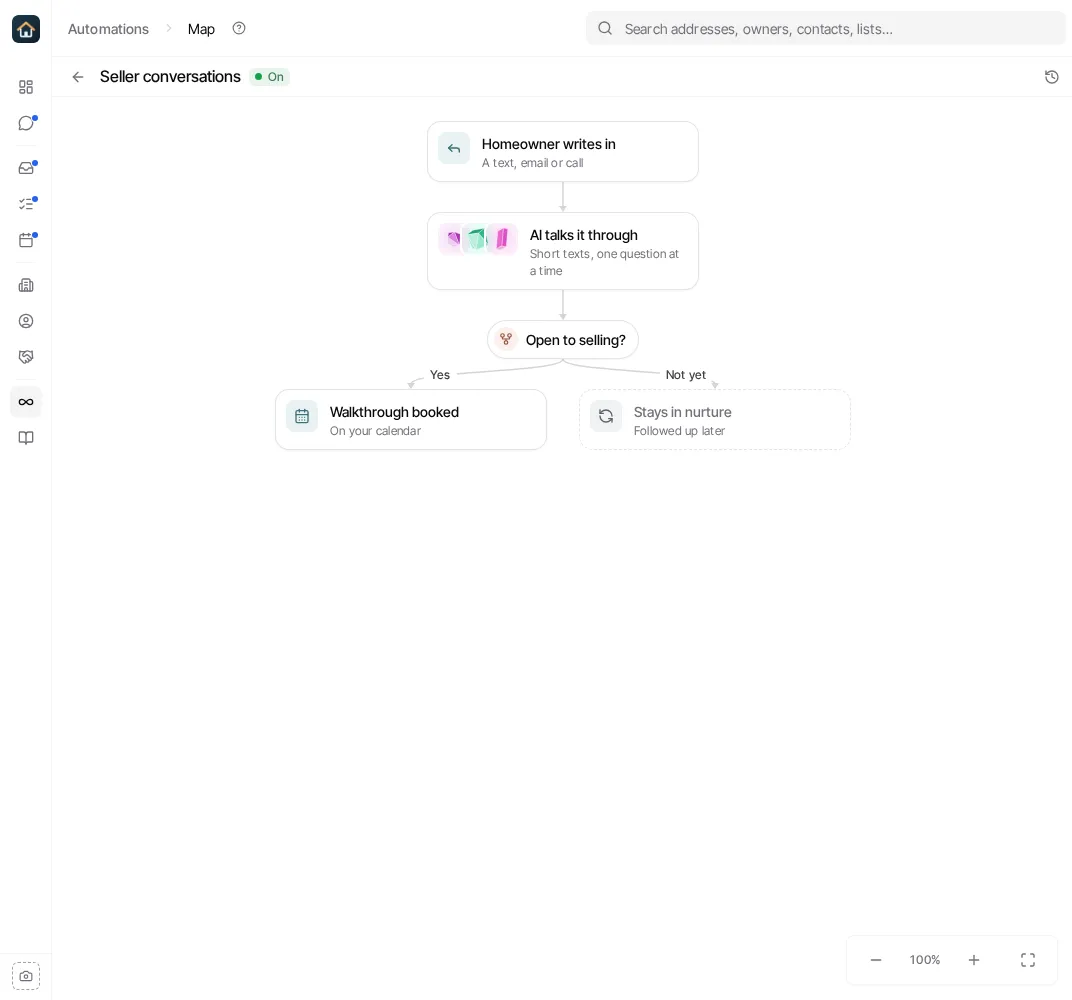
The Map redraws itself after a workflow or AI employee changes. The Versions button (the clock at the right of the tabs) lists earlier versions of the Map; select one to preview it.
When nothing is built yet
Section titled “When nothing is built yet”An organization with no automations sees a short set of starting points instead of journeys, such as Text back missed calls. Select one, or describe what should happen in your own words, and the Automations chat builds it and draws it on the Map.
The Workflows tab
Section titled “The Workflows tab”The Workflows tab is your workflow list. Filter it with Status and Type, search it by name, and use New folder and New workflow. Selecting a workflow opens its editor in the same place; the back arrow returns you to the list.
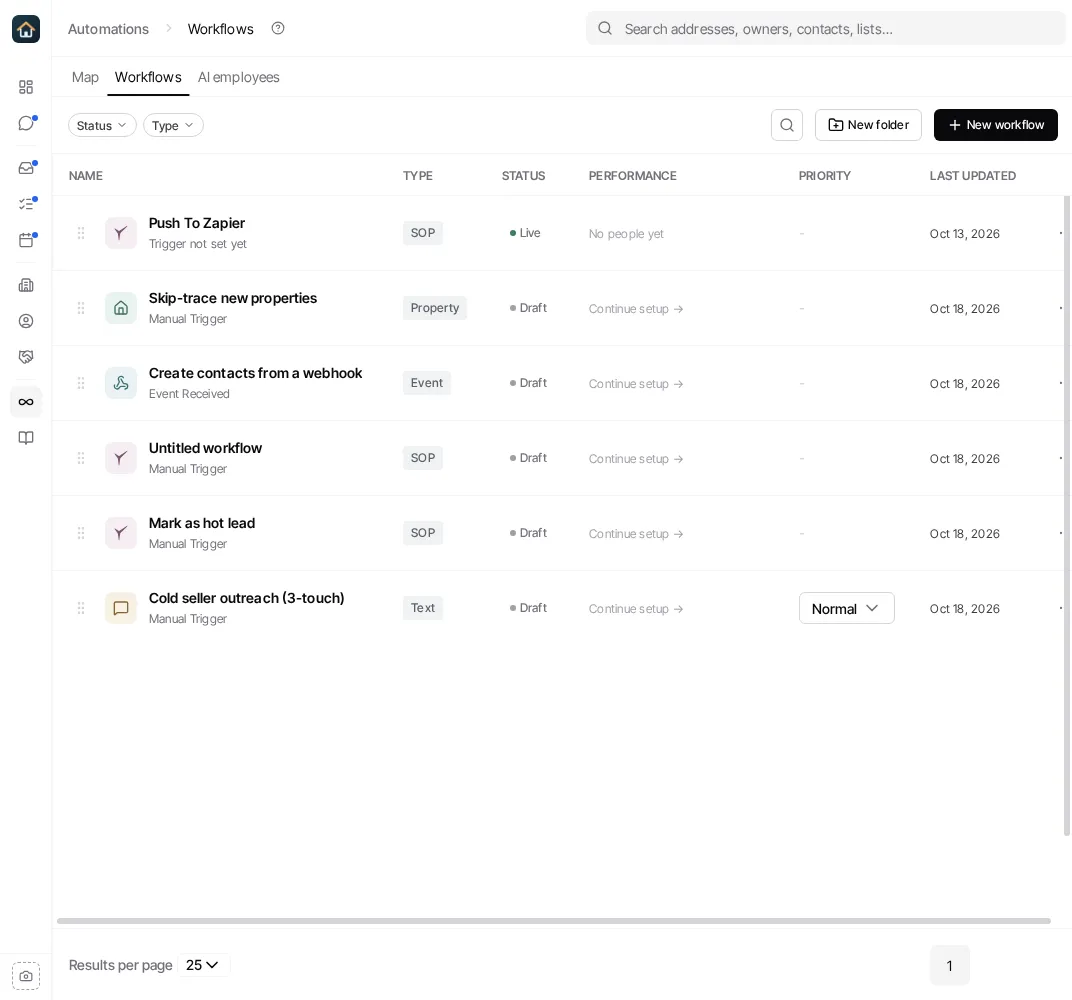
See Workflow Automations and Organize and find workflows.
The AI employees tab
Section titled “The AI employees tab”The AI employees tab lists your employees, grouped by whether they are On the clock or Paused, with a card to Hire another employee. Selecting an employee opens its one page: its part of the Map, Instructions, Reaches by and Also. The back arrow returns you to the list.
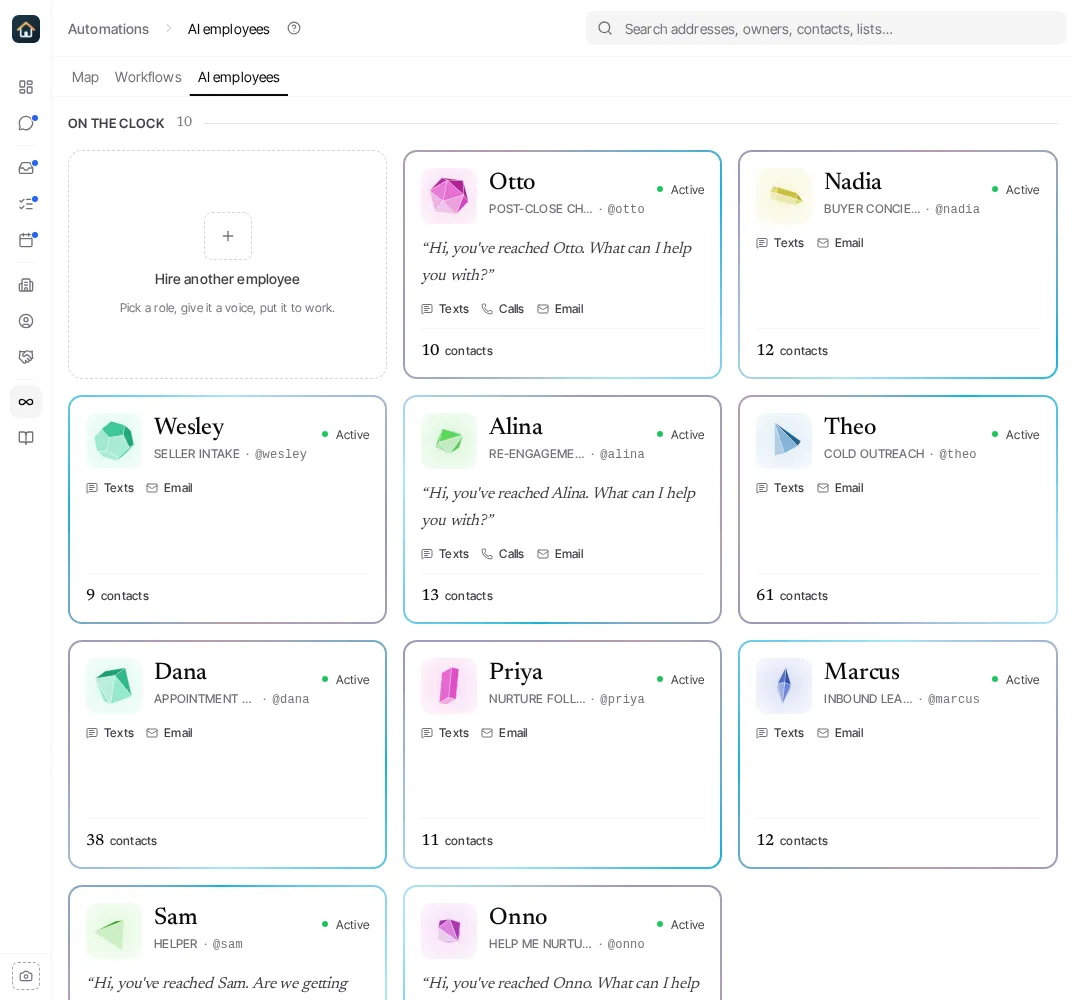
See AI Employees.
The Automations chat
Section titled “The Automations chat”The chat beside the tabs is Goliath, working on your automations. Ask it what something does (“Why did this lead get two texts?”) or ask it to build or change something (“Text new website leads right away”). What it builds shows up on the Map and in the Workflows and AI employees lists, where you can review it before you turn it on.
On a phone, the chat is a bar at the bottom of the page. Tap it to slide the conversation up over the page.