
Downloads and exports
Downloads keeps every export your team made, so you can download it again later. Open Library → Downloads.
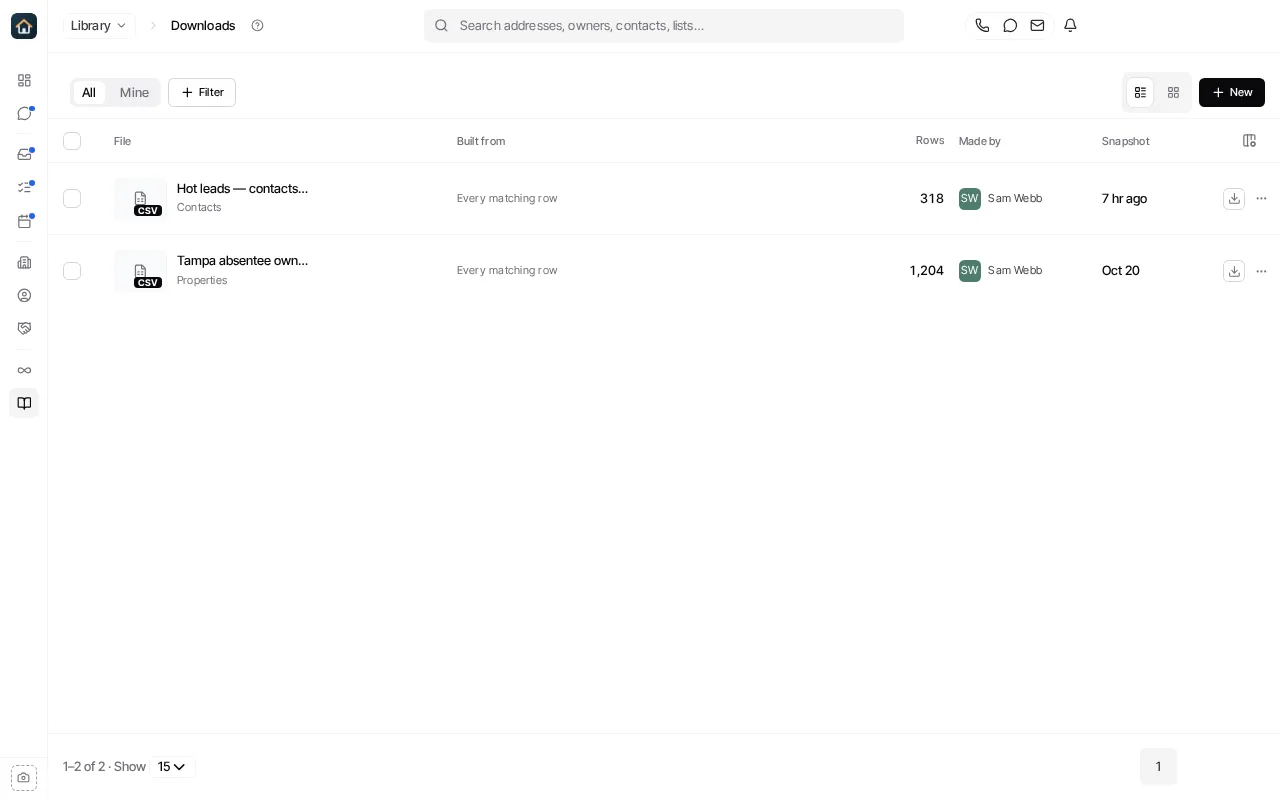
Each download shows what it was built from, how many rows it has, who made it, and when the snapshot was taken. Use Mine for your own, and Filter for Skip traces or This week.
Make an export
Section titled “Make an export”- From Contacts or Properties: select the records, then choose Download file. See Export properties.
- From a skip trace: the result is saved here. See Skip trace a list.
- From Downloads itself: select New and tell Goliath what to export, for example “every contact tagged hot seller, with phone numbers”. Goliath makes the file without a trip to Contacts first.
An export can take a moment to prepare. Wait for it here rather than starting the same export again.
Download a file
Section titled “Download a file”Select the download button on the row, or open the download to see its rows first. The formats offered depend on the export, for example Download as csv, Download as xlsx or Custom download. Choose from the menu rather than assuming every export offers the same formats.
Opening a download shows what it was built from, its rows, and the file itself. Copy to My files saves a copy in Files, and View in Contacts or View in Properties opens the records.
A download is a snapshot of the data when it was made. Editing the file on your computer does not change anything in Goliath; to get fresher data, make a new export.
Remove a failed export
Section titled “Remove a failed export”Completed exports can’t be deleted. An export that failed and produced no file can be removed with Delete export from its ⋯ menu. This can’t be undone.