
Configure workflow triggers
A trigger decides when a live workflow starts a run. New contact, deal and property workflows begin with a Manual trigger, which is useful for deliberate testing but does not watch for changes automatically. Appointment, event, Slack and contract workflows begin with their own type’s trigger; see Creating Workflows.
Change the trigger in a draft
Section titled “Change the trigger in a draft”-
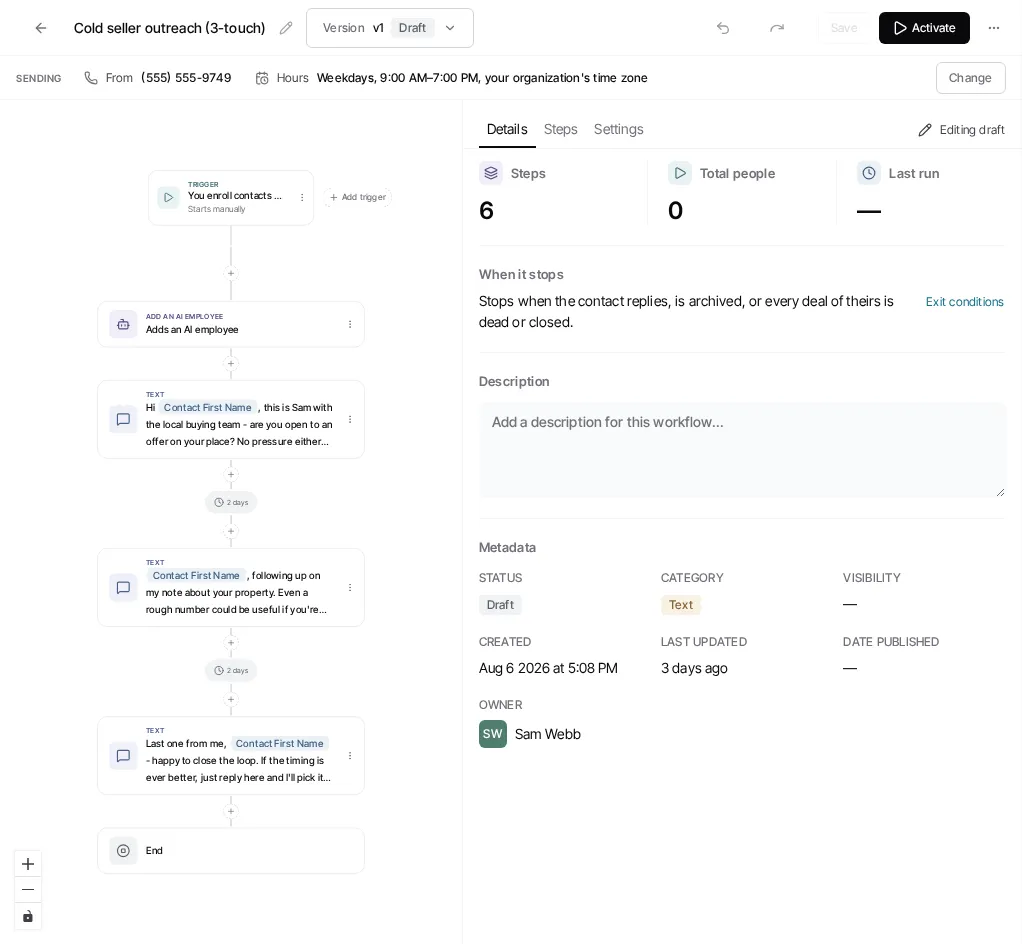
Open the Workflows tab of Automations and open the workflow’s draft. If you opened a live workflow, choose Edit first.
-
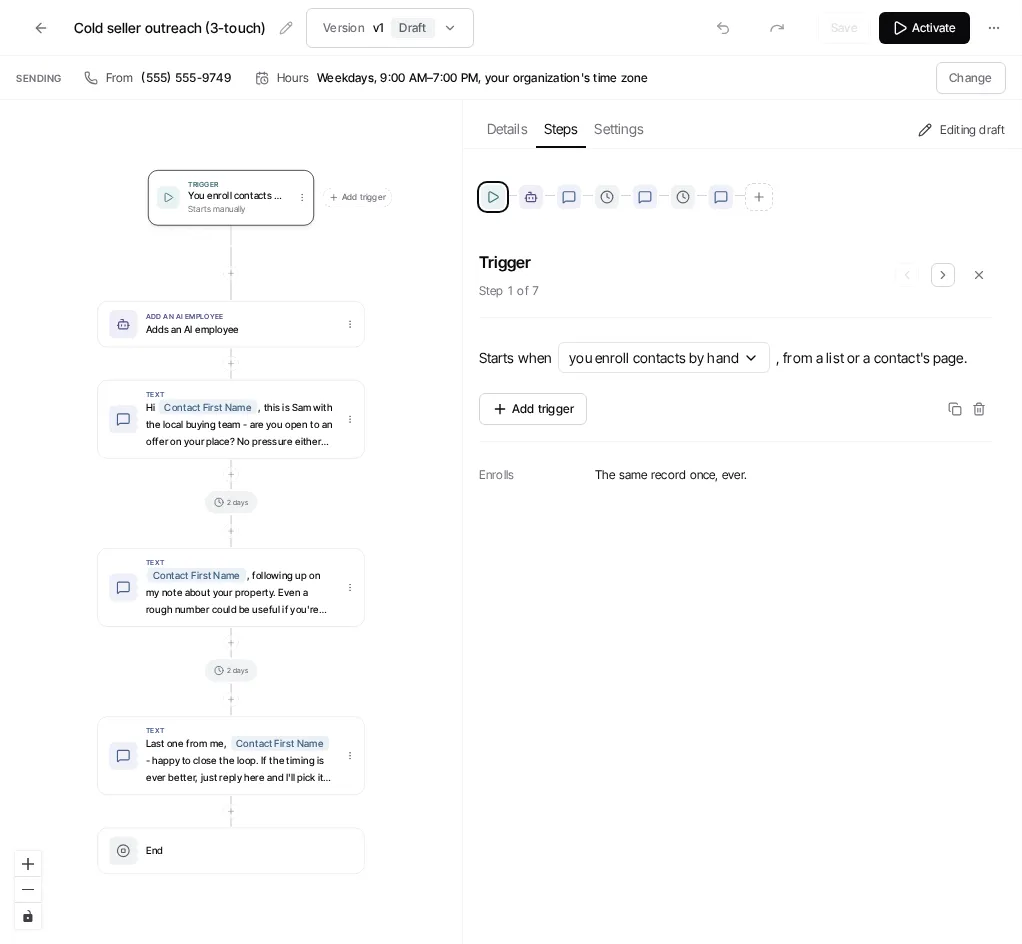
In the editor’s Steps tab, select the trigger (step 1). It reads Starts when followed by what starts the workflow, such as you enroll contacts by hand.
-
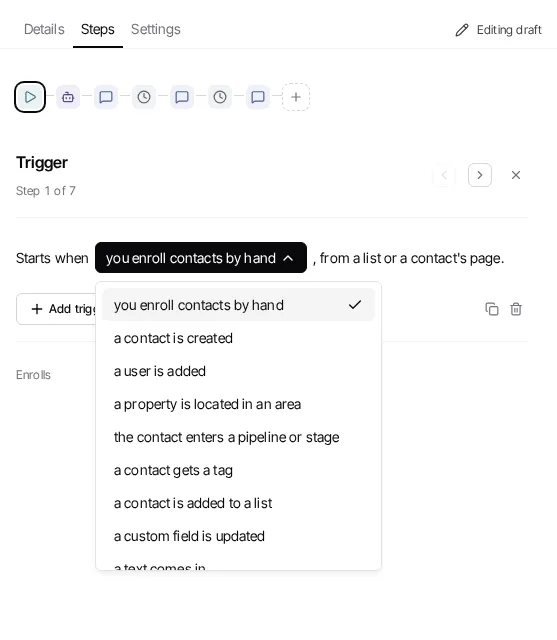
Open the menu after Starts when, choose the trigger, and complete the fields it presents. Add trigger adds another way to start the same workflow.
-
Save the draft, then select Activate or Publish changes when the workflow is ready.
The trigger editor is specific to the workflow’s record type. Do not assume a trigger available in one kind of workflow is available in another.
Contact-workflow triggers
Section titled “Contact-workflow triggers”For a contact workflow, the current trigger picker includes these options:
- You enroll contacts by hand
- A contact is created
- A user is added
- A property is located in an area
- The contact enters a pipeline or stage
- A contact gets a tag
- A contact is added to a list
- A custom field is updated
- A text comes in
- An email comes in
- Something happens on the contact
- A call comes in
- A communication happens
The picker lets you narrow the trigger where that type needs more context. For example, an inbound-text trigger can be limited to selected phone numbers.
Manual does not mean automatic
Section titled “Manual does not mean automatic”A workflow with only a Manual trigger can be published, but it runs only when someone starts it deliberately. Use Manually trigger workflows to enroll selected contacts or deals after it is live.
The activation flow warns when Manual is the only trigger. If your goal is an automatic response, replace it with the appropriate source trigger before publishing; see Inbound response workflows.