
Integrations overview
Open the organization menu → Integrations to connect and manage the services available to your organization. The page groups cards by the job they perform and shows which connections are currently active. What a card can do depends on its own setup and permissions, so use its status and configuration controls instead of assuming every connected service shares data in the same way.

Email and calendar
Section titled “Email and calendar”- Google connects a Google account for email, calendar, and contacts.
- Microsoft connects an Outlook or Exchange account.
These are account connections. The card identifies the connected mailbox and lets you manage its settings. Read Email and calendar before connecting either provider.
Lead management and automation
Section titled “Lead management and automation”- Facebook Lead Ads receives connected Page lead submissions and offers a lead-handling setup once a Page is connected.
- Slack connects the organization workspace so workflow Slack steps and form notifications can post to its channels. See Connect Slack.
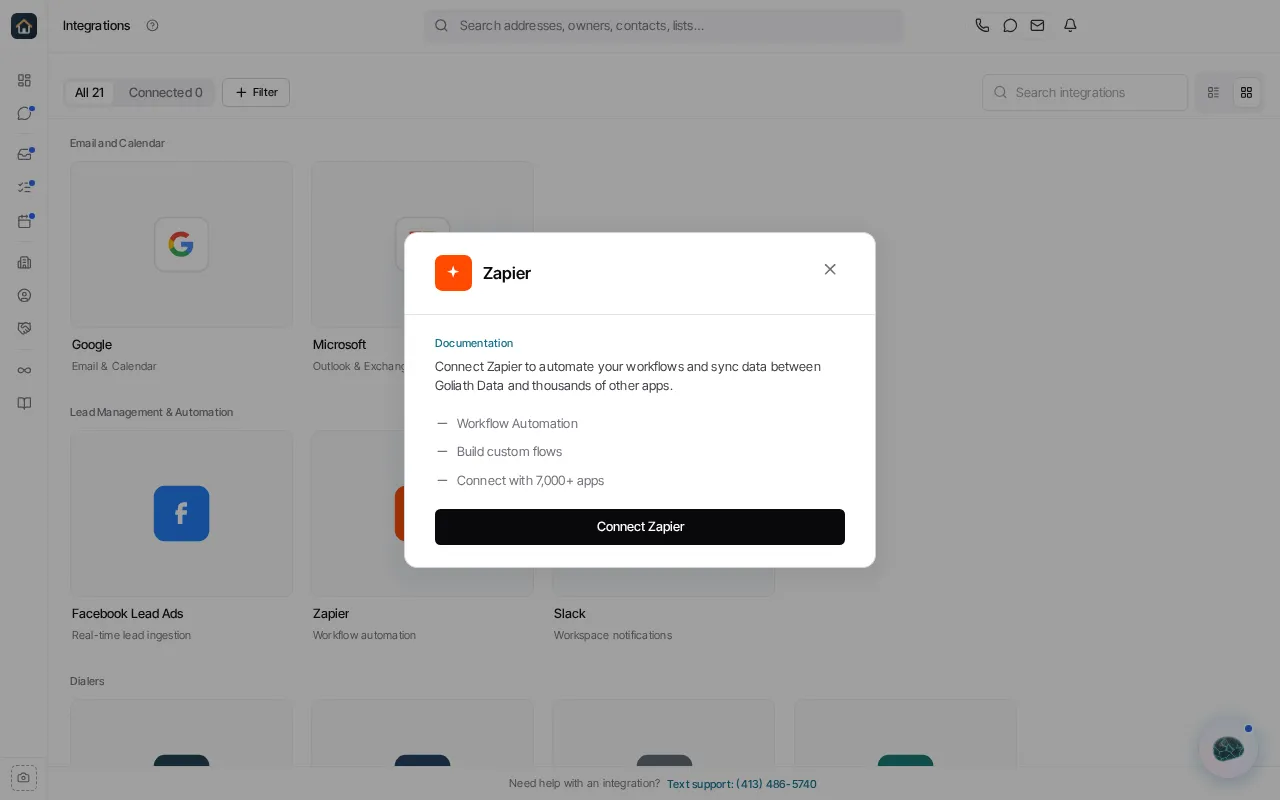
- Zapier opens the Goliath Data integration directory on Zapier, where you can review the current Zapier options and build flows with other apps.
Mailers
Section titled “Mailers”Open Letter Connect, PostGrid and Lob each connect your organization’s own account with that mail provider, so a contact workflow’s Send physical mail step can mail letters. Each provider bills your account at its own pricing. The Mailers cards appear only for organization administrators. See Send physical mail with Lob, PostGrid or Open Letter Connect for the setup.
Dialers and data enrichment
Section titled “Dialers and data enrichment”The directory includes cards for CallTools, Enzo Dialer, and smrtPhone, plus Trestle for organization-provided phone validation and lookup credentials. Use the card for the connected service to see its current state and configuration options.
Developer connections
Section titled “Developer connections”- Webhooks create secure HTTP endpoints that external services can use to push contacts into Goliath. You can label, enable, and disable each webhook. Read Incoming webhooks before use.
- Skip Trace API and API Keys are developer controls. API Keys appears only for organization administrators. Read Manage API keys for the customer-facing setup, and use the developer documentation linked from the card for API details.
Before you connect anything
Section titled “Before you connect anything”- Confirm you are in the organization that should own the connection.
- Use an account authorized to grant the required provider permissions.
- Check the card’s connection state after returning from the provider.
- Configure the feature that consumes the connection, for example, a workflow Slack step, a connected Facebook Page, or a webhook consumer.
Disconnecting a card stops future use of that connection. Check the card’s confirmation and any dependency information before disconnecting a mailbox or other resource used by your team.