
Live pages
A live page is a report or dashboard Goliath builds from your data, such as a weekly team scorecard or this month’s pipeline. It is live: while the page is open, it reads your data again, so the numbers stay current. Open Library → Live pages to see them.
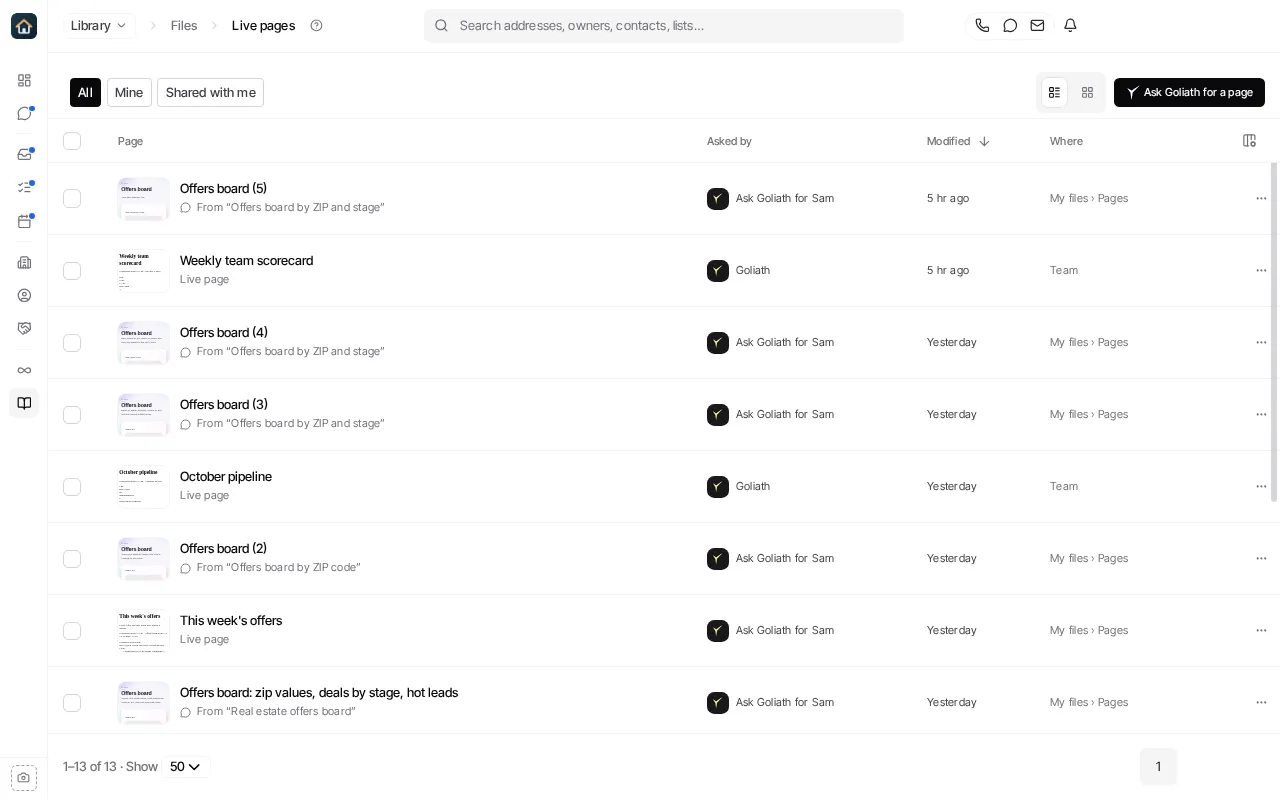
Get a new page
Section titled “Get a new page”- Select Ask Goliath for a page (or New → Live page on the Library home page).
- Say what the page should show, for example “new leads by source this month” or “my team’s texts, calls and meetings over the last 14 days”.
- Goliath builds the page in a chat beside it, and the page appears when it is ready.
You can also ask for a page from any chat with Ask Goliath. Pages it makes are saved here.
Find a page
Section titled “Find a page”Use All, Mine and Shared with me to narrow the list, and the List and Grid buttons to change the layout. Each page shows who asked for it or the chat it came from, and when it last changed.
Change a page
Section titled “Change a page”Open the page. Its chat sits beside it: ask Goliath for the change, such as “split this by teammate” or “add last month for comparison”. Select the information button to open the page’s details, including earlier versions; Back to the current version returns to the live page.
Share or remove a page
Section titled “Share or remove a page”A page’s menu in the list offers Open and Open in Chat. To let your whole team open a page, open it and select Share with team at the top of the page; a page already shared shows that instead.
To remove pages, select them in the list and choose Trash in the bar that appears. Only pages you may remove can be trashed; see Files for Trash.