
Use Inbox Channels and Quick Filters
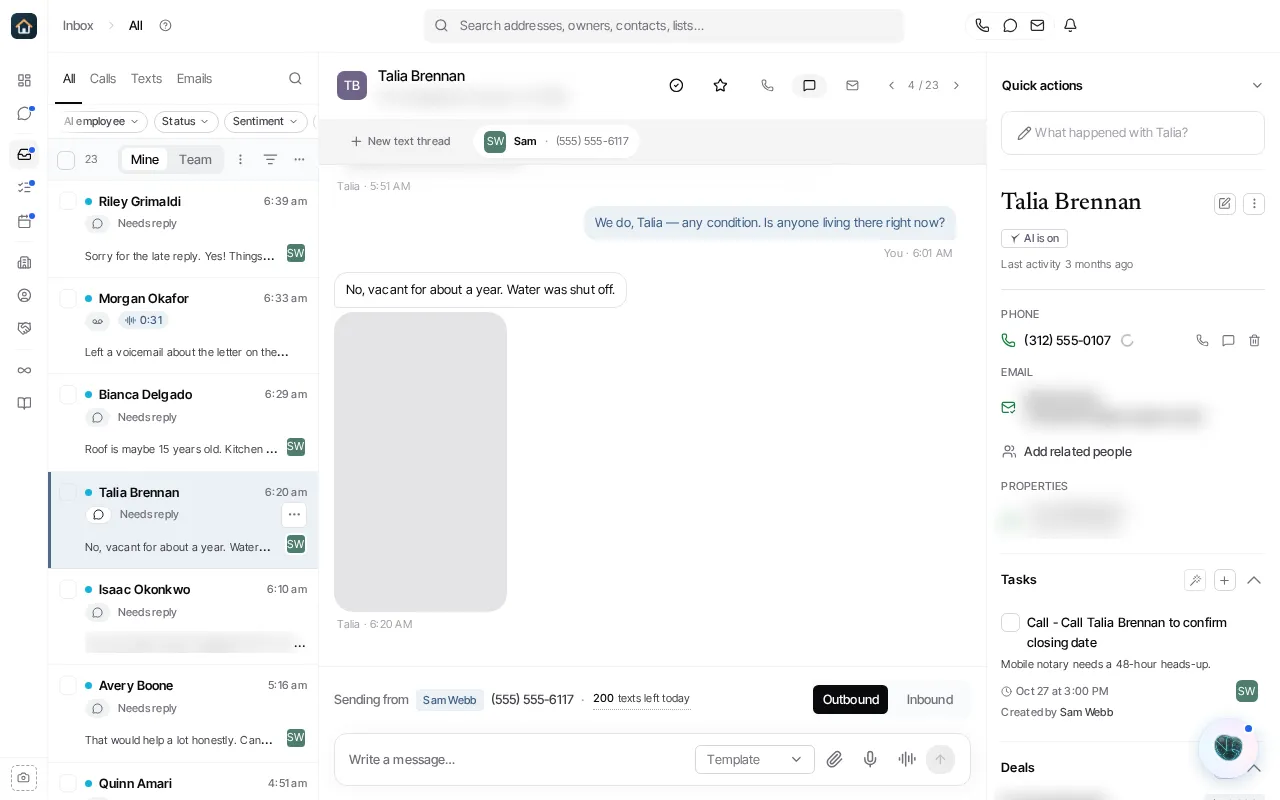
Start with the right Inbox view
Section titled “Start with the right Inbox view”Open Inbox from the main sidebar. The primary tabs are All, Calls, Texts, and Emails. A channel tab changes the queue to that kind of conversation without opening a separate product area.
Use All when you are triaging every channel. Use a channel tab when you need one repeatable work queue, such as returning calls or answering emails.
Focus urgent work
Section titled “Focus urgent work”The Inbox also offers Missed Calls and Unresponded as quick filters. They are filters on the current Inbox view, not standalone pages. Choose one to narrow the work queue, then switch back to a primary channel tab when you need broader context.
Other available quick filters can narrow the current channel, including Unread. Filters can stack, so check the active filter state before assuming that a channel tab contains every conversation of that type.
Even with no filter selected, the Inbox hides text conversations with someone who opted out or is marked Do Not Contact, until they write again. Choose Opted out to see them. See Use the Inbox for every quick filter.
Work and clear a queue
Section titled “Work and clear a queue”- Select an item to open its conversation pane.
- Read the existing thread before replying or returning a call.
- Use the supplied channel action only after checking the recipient or sender line.
- Mark individual items read or unread from their row actions when that status needs correction.
Select rows to mark a group read or unread. Mark all read applies to the current Inbox scope, including unread items beyond the rows already loaded in the list.