
View Team Calendars and Availability
Show the right calendar set
Section titled “Show the right calendar set”Open Calendar from the main sidebar. The calendar sidebar lets you switch between your own calendar and team calendars, or turn individual teammates on and off. When your account can add members to the view, use Add member to include another teammate.
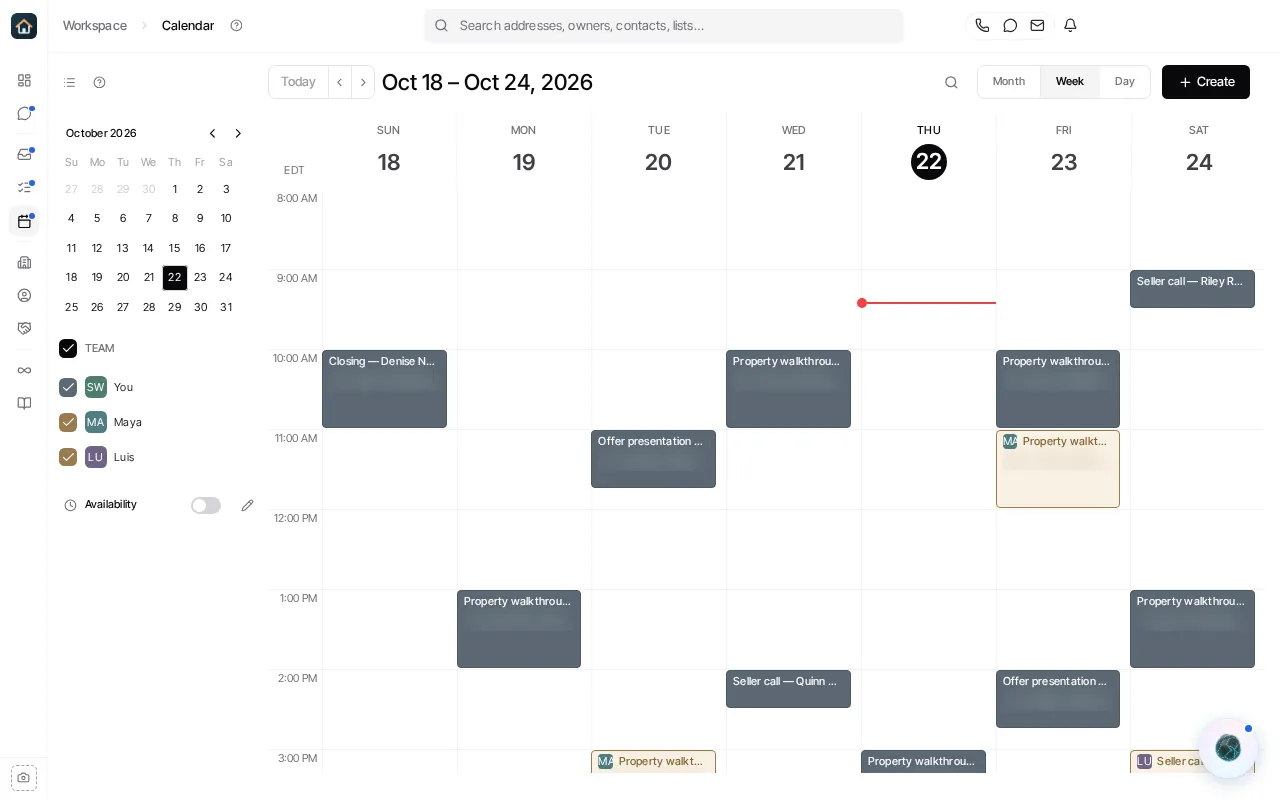
The Team control switches between your own calendar and the whole available team. Individual teammate controls let you keep a focused subset visible. These display choices change what you see; they do not reassign appointments.
Show or edit availability
Section titled “Show or edit availability”The Availability row in the Calendar sidebar has two separate controls:
- Select the row toggle to show or hide the availability overlay beside appointments.
- Select the pencil, Edit availability, to open the schedule editor.
In the editor, set the working schedule and save. If you do not already have a saved schedule, Goliath opens the editor with a default weekly schedule that you can adjust before saving.
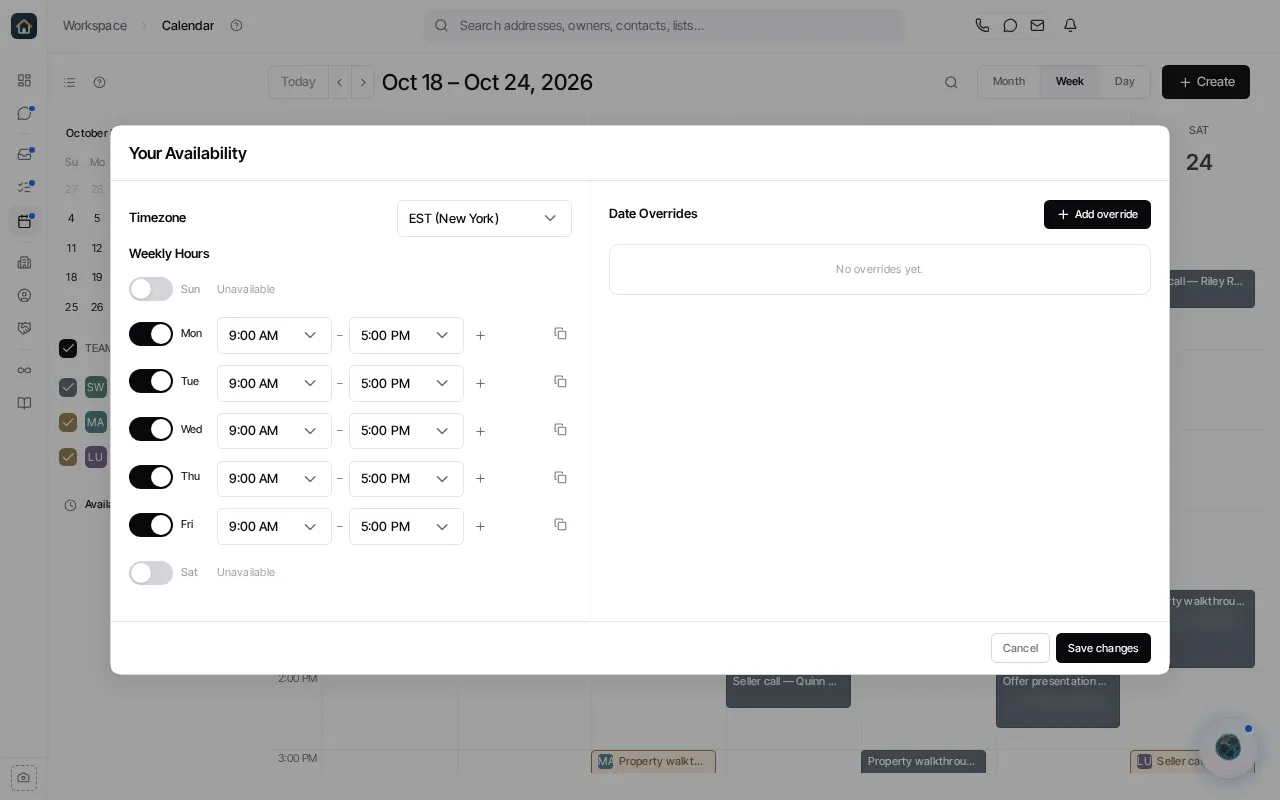
Availability is edited from Calendar, not from a retired Settings page. Booking forms can use configured hosts and schedules, but changing a form does not change a teammate’s saved availability.