
Set up booking availability
Availability is authored in Calendar in the main sidebar, not on a separate Settings page or in the Forms list. Booking forms use the individual schedules of the hosts assigned to them.
Edit your schedule
Section titled “Edit your schedule”- Open Calendar in the main sidebar.
- In the sidebar’s Availability row, select the pencil button. Its accessible name is Edit availability.
- In Your Availability, select the time zone and set the weekly hours for each day. Turn off a day to make it unavailable; turn it on to add time intervals. You can add more than one interval to an available day.
- Use the copy control on a day to copy that day’s hours to the other days that are already active. It does not enable currently unavailable days.
- Under Date Overrides, choose Add override for a one-time schedule change. An override can be a single date or range, can use custom hours, and can repeat yearly.
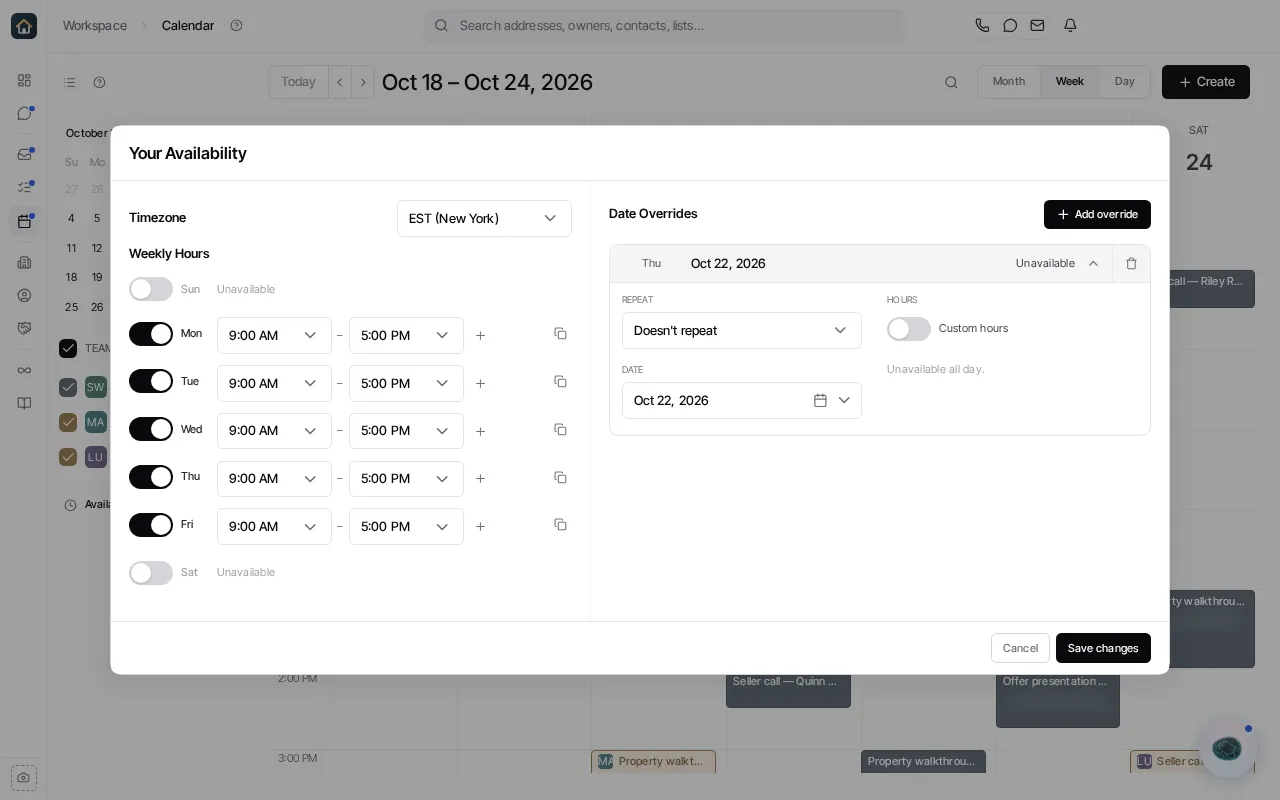 6. Select Save changes.
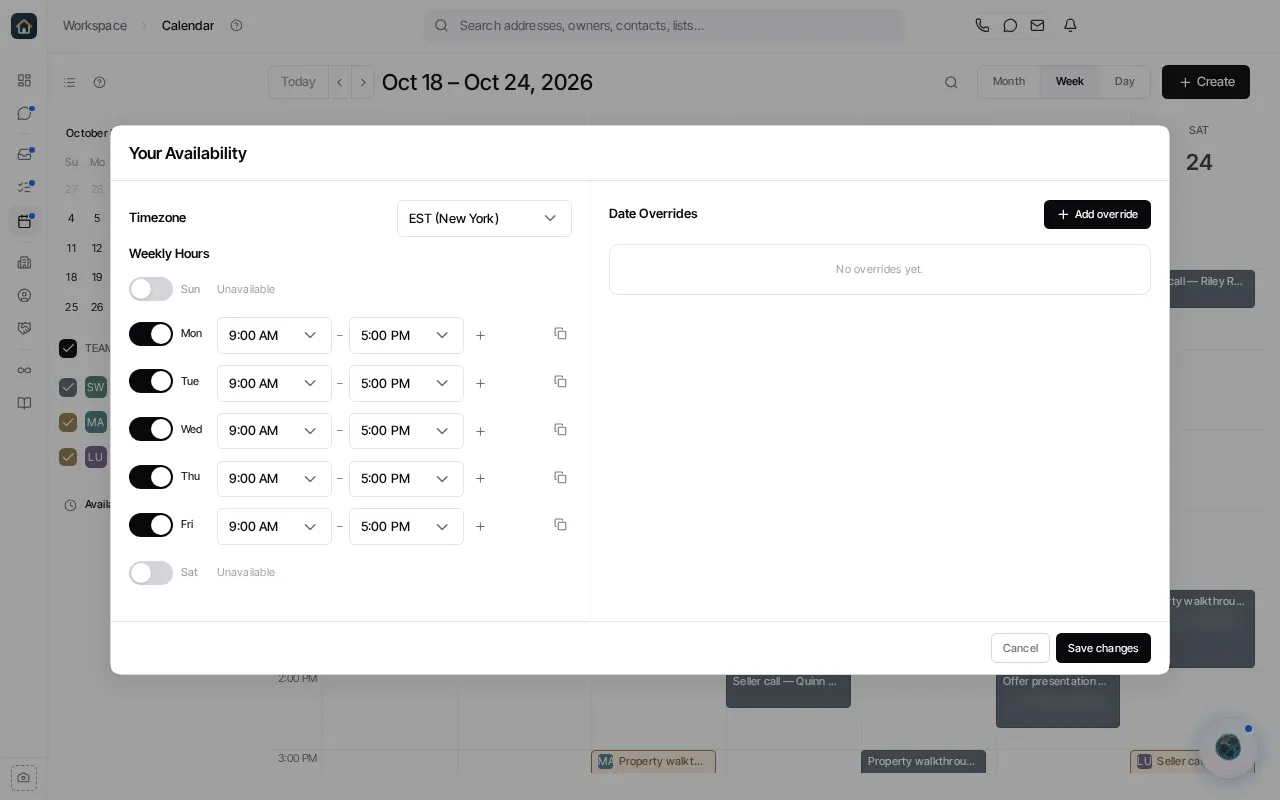
The Calendar sidebar also has an Availability toggle. That controls the calendar overlay used for viewing availability; it does not replace the schedule editor.
Use availability in a booking form
Section titled “Use availability in a booking form”- Open the form in Library → Forms and edit it.
- Add or select the calendar field, then choose the people or teams who can host the booking in the form’s routing/host controls.
- Configure the appointment choices visible to the visitor: available duration options, buffer time, booking-window limits, title, and location.
- Save and publish the form when it is ready.
The form resolves bookable times from each assigned host’s own availability schedule. If an assigned host has a connected Google or Microsoft calendar, the routing controls can also offer an external-calendar busy check; the option is hidden when that host has no connected calendar.
Use the form preview and a controlled booking to confirm the offered times, host routing, and appointment details before sharing the form.
For the Calendar itself, see Calendar and availability.