
Forms and submissions
Forms collect leads from your website or a shared link. Each submission creates or updates a contact and then runs the follow-up you choose. Open Library → Forms.
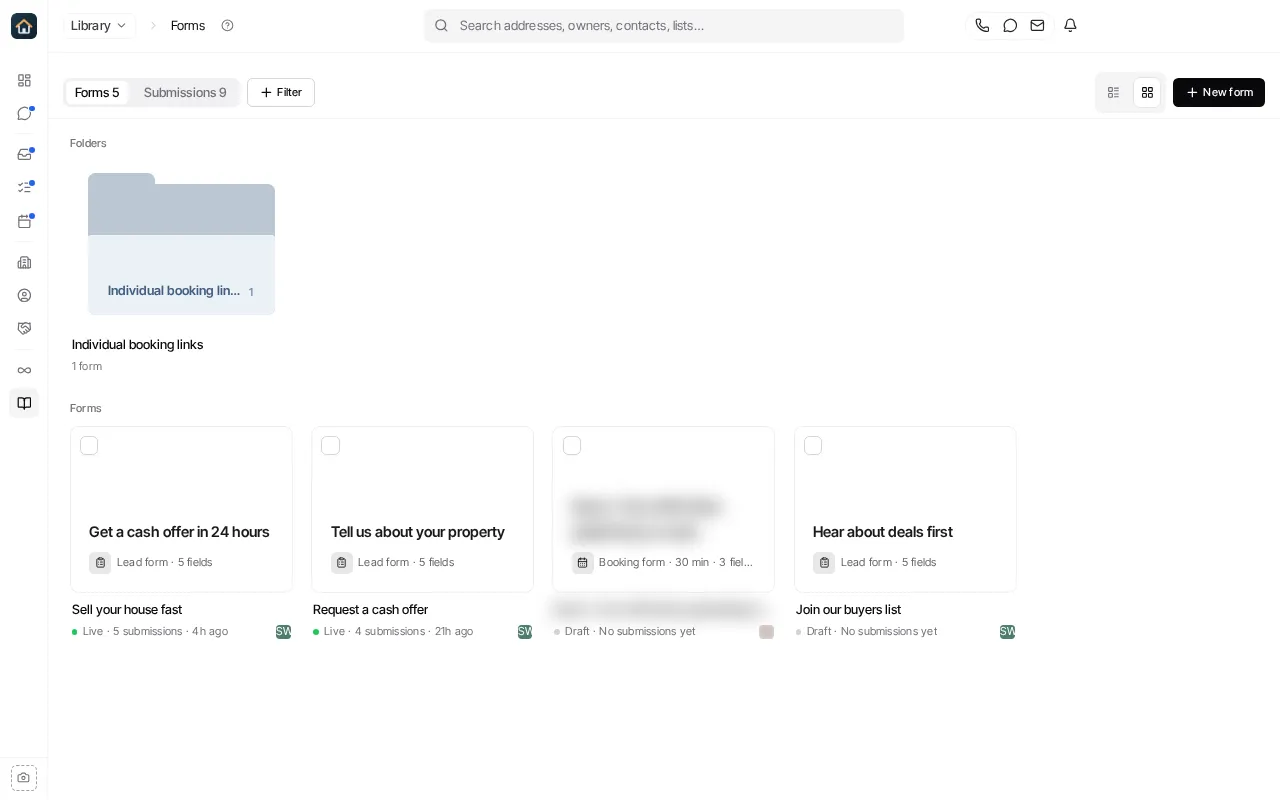
The Forms tab lists your forms and folders. Each form shows whether it is Live or a Draft and how many submissions it has. The Submissions tab lists every submission across your forms.
Build a form
Section titled “Build a form”Select New form (or New → Form on the Library home page). You can describe the form to Goliath, pick a starter, or select Blank form and name it (see Create a form). The builder opens full screen with four steps:
- Build: the fields and pages of the form. Forms can have several steps.
- Design: colors, styling, and legal and consent content.
- Connect: map each answer to a contact field and choose what happens after someone submits. See Route form submissions.
- Share: the form’s link and the code to embed it on your website.
Calendar fields book into availability set up on the Calendar. The form picks the hosts and the booking behavior; it does not create availability.
Publish and share
Section titled “Publish and share”A form collects submissions only once it is published. Select Publish, then use Share for the hosted link or the embed code. If you change a shared link’s address, links already handed out can stop working; the builder asks you to confirm first. Embed code identifies the form by its ID, so it keeps working.
Open a form
Section titled “Open a form”Select a form to open it. Its page has Overview, Submissions and Analytics. From there you can edit the form, open it live, publish or unpublish it, rename, duplicate or delete it. See Manage your forms.