
Manually Trigger Workflows
Manual triggering is useful when a teammate chooses exactly which records should enter an already-live workflow. It is different from editing a workflow’s Manual trigger in the builder: this action starts runs for records you select from Contacts or Deals.

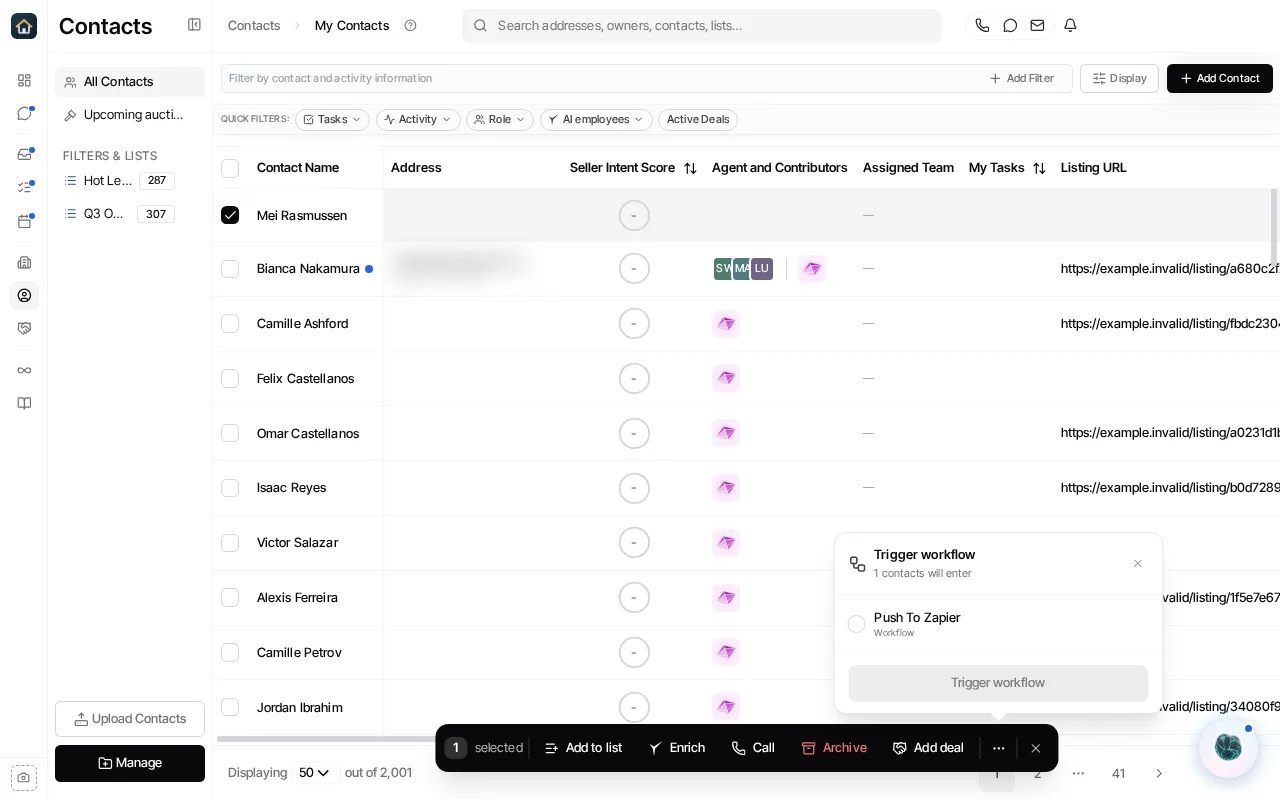
Trigger a workflow for contacts
Section titled “Trigger a workflow for contacts”- Open Contacts and select one or more contacts in the table.
- In the bulk action bar, open More and select Trigger workflow.
- Choose an eligible active contact workflow.
- Select Trigger workflow to submit the enrollment.
The picker only offers active workflows that are eligible for the selected records. If it says No active workflows, activate a suitable contact workflow first. After submission, Goliath reports that the selected contacts are entering the workflow; a background task can still determine that a particular contact was already enrolled or cannot be enrolled.
Trigger a workflow for deals
Section titled “Trigger a workflow for deals”- Open Pipelines and point at a deal to show its checkbox, then check it.
- Check the other deals you want to process.
- Choose Trigger workflow from the selection bar.
- Choose one or more eligible active deal workflows, then select Trigger.
Goliath schedules the selected deals for the workflows you choose. Keep the selection narrow when testing a workflow so that you can inspect the resulting runs before enrolling a larger group.
Before you trigger
Section titled “Before you trigger”Confirm that the workflow is live and that its steps, sender settings, and conditions are appropriate for the records you selected. Manual enrollment does not make a draft live, and it does not bypass the workflow’s normal step configuration.
After triggering, open the workflow and review its activity to see the resulting runs. See Monitor and recover workflow runs and Workflow lifecycle for those controls.