
Pause an AI Employee and control its work
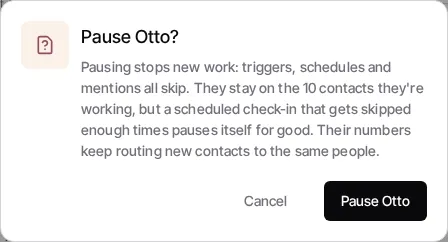
Pause an AI Employee when you need to stop it from taking on new work while you review its instructions or channels. Pausing is reversible and keeps the employee’s settings and history.
Pause or resume the employee
Section titled “Pause or resume the employee”- Open Automations, select the AI employees tab, and open the employee.
- In the employee header, turn the Active switch off.
- Read the confirmation, then select Pause [employee name].
While paused, new triggers, schedules, and mentions skip the employee. Its contacts stay as they are, and phone numbers keep routing new contacts according to their existing routing setup. Turn the same switch back on to resume triggers and schedules as configured.
Control one contact
Section titled “Control one contact”Open the contact. The AI status pill under the contact’s name shows whether its AI employee is on or off. While it is on, its menu can start with what the employee does next on this contact. Select it to:
- Turn [employee] off for this contact, until you turn it back on, for 24 hours, or until a date you pick.
- Turn off only messages, so the employee keeps working but sends nothing.
- Turn [employee] back on once it is off.
Use the contact’s pill when one conversation needs you. Use the employee’s Active switch when the whole employee needs to stop taking on new work. To hold every AI employee’s and workflow’s messages to your contacts at once, see Pause all automated sending.
Change how it works
Section titled “Change how it works”Revise the employee’s instructions and channels on its page. See Configure AI Employee channels and Test and monitor an AI Employee.