
Workflow Automations
Workflows automate work around contacts, deals, properties, appointments, events, and Slack messages. A workflow is a graph: a trigger starts a run, then steps can act immediately, wait, or make a decision before continuing.
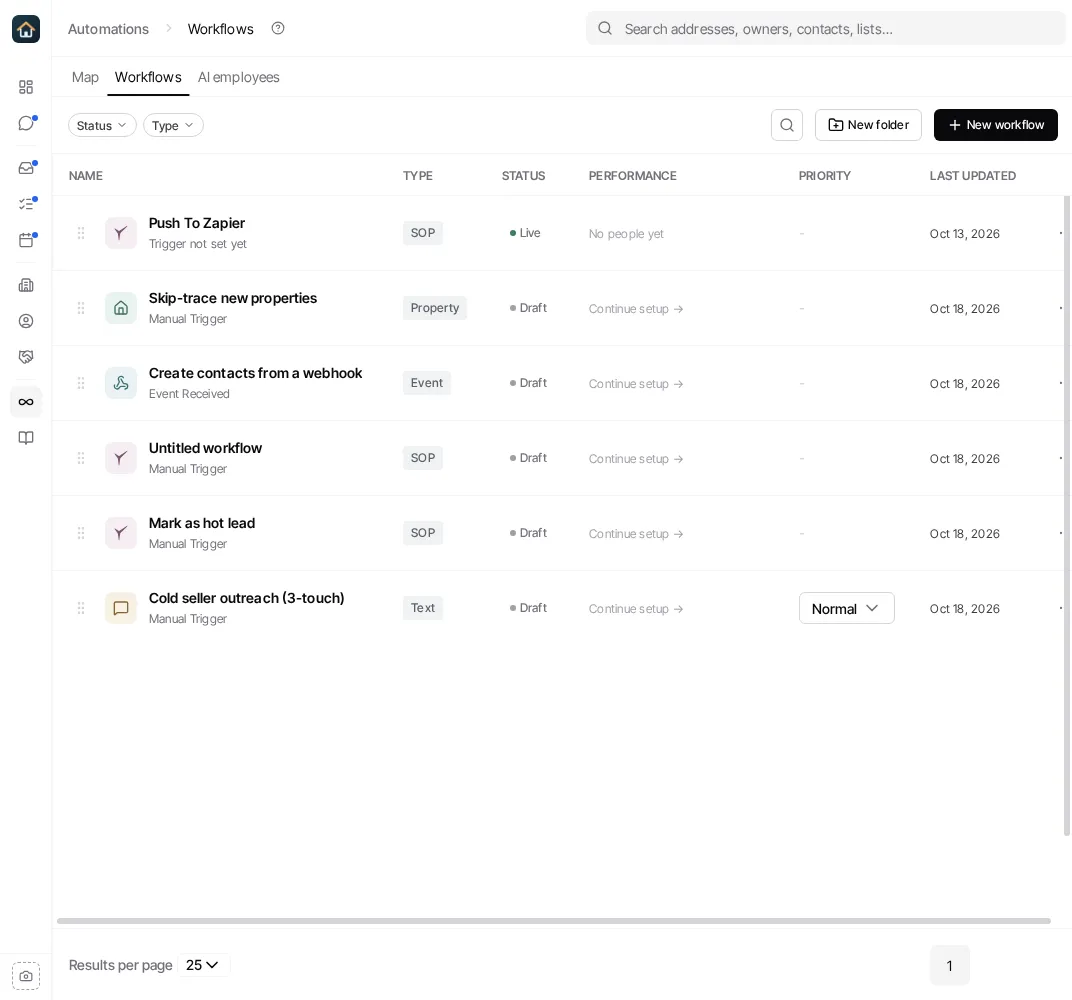
Open Automations in the main sidebar and select the Workflows tab to see your organization’s workflows. The list has folders, Status and Type filters, search, and the New workflow button. The Map tab draws the same workflows, with your AI employees, as the journeys a lead goes through; see The Automations page.
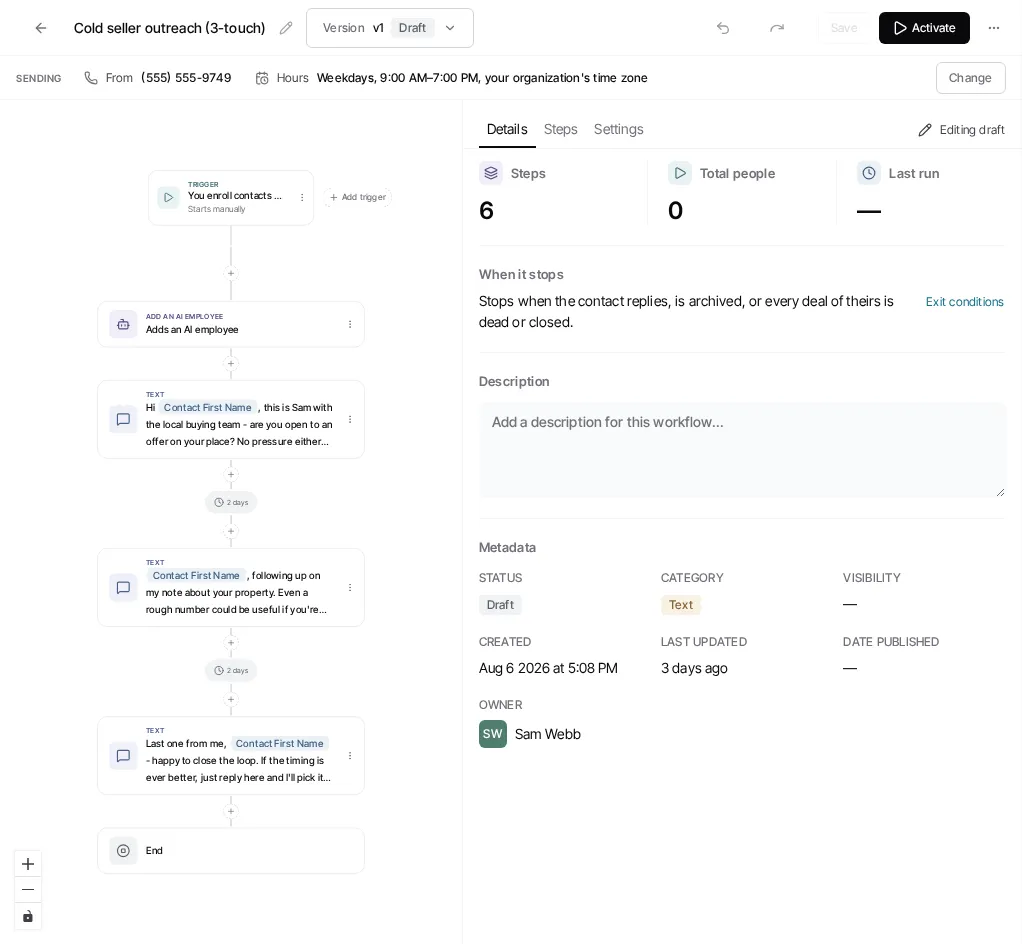
Selecting a workflow opens its editor in the same place. The back arrow returns you to the list, or to the Map if you opened it from there.
Workflow versions and runs
Section titled “Workflow versions and runs”These are different things:
- A workflow is the reusable automation your team configures.
- A draft is the editable version. It does not run.
- A live version is the published version that can enroll new runs.
- A run is one record moving through a live workflow. Its activity can be inspected from the workflow’s detail view.
Opening a live workflow does not edit it in place. Choose Edit to make a draft, or Continue draft if one already exists. Edit only the draft, then publish it when ready. This protects the current live version while you work.
What the builder supports
Section titled “What the builder supports”A new contact, deal or property workflow begins with a Manual trigger. Configure the real trigger in the editor before publishing if you expect the workflow to start automatically. Appointment, event, Slack and contract workflows begin with their own type’s trigger; see Creating Workflows. The available trigger settings and action steps depend on the workflow’s domain and your organization’s capabilities.
The editor includes a graph canvas and panels for workflow details, steps, settings, and activity. Add steps from the builder rather than relying on a fixed list in documentation: the available choices change by domain. A wait step spaces work over time; a condition can route records down different paths where that domain supports conditions.
Contact workflows can contain both email and text communication settings. Workflows that do not message a recipient are used for operational work such as routing, tasks, or record changes.
Safe workflow lifecycle
Section titled “Safe workflow lifecycle”- Create a workflow from a goal or start from scratch.
- Configure its trigger and the steps it should perform.
- Save the draft. The editor saves only drafts and warns if another session has updated the workflow first.
- Use a test record or the run controls to inspect the behavior before using the workflow broadly.
- Select Activate for a first live version, or Publish changes when replacing an existing live version. The publish dialog validates the draft and, when applicable, asks how to handle in-flight runs.
- Use Pause to stop new enrollment, or Resume to restart the most recently paused live version.
There is no separate approval or review queue for workflows. Publishing is the action that makes a valid draft live. The workflows Goliath set up for you during setup also go live together when an admin taps Go live. See Go live.