
Review a property record
A property record gathers everything Goliath holds about one property on a single page: who owns it, what it is worth, what is owed on it, the county filings associated with the record, and what similar homes nearby have sold for. Use it to work out whether a property is worth your time before you pick up the phone.
Associated is the careful word. A filing matched to the owner or to a mailing address can concern another property the same owner holds. The page marks those, and the Signals tab shows you how each one was matched.
The page only shows facts it actually has, and it handles a gap in one of two ways. Most sections are left out when there is nothing behind them, so two properties will not look alike. A few say so instead: Comparables shows No comps found when nothing matches the rules, the map reads No Map data available for a property with no location on file, and Lists and Tags stay put with their add controls so you can be the one to fill them.
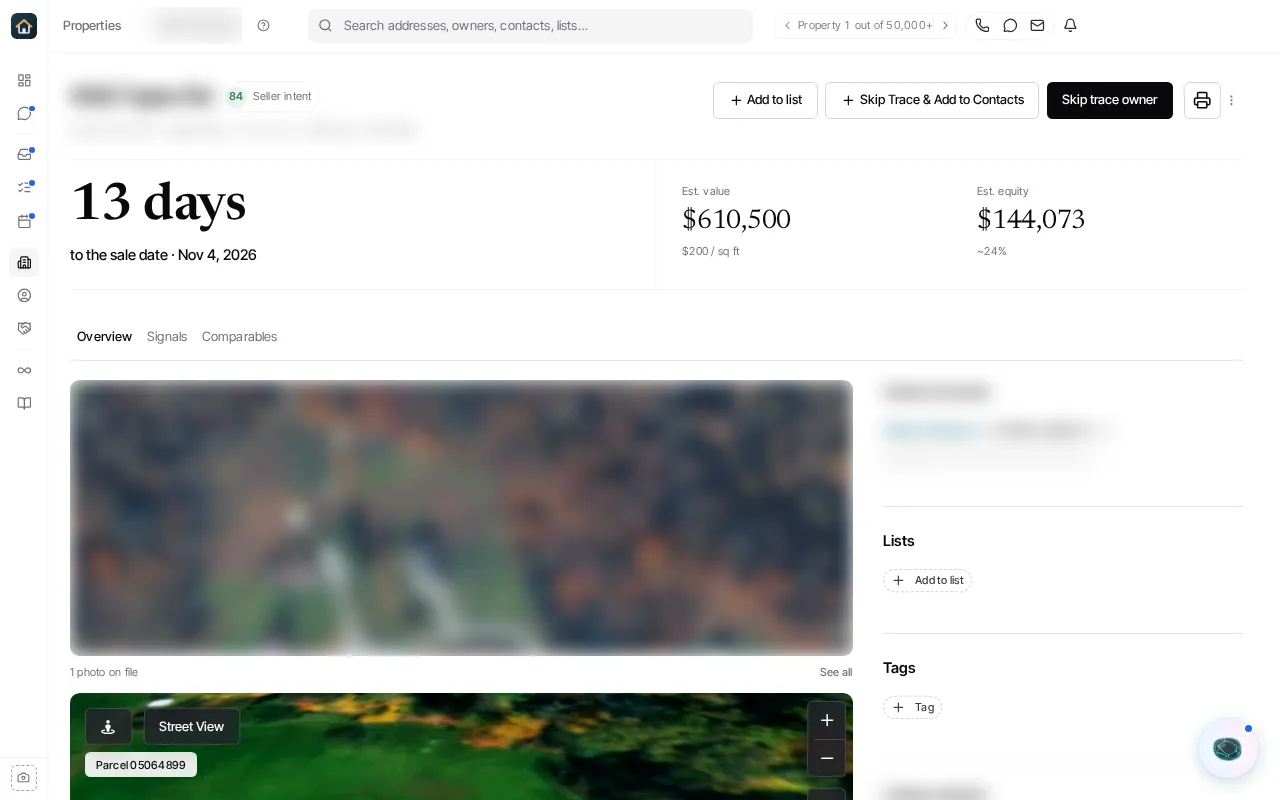
Open a property
Section titled “Open a property”From Properties, select a property row. On a map or split display, select a marker or a card. The record opens without losing your place, so you can go back to the same filtered results afterwards.
When you opened the property from a list of results, a counter near the top right reads something like Property 3 out of 1,204, and the arrows beside it move to the previous or next property in that list. Go back to Properties when you want to change the filters themselves.
The header and what you can do from it
Section titled “The header and what you can do from it”The address sits at the top, with a line under it for the town, the ZIP, the property type, the beds and baths, the floor area and the year it was built. A property whose owner does not live there is marked Absentee.
The buttons to the right act on this property:
- Add to list puts the property on one of your lists.
- Skip Trace & Add to Contacts looks up the owner and creates the contact records at the same time. Once a contact exists, this reads View Existing Contact instead.
- Skip trace owner looks up the owner without creating contacts. It appears until the property has a skip-trace status.
- The printer icon builds the printable property report.
- The three-dot menu holds Copy APN, See on Zillow, and links to See on Xome or See on Auction.com when the property is listed there. Each of those appears only when the record carries what it needs: a parcel number to copy, a Zillow address, an auction listing to open. On a property with none of them the three-dot button is not there at all.
The countdown band
Section titled “The countdown band”When there is no scheduled event, the band shows the figures only, with no countdown above them. The countdown appears when there is a dated event to count to.
When there is one, a large word tells you how long you have until the next dated event associated with this record: Today, Tomorrow, or a count such as 36 days. The line beneath names the event and its date, for example Hearing date or Foreclosure sale. If the date has been moved, a short sentence says so and by how much.
The event is one Goliath has associated with this record, which is not the same as saying it was filed against this parcel. Some filings are matched to the owner or to a mailing address rather than to the property itself, and those can belong to a related property of the same owner. Open the filing on the Signals tab to see how it was matched before you work to its date.
The figures, up to four of them, sit beside the countdown when there is one and fill the band on their own when there is not:
- Est. value, with the price per square foot under it.
- Unpaid balance, with what share of the estimated value it represents.
- Est. equity, with the same figure as a percentage.
- Bid gap, saying whether the minimum bid sits under or over the value.
The band is left out when there is no upcoming date and no figures to show. It is also left out when the only figure would be the estimated value, since the valuation section further down already gives you that.
Three tabs
Section titled “Three tabs”Overview holds the property itself: photos, the map, and the grouped facts about value, debt, structure, ownership and the local market.
Signals holds the history on the parcel, and it holds two kinds. How the property has changed hands and how it has been listed is there whenever the property has any. Beside it sit the county filings.
The Signals tab is only there when the property has something to put in it: a filing you can see, a deed or listing history, or a filing the record says exists that Goliath could not load. On a property with none of those there are two tabs rather than three, and nothing is missing.
Comparables holds the recent nearby sales the estimate is built on, and lets you change which sales count.
The map and Street View
Section titled “The map and Street View” 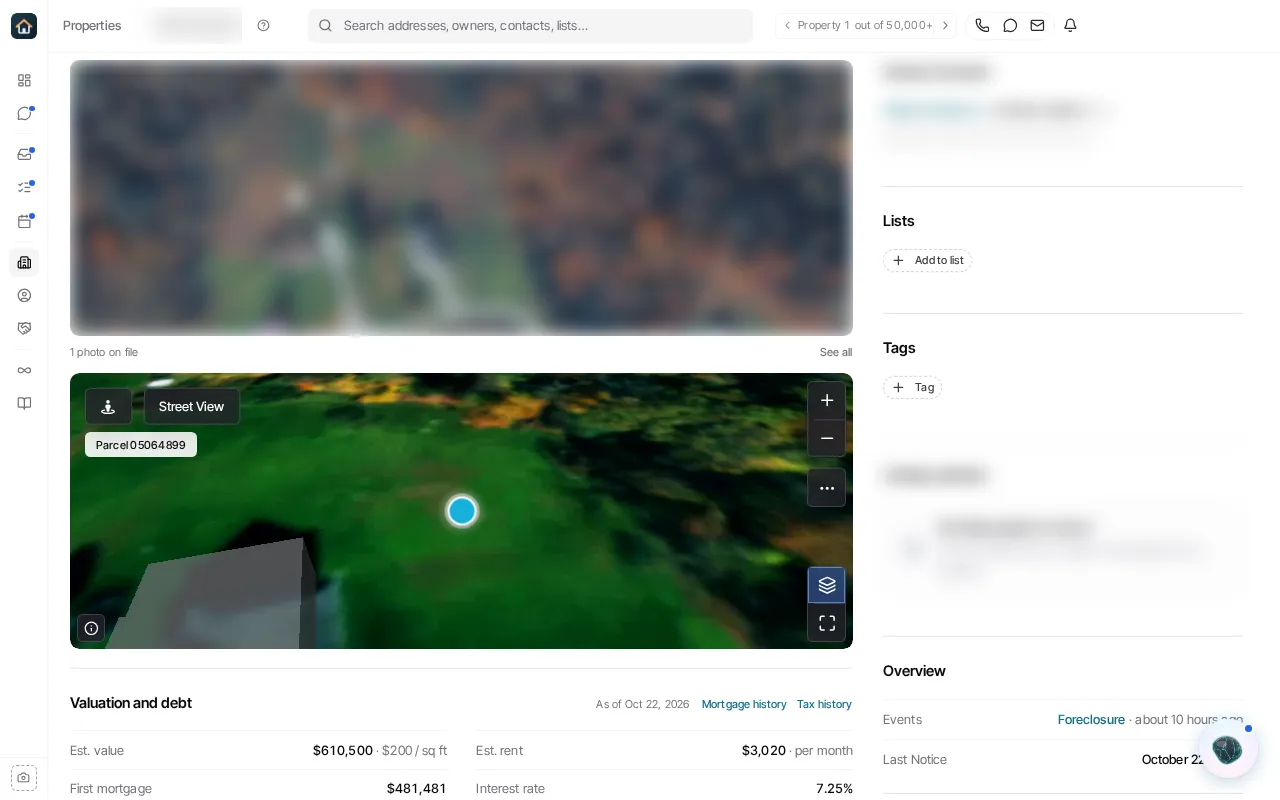
The map opens on an aerial view. Where Goliath has the parcel boundary, the lot is outlined on it; where it does not, you get the aerial view and the marker without an outline. Where the county has published a parcel number, a chip in the corner shows it.
The two buttons above it open street-level imagery. Street View lets you drop the pin yourself by dragging it onto the map; Smart Street View finds the closest available view of the property for you.
Down the right of the map are Zoom in and Zoom out, Measure distance for checking how far something is, Map layers, and Fullscreen. Map layers switches the base map between Satellite, Topographic and 3D buildings, and turns on overlays for Census tracts, Flood zones and Opportunity zones. Selecting a neighbouring parcel opens that property without leaving this one.
Owner, lists and tags
Section titled “Owner, lists and tags”The column down the right of the Overview tab holds who owns the property and how you have filed it.
Owner of record names the owner on the deed, with their mailing address underneath. Badges show when the owner lives in another state, and how many properties they own in total when that is two or more.
Lists shows every list this property is on, and lets you add it to another. Tags does the same for tags.
Properties with the Same Owner lists the owner’s other parcels, each marked as a direct match or as inferred. The first five show; select Show all for the rest. Owners & Related Parties holds the people and companies a skip trace turned up; select View All Details to see the full results, with Call, Text, and Copy buttons on each phone number. A call placed there is not linked to a contact, so it cannot log an outcome or mark a number wrong; open the owner as a contact first for that.
Further down, Overview summarises the events on the record and the date of the last notice. Those are counted the same way the filings are, so the same caution applies: one of them may have been matched through the owner and belong to another property of theirs. A Foreclosure panel shows the stage, the auction date and the parties, including cases that have closed or been released.
Valuation and debt
Section titled “Valuation and debt” 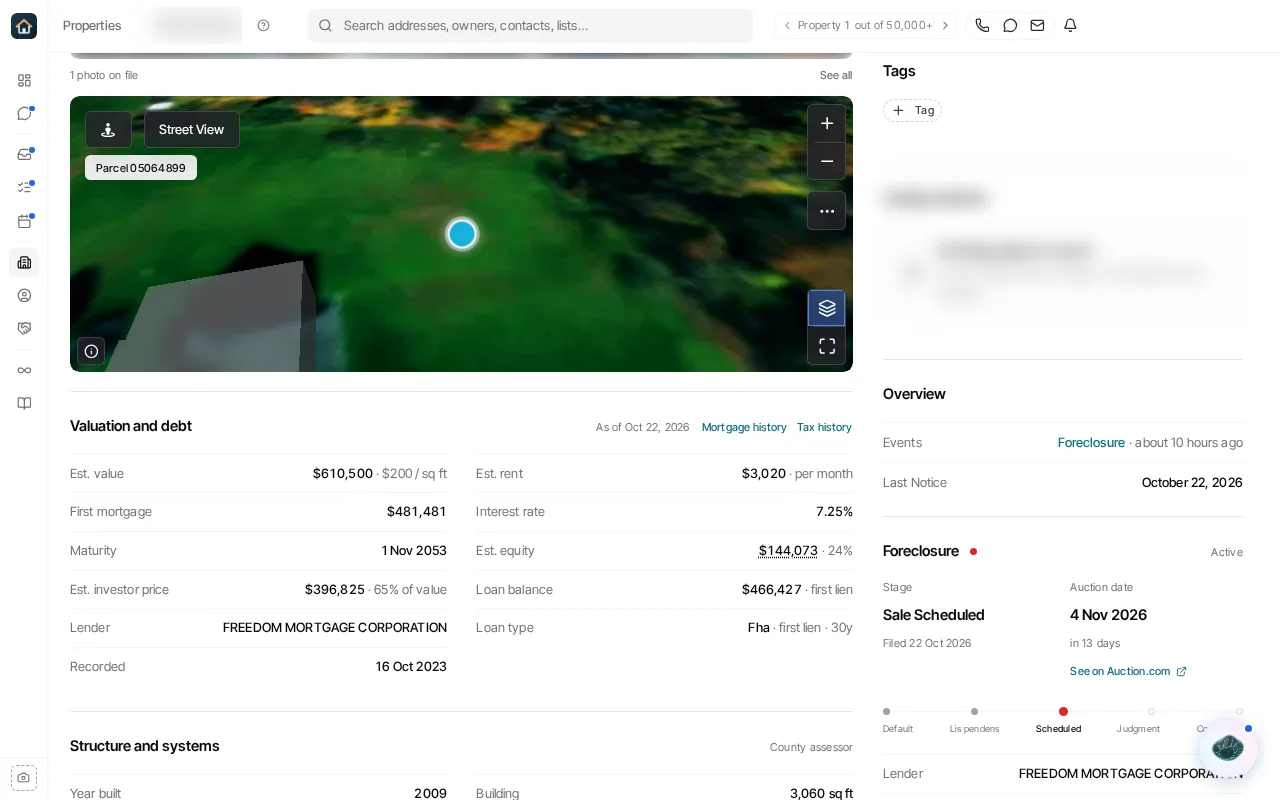
This group holds the money: the estimated value and rent, the recorded mortgage and its interest rate and maturity, the annual tax, the estimated equity and investor price, the lender, and any tax delinquency. Mortgage history and Tax history open the recorded history behind them.
The date beside the heading is the day the figures were worked out for, which is the day you are reading them. It is not a claim that the county records behind them were refreshed that day.
Structure and systems follows, with the county assessor’s description of the building: floor area, lot size, roof, heating, condition, school district and so on.
Flood risk sits in that group but does not come from the assessor. It is a rating worked out by a risk model, and the row says risk model beside it so you can tell the two apart.
Ownership and use
Section titled “Ownership and use”Ownership and use covers how the property is held rather than what it is worth: how long the current owner has held it, the last sale, how the property is used, whether it is owner occupied or absentee, how many owners are on title, the parcel number, the county, the zoning and the legal description.
Some records cover more than one parcel. On those, All parcels lists all of them, so you can see the rest of what this record covers rather than only the parcel number shown above. It is about this property, not about the owner’s other properties, which are in the right column under Properties with the Same Owner.
Market closes the tab with the area figures: median household income and the fair market rents for one, two and three bedrooms.
Signals
Section titled “Signals” 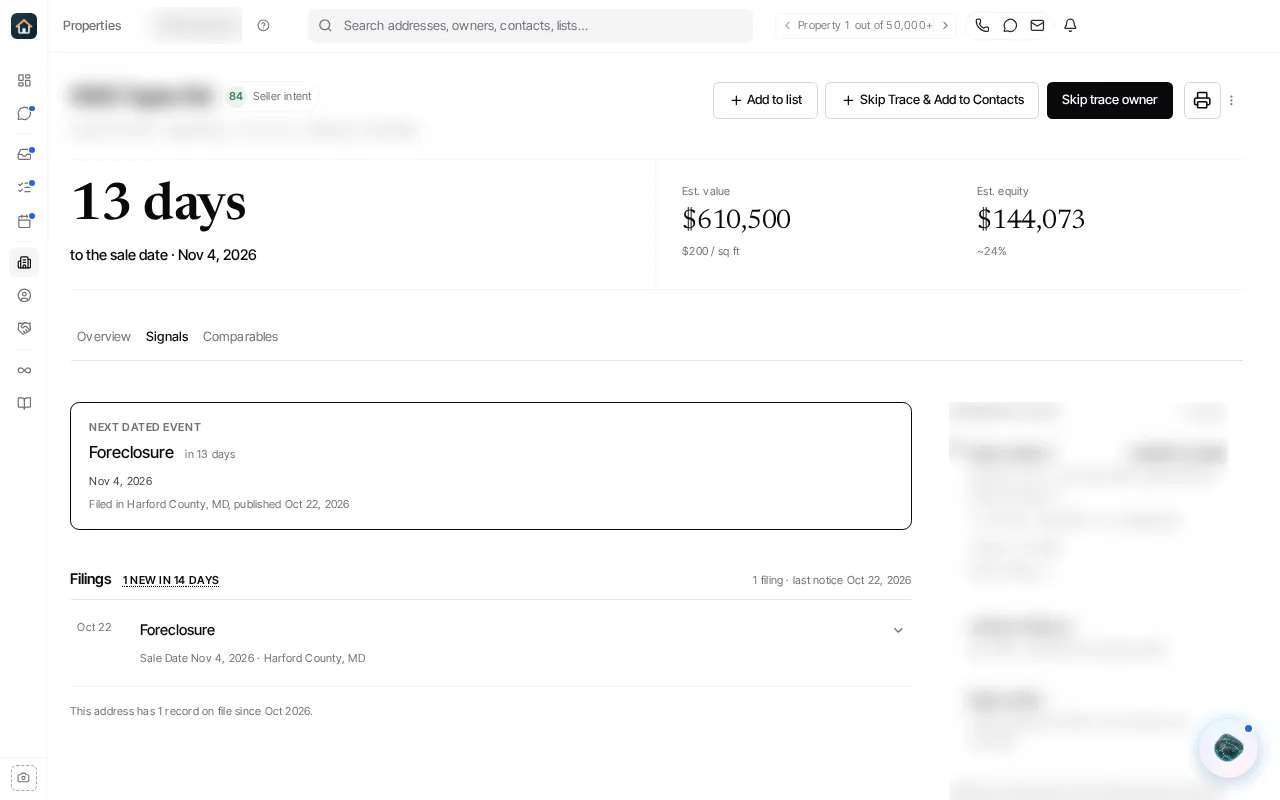
Next dated event is the filing that decides the countdown at the top of the page, with its date and when it was published. Also scheduled lists anything else already on the calendar.
Filings lists the most recent filings, newest first, with a badge counting what has arrived recently. The list is capped, so when there is older activity it does not reach, a line underneath says so. Use the chips above the list to show one type at a time. A filing that was matched to the owner rather than to this parcel is marked, so you can tell when a notice may belong to a different property of theirs.
Down the right, Ownership chain walks back through the owners and how long each held the property, Sale date history shows how the sale date has moved, and Source of record names who reported the filings. That is the paper or site that published them when one is named, and more than one can be listed when a case was reported in several places. Only when no publisher is named does it fall back to the county or the city.
Signals are research, not a conclusion. They do not tell you the condition of a property, who will sell, or what a deal is worth. Read the filing and the record behind it before you act on one.
Comparables
Section titled “Comparables” 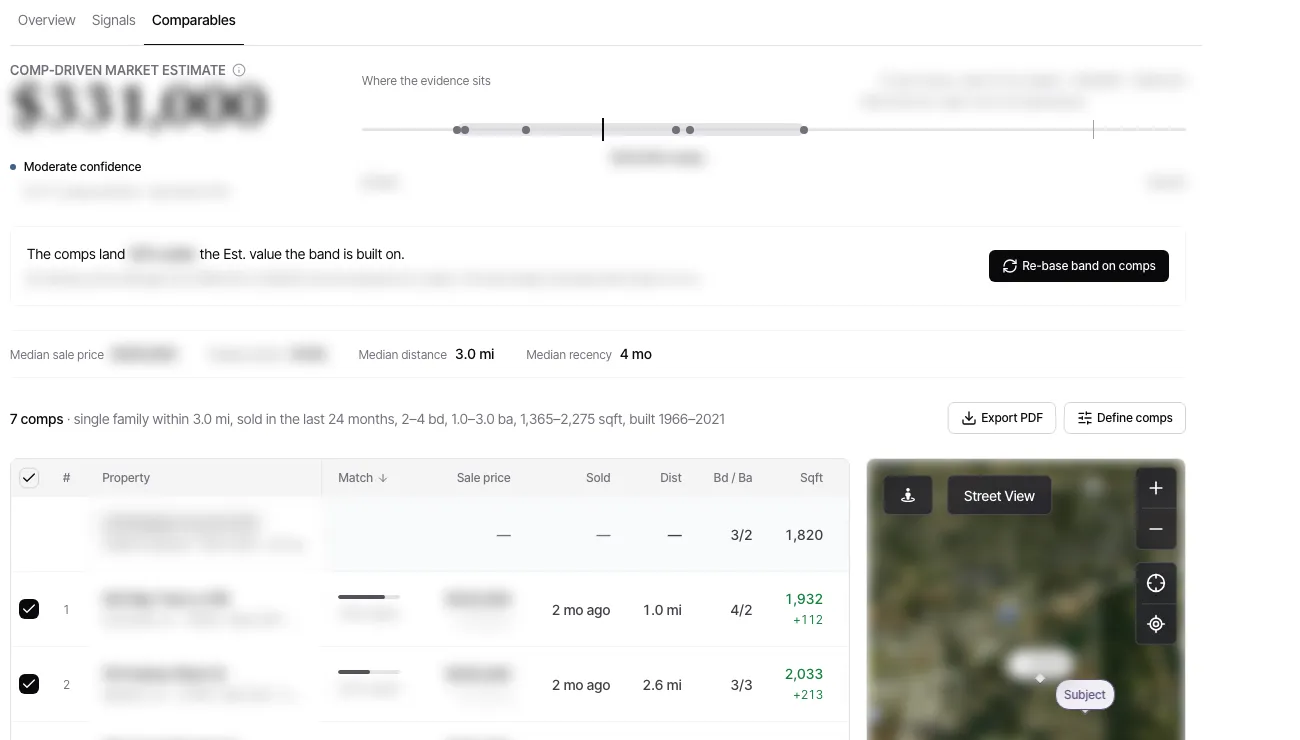
The top of the tab gives an estimate built from nearby sales, how confident it is, and how many comps went into it. The bar beneath shows where the evidence sits. Each dot is not that comp’s sale price: it is that comp’s price per square foot applied to this property’s floor area, which is what makes seven different houses comparable on one line. In a county that does not publish sale prices the dots come from the comps’ automated values instead.
Some counties do not publish what a property sold for. In one of those, the estimate is built from listings and modelled values rather than from verified sale prices, and a notice at the top of the tab says so. Treat the number as directional there and check it against another source before you rely on it.
The median row summarises the set: sale price, price per square foot, distance and how recently they sold. The line under it spells out the rules the set was built on, such as the property type, the radius, the sale window and the size and age ranges.
The table lists each sale with how well it matches, its price, when it sold, how far away it is, its beds and baths, its floor area and its owner. Clear the tick beside a sale to leave it out of the estimate.
Define comps changes the rules for this property. One of them, Include active & pending listings, adds homes that are on the market but have not sold. Those rows show an asking price and the date they were listed rather than a sale, they are marked as such, and they are left out of the medians and out of the estimate. They are there for context, because an asking price is not a sale.
Some rows are marked Non-market. Those are transfers where the recorded price was a token amount rather than a price paid for the house, such as a quitclaim, a transfer within a family or a deed in lieu. They stay in the list, but where the sold comps produce an estimate from sale prices those rows arrive already unticked, so the page is not offering you a sale it has screened out. You can tick one back in if you want it in the set. It stays out of the medians either way, and an estimate built on sale prices still screens it out.
Export PDF opens a printable version of the set and your browser’s print dialog. Choose Save as PDF there as the destination to keep a copy.
Where the page has a band and the comps produce an estimate, a line offers Re-base band on comps until you choose a basis. That reprices the band you are looking at, so the value, the equity and the bid gap follow the comps instead of the automated estimate, and the band says which basis it is on.
It changes your own view and nothing else. It does not rebuild the property’s estimate, it saves nothing to the record, and nobody else sees it. The choice holds for the rest of your browser session, so leaving the property and coming back keeps it, and it lasts until you revert it or reload Goliath.
The tour on your first property
Section titled “The tour on your first property”The first time you open a property, a short tour points out the actions, the key numbers, the grouped facts, the owner column and the Signals tab. It runs once. Leave the page part way through and it will offer itself again next time.
The tour follows what is on the page, so a property with no band of key numbers or no Signals tab gets a shorter tour rather than a step pointing at nothing. It runs on a computer only; there is no tour on a phone.
What this page does not settle
Section titled “What this page does not settle”Goliath does not promise how fresh or how complete the data is, that a lead is yours alone, where the lot lines fall, or what a signal means for a particular deal. Treat the record as a starting point and get your own review before you commit.