
Route form submissions
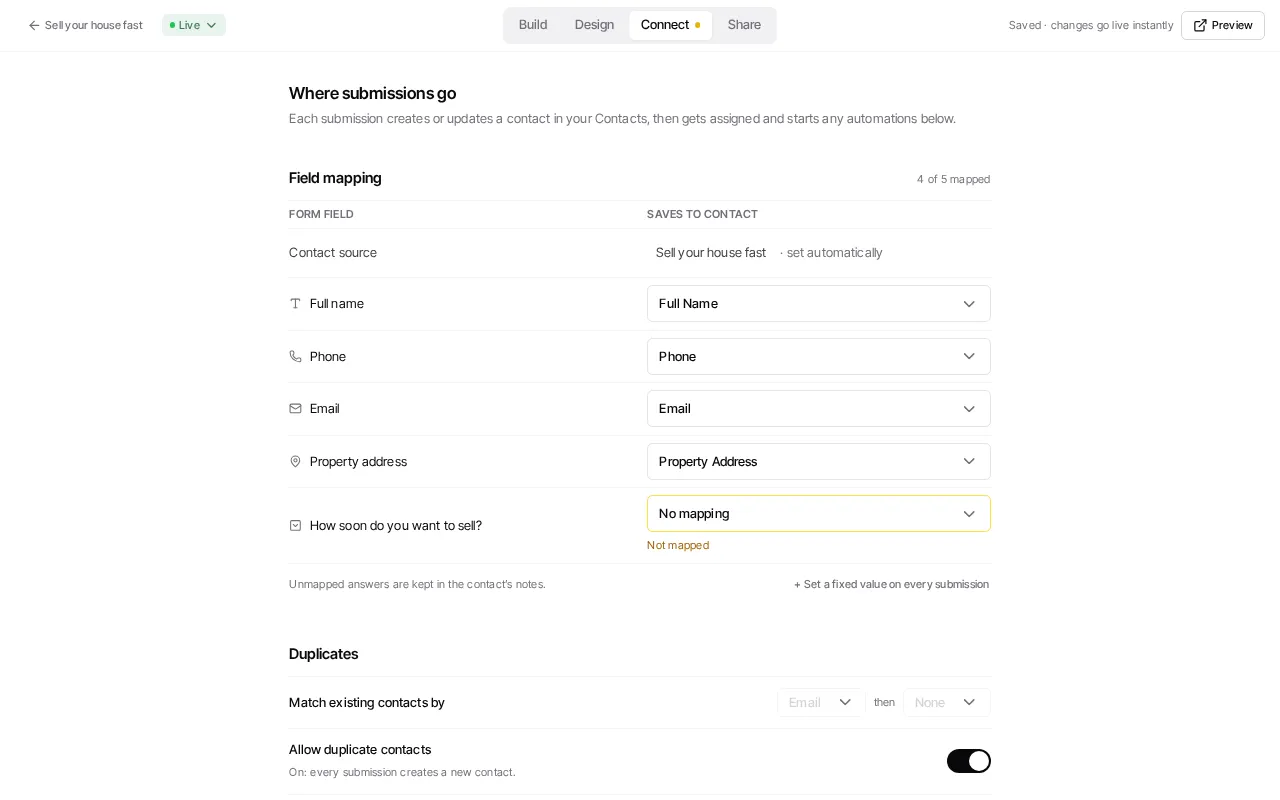
Open a form in Library → Forms, edit it, then use the builder’s Connect step to define what happens after someone submits it. This is where the form maps submitted fields to contact properties and controls its follow-on work.
Choose contact behavior
Section titled “Choose contact behavior”Each submission creates or updates a contact using the configured mappings. In Connect, you can apply contact presets and add tags or lists where those controls are offered. Decide how your team should handle a repeat submitter before publishing: a form can update a known contact, and any selected live contact workflow can enroll the submitted contact, including an existing contact.
Add follow-up work
Section titled “Add follow-up work”When available, Connect can route the contact to AI employees, select live contact workflows, and create a deal. Choose only a workflow designed for this form source and confirm that it is live; a draft does not run on submissions.
Every submission is emailed to the agent the lead is assigned to, or to all of your organization’s admins when no one is assigned. The email lists each answer the person gave and where the lead came from, including the page of your website the form was filled in on when you embed it with the script snippet (the plain iframe snippet can only report the domain). Anyone who does not want these emails can turn off form submission emails in their own notification settings. Text alerts are optional and set per form.
You can also configure a Slack notification for a submission when the organization has a Slack workspace connected. The routing panel points to the connection step when Slack is not connected.
Calendar fields use the availability set up on the Calendar. The form chooses the hosts and booking behavior it offers; it does not create availability schedules.
Before publishing, submit a test response and inspect the resulting contact and any configured follow-up. Then use Review form submissions to monitor real responses.