
Upload data
Uploads lists every list you imported and what each one came to. It is also where every import starts. Open Library → Uploads.
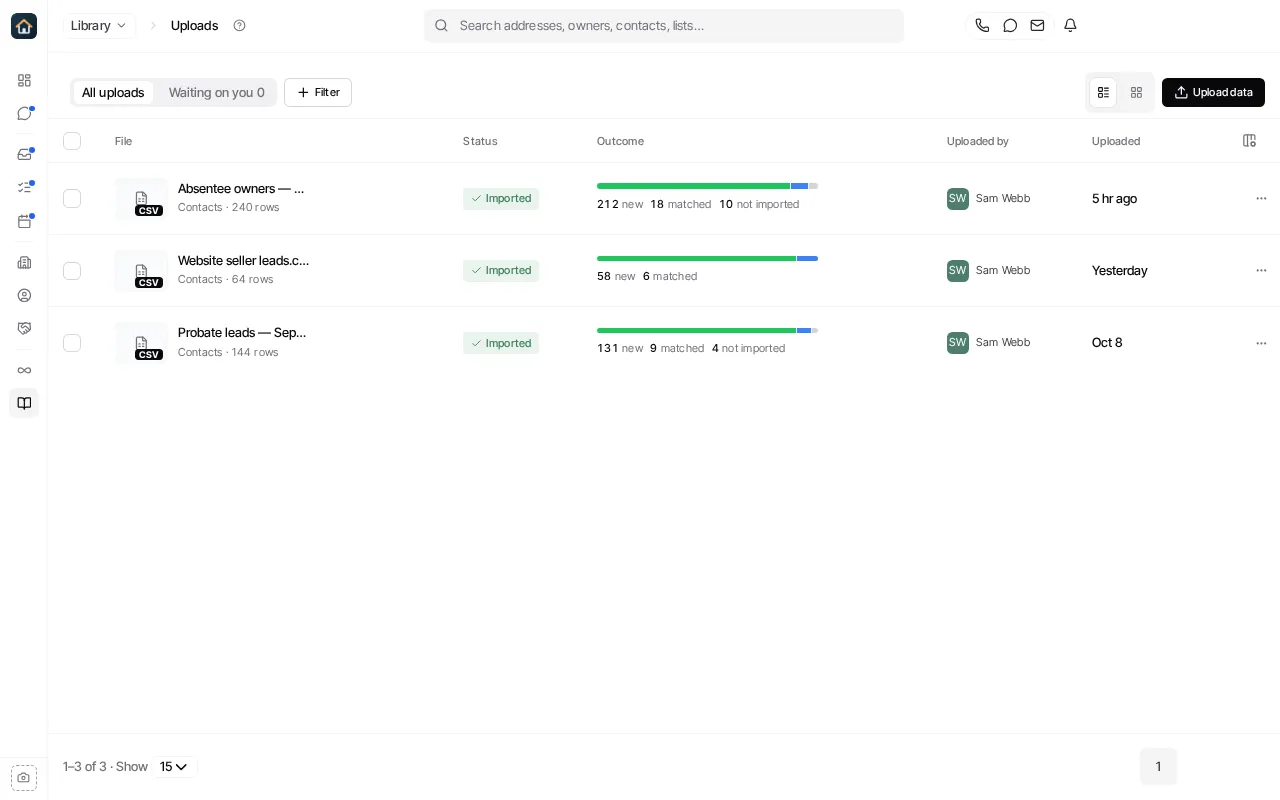
Each upload shows its file, its status, its outcome (how many rows became new records, matched existing ones, or were not imported), who uploaded it and when. Use Waiting on you for uploads you still need to finish, and Filter for Failed uploads, Uploaded this week, or a type (Contacts, Properties, Skip traces).
Start an import
Section titled “Start an import”- Select Upload data in Uploads, or New → Upload data on the Library home page.
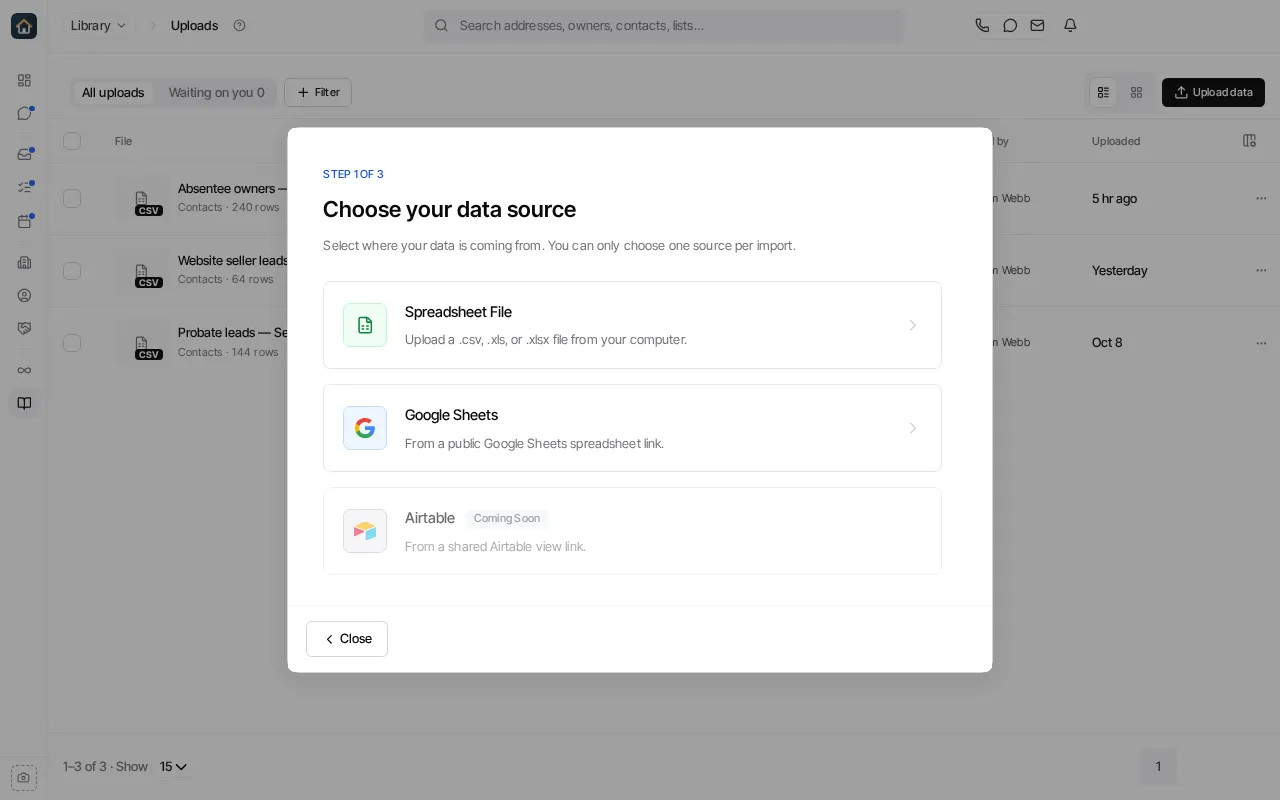
- Choose Spreadsheet File to upload a
.csv,.xlsor.xlsxfile from your computer, or Google Sheets for a public Google Sheets link. A spreadsheet can be up to 50 MB and 20,000 data rows, or 200,000 data rows for Tag Properties. Airtable is shown as Coming Soon and can’t be selected. - Choose what to do with the data (below).
- Check the preview and the column mapping, then confirm.
You can also start a contact import from Contacts → Add contact → Bulk upload. See Upload contacts.
Choose what to do with the data
Section titled “Choose what to do with the data”| Goal | Choose | Result |
|---|---|---|
| Bring people into Goliath | Create Contacts | Creates contacts from the file’s people data. |
| Find owners’ contact details for property rows | Skip Trace & Export | Runs a lookup and prepares a download. It does not create contacts. |
| Match property rows to the property database | Tag Properties | Matches properties and adds them to a list. |
Tag Properties takes files up to 200,000 rows. The other choices take up to 20,000 rows, so a larger file offers only Tag Properties. To skip trace a large list, tag it first, then filter Properties by that tag and skip trace in batches of up to 20,000.
When you start an import from a property page, only the property choices are offered.
Locate properties by map coordinates
Section titled “Locate properties by map coordinates”A property file can locate each property by latitude and longitude instead of an address, for example a list of cell tower sites. Include columns such as Latitude and Longitude in decimal degrees (degree-minute-second text also works). Goliath matches each point to the parcel whose boundary contains it. When the point is not inside any parcel, Goliath uses the row’s address or parcel number if it has one, and otherwise the nearest parcel within about 30 meters. The review screen shows the address of the property each point matched. Rows that match none of these are skipped. Coordinates are used only for files that locate properties by map point; a file with full street addresses or parcel numbers is matched by those, even if it also has latitude and longitude columns.
Check before you confirm
Section titled “Check before you confirm”The preview and review show how Goliath read your columns and what it is about to create. Check phones, emails and addresses especially. If the file needs work, fix it and start a new upload. See Map columns during an import.
Finish an upload that is waiting on you
Section titled “Finish an upload that is waiting on you”An upload you left in review shows under Waiting on you, and Library’s home page counts it under Needs you. Select it to pick up the review where you left off, rather than uploading the file again.
A contact upload can also come back with suggestions, for example possible duplicates. Select Review suggestions to go through them.
Open an upload
Section titled “Open an upload”Select an upload to open its own page: what it came to, its records, and the file. From there:
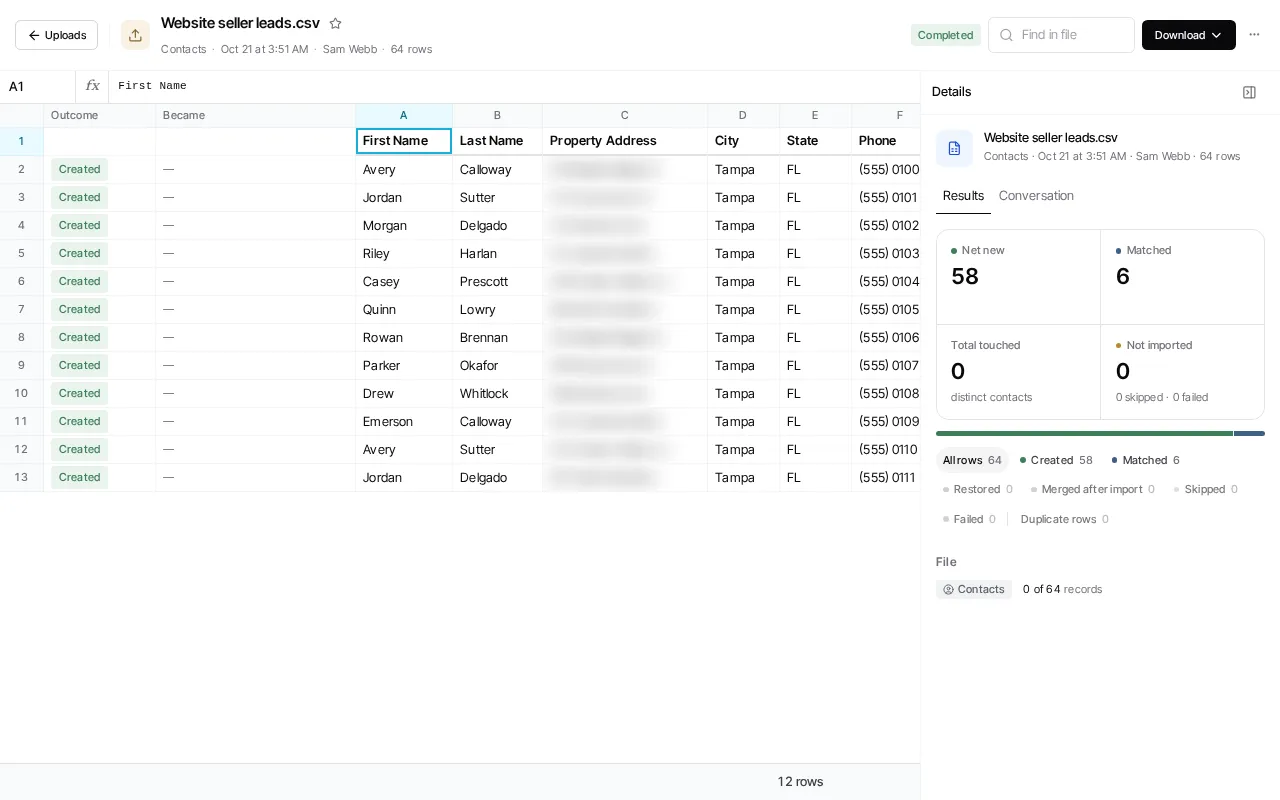
- Download offers the original file and, where there is one, the results file. Copy to My files saves a copy in Files.
- View in Contacts or View in Properties opens the records it made.
- ⋯ has Rename and, where allowed, delete actions.
See Review import results for reading an upload’s outcomes.
Removing an upload
Section titled “Removing an upload”Completed imports can’t be deleted. You can permanently delete:
- An upload still waiting in review, with Delete upload. This discards the file and the review in progress.
- The upload’s filter, with Delete upload filter. This removes the option to filter Contacts or Properties by this upload, and the records’ link to it. The records themselves and the upload’s history stay.
Neither can be undone.
Good preparation habits
Section titled “Good preparation habits”- Use a header row with clear names, and one kind of data per column.
- Keep phone numbers, email addresses and addresses in their own columns.
- Check a small sample before uploading a large file.
- Only choose skip tracing when you mean to spend credits on those rows.
- Keep a copy of the original file so you can compare results later.