
Calendar and availability
Use the Calendar workspace
Section titled “Use the Calendar workspace”Open Calendar from the main sidebar to see your appointments in a calendar grid or list. The view preference is stored for your user, so Goliath returns to the mode you last chose. Use the date controls to move through the schedule and select an appointment to inspect it.
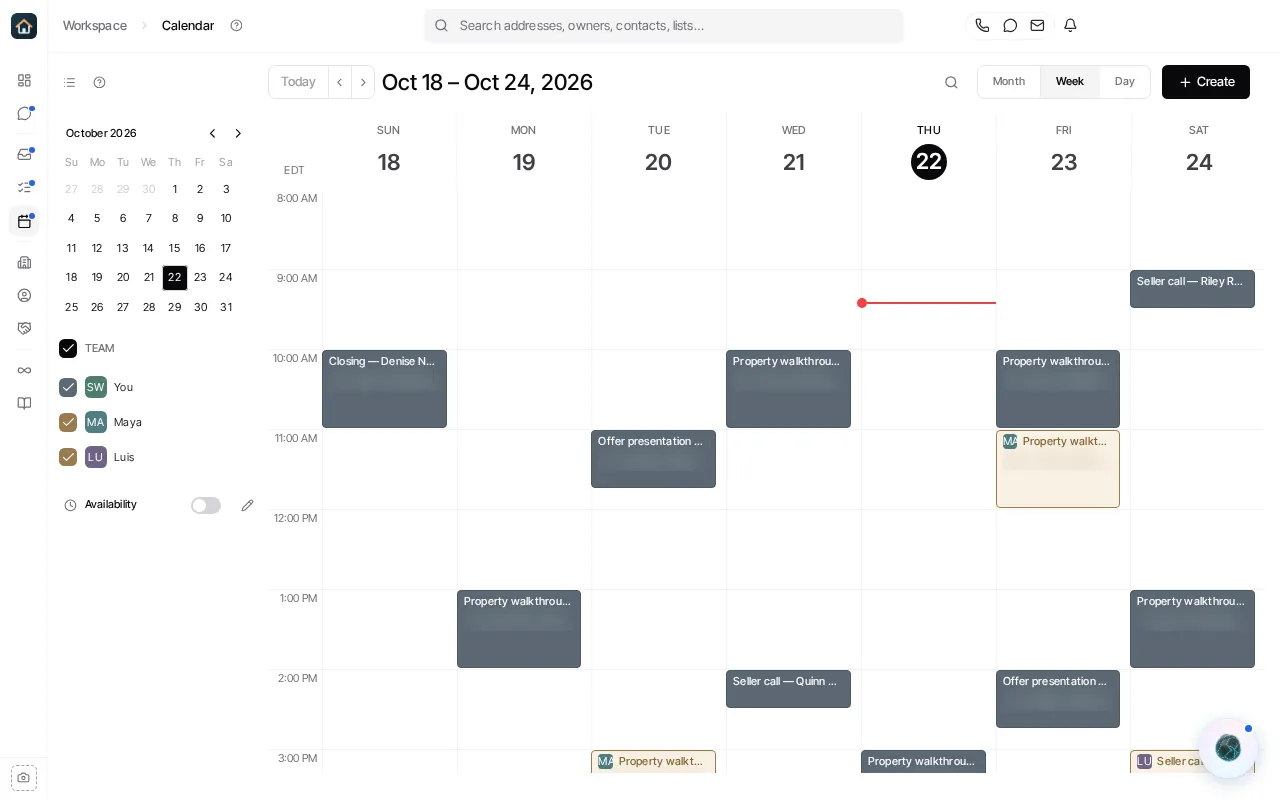
Create an appointment from the Calendar’s Create action. In the grid, you can also start from the selected day. Existing appointments can be opened for editing, and the grid supports rescheduling by dragging an appointment to a new time when the appointment is editable.
Synced external events are shown as read-only. Edit those events in their source calendar instead of expecting a Calendar edit to change them.
Create or edit an appointment
Section titled “Create or edit an appointment”- Open Calendar.
- Choose Create or Create appointment.
- Enter the appointment details and save.
- Select an existing appointment to revise it, or drag it to a new slot in the calendar grid when drag-rescheduling is available.
Text contacts a reminder before every appointment
Section titled “Text contacts a reminder before every appointment”Appointment reminders are set up from the appointment form, not from Calendar settings or Automations. A reminder texts the appointment’s contacts a set time before it starts, and can have several steps (for example, a day before and 30 minutes before).
- Open Calendar and create an appointment, or open an existing one to edit it.
- Turn on the Reminder switch.
- Select New reminder.
- For each step, enter how long before the appointment to send it and the text message to send. Select Add another message if you want more than one text.
- Check Run for every appointment to make this your default reminder.
- Select Create reminder, then save the appointment.
The default reminder is attached automatically to bookings made through a booking page or by an AI employee, and is preselected when you create an appointment yourself. You can still pick a different reminder, or none, on any single appointment. Appointments that already exist keep the reminder they had, so open one and pick the reminder to cover it too.
To make an existing reminder the default instead, open the Reminder list on any appointment and select Make default beside it. If your organization has only one reminder, it is used as the default even if you never checked Run for every appointment.
If a message uses a variable that cannot be filled for an appointment, that reminder is not sent for it.
Set booking availability
Section titled “Set booking availability”Availability is edited from the Calendar sidebar. It is not a separate Settings page and it is not configured from the Forms list.
- Open Calendar.
- Find the Availability area in the sidebar.
- Select the pencil / Edit availability control.
- Update the schedule in the editor and save your changes.
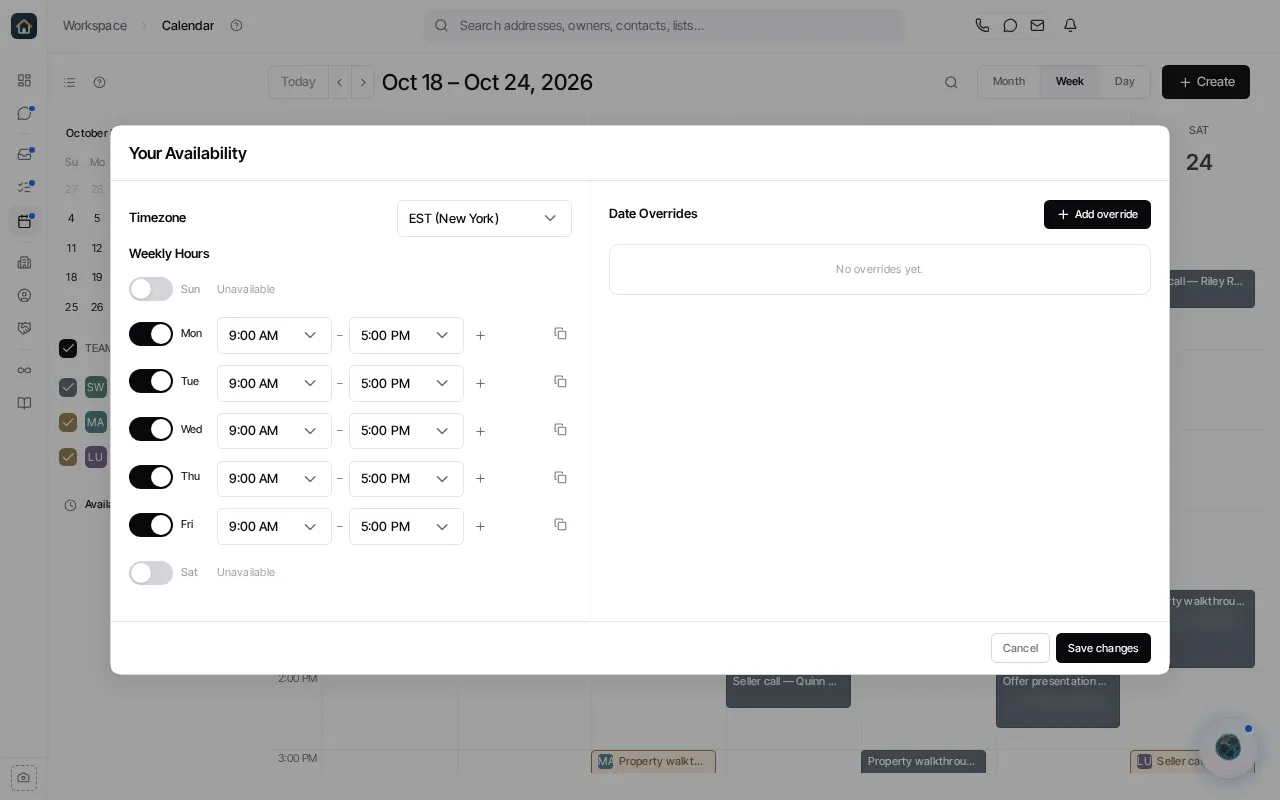
The sidebar also has an availability overlay toggle so you can see availability alongside appointments. Forms can consume the schedules and hosts you configure, but the Calendar sidebar is the place where the schedule itself is authored.
Related booking forms
Section titled “Related booking forms”An automation booking form can choose which hosts are offered and where a booking takes place (for example, a provider video call or a custom location). This does not replace the host’s schedule: set the schedule in Calendar first, then configure the booking form in Automations.