
Pause a workflow for one contact

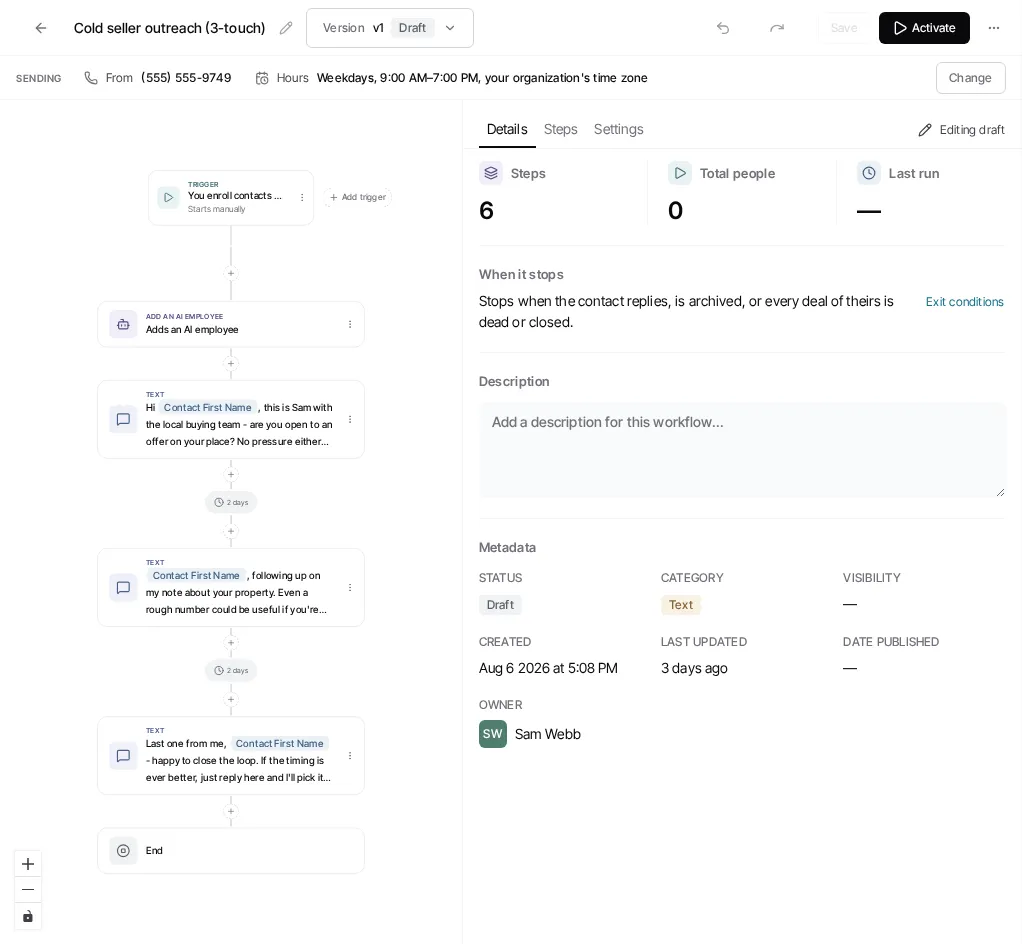
To hold a single contact’s active workflow run, open the contact and use its Automations card. This affects that run, not the workflow for every other contact.
- Open the contact record.
- Expand Automations.
- Find the run that is in progress or waiting.
- Select Pause run beside that run.
What Pause run does
Section titled “What Pause run does”Pause run pauses the run where it is. Nothing further is sent for that contact from that run until someone resumes it. It does not delete the contact, the workflow, or history that has already been recorded.
The card itself has no resume control. To resume the run, use either of these:
- Open the Workflows tab of Automations, open the workflow, and find the run in its activity list. Use Resume run there, or open the run and select Resume, or Resume and retry step when the detail view offers it.
- Open Contacts, select the contact, open More in the bulk action bar, select Pause workflows, choose Resume, then select the button at the bottom to submit. This resumes runs that were paused by hand while their workflow is live.
If you want the run ended for good
Section titled “If you want the run ended for good”The contact’s Automations card offers Pause run, and the workflow’s activity list offers Pause and Resume. Neither has a button that permanently ends one contact’s run. A run you pause by hand stays paused when the workflow itself is paused and resumed, so pausing it and leaving it paused keeps it from sending.
For the status meanings and recovery guidance, see Monitor and recover workflow runs. To enroll the contact in a workflow deliberately, see Manually trigger workflows.