
How Do I Create a Workflow?
-
Open Automations in the main sidebar, select the Workflows tab, and select New workflow.
-
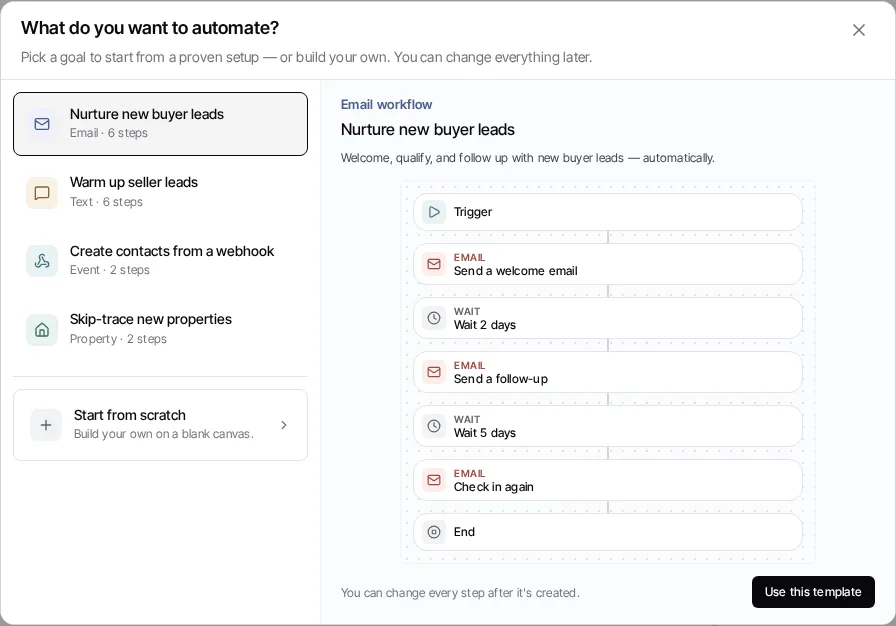
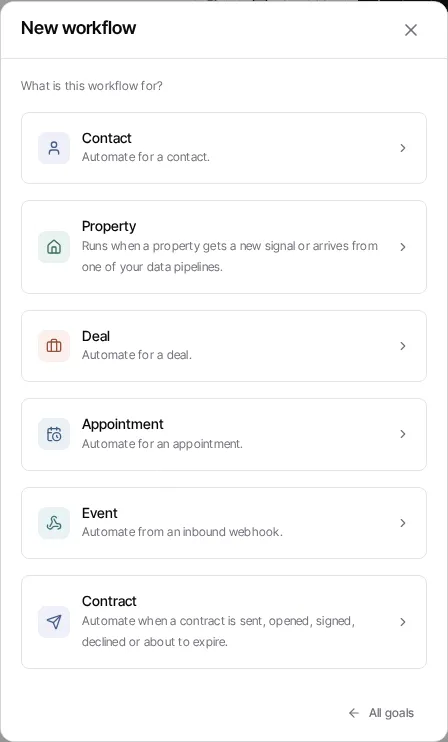
Choose a goal card and select Use this template for a prepared starting point, or select Start from scratch and choose a domain.
-
In the editor, configure the trigger and add the steps your workflow needs. Contact, deal and property workflows start with a Manual trigger, so replace it if the workflow should start on its own. Appointment, event, Slack and contract workflows start with that type’s own trigger. See Creating Workflows.
-
Save the draft. Only the draft is editable; the live version remains unchanged while you work.
-
Test with a controlled record or use the run controls to inspect the result.
-
Select Activate for the first live version. For a workflow with an existing live version, select Publish changes and review the in-flight-run choice.
The available trigger settings, conditions, and action steps vary by workflow domain and capability. Use the editor’s step picker as the current source of truth.
For forms, do not rely on a generic form-submission trigger: select the live contact workflow in the form’s Connect step to explicitly enroll each submitted contact.
To have Goliath build it for you instead, describe the workflow in the Automations chat beside the list; see The Automations page.
See Workflow Automations for version and run terminology.