
How Do I Create a Form?
-
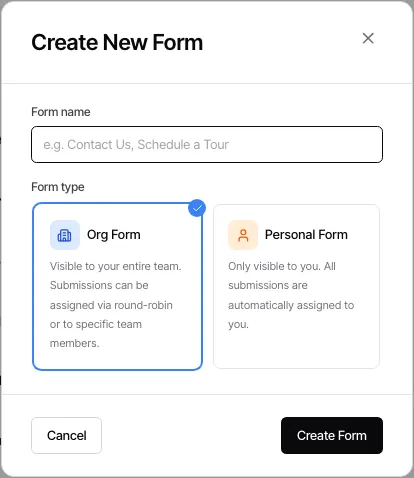
Open Library → Forms and select New form. The page that opens lets you describe the form to Goliath or pick a starter; to build it yourself, select Blank form. (Inside a folder, New form goes straight to a blank form.) Give the form a name, choose Org Form or Personal Form, then select Create Form.
-
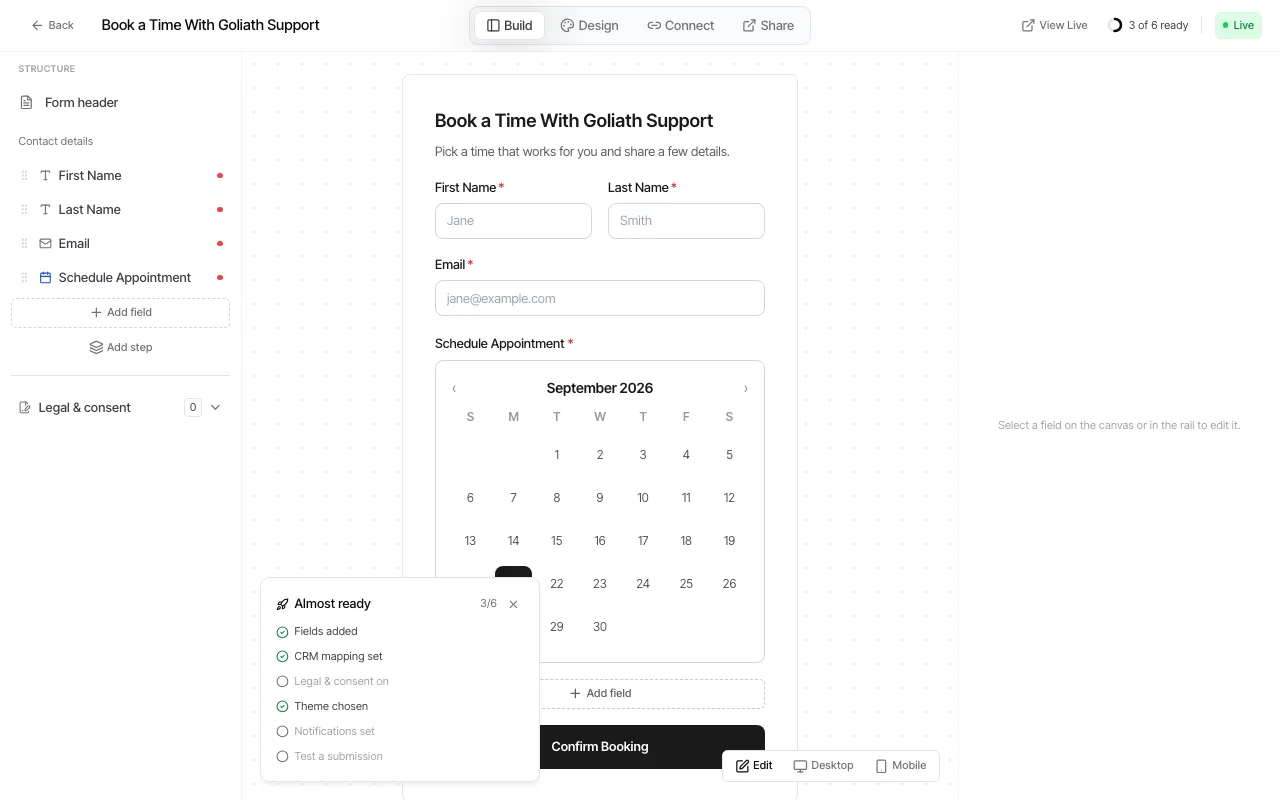
In the full-screen builder, use the Build step to add and organize the fields and steps visitors will complete. You can convert a form to multiple steps when that fits the experience.
-
Use the design controls to set the form’s look and preview it before publishing.
-
Open Connect to map form fields to contact properties. A submission creates or updates a contact, then applies the routing rules configured there.
-
In Connect, optionally add contact presets, tags or lists, AI employees, live contact workflows, or deal creation where those options are available.
-
Configure legal and consent content appropriate to your organization and how you plan to contact respondents. Review this content with your own legal counsel.
-
Save your changes, then select Publish when it is ready to collect public submissions. Use the share surface to copy the hosted link or an embed snippet.
To run a follow-up process after a form submit, select a live contact workflow in Connect. Goliath enrolls each submitted contact in the selected workflow, including an existing contact, so choose workflows intended for that source.