
Templates
Templates are reusable content your team and your workflows send and apply: texts, emails, notes, tasks and task sets. Open Library → Templates.
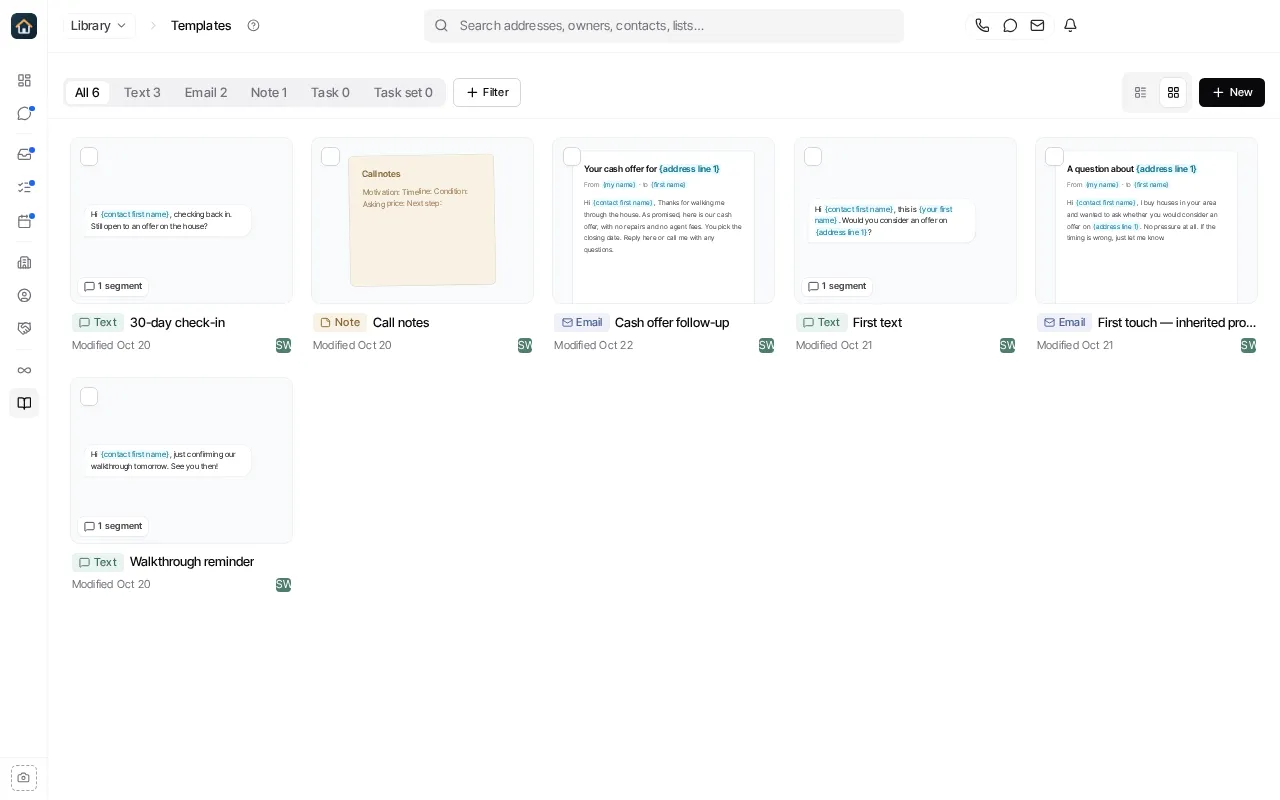
Use the tabs to show one kind of template, Filter to narrow the list, and the List and Grid buttons to change the layout. Each card previews the template’s content.
Create a template
Section titled “Create a template”Select New template. You can:
- Describe the template to Goliath, for example “a 3-text follow-up for sellers who went quiet”, and it writes it for you.
- Start from one of the starters shown.
- Select Blank template and choose the kind:
| Kind | Use it for |
|---|---|
| Text template | A text message. |
| Email template | An email with a subject and a formatted body. |
| Note template | An internal note. It is never sent to the contact. |
| Task template | A task with a title, details, a due time and an optional task type. |
| Task set | A set of task templates applied together, such as a closing checklist. |
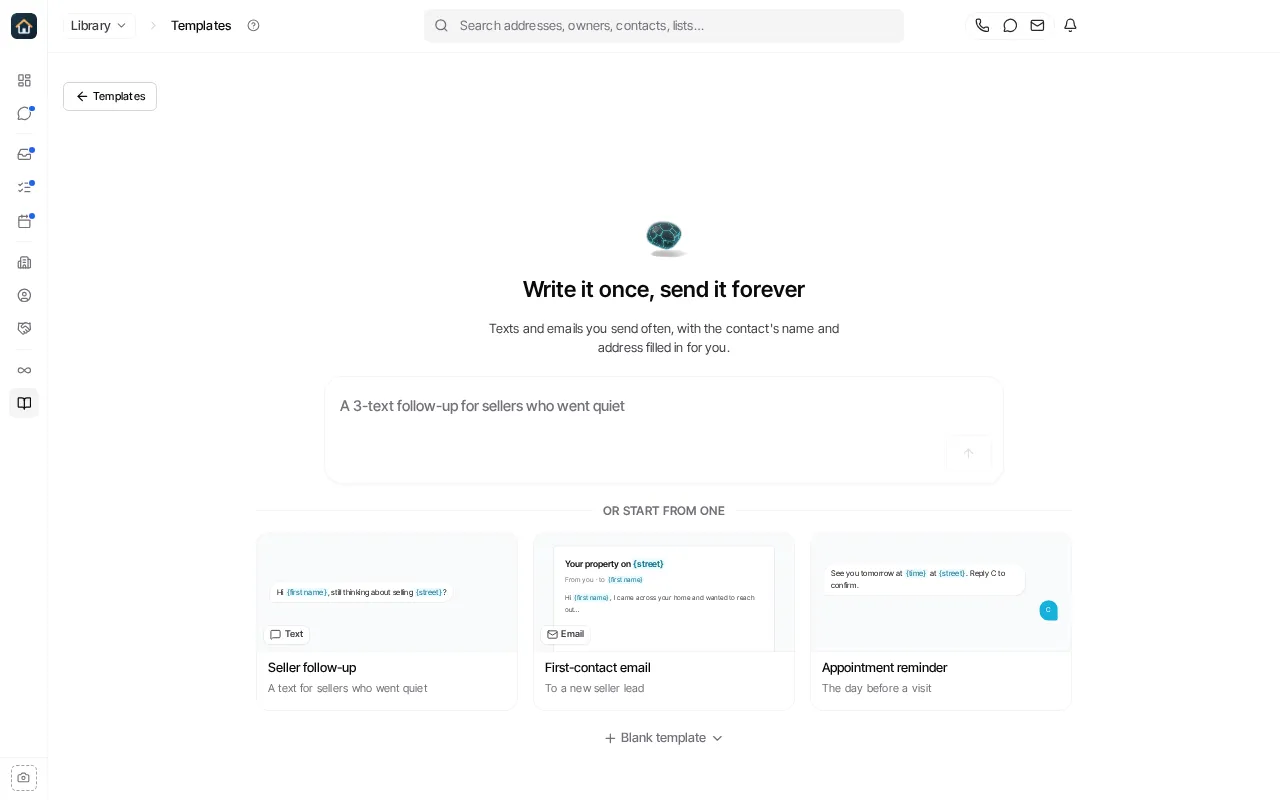
You can also start one from the Library home page with New → Template.
A template opens on its own page. It is saved only when you select Save template. Step-by-step guides:
Use variables safely
Section titled “Use variables safely”Insert record data with Insert variable rather than typing placeholder text yourself. Preview the template with a representative contact before you use it in outreach: a variable only fills in when the record has that data. Lookup table values are available in contact templates; test a workflow that sends one before you rely on it elsewhere. See Lookup tables.
Organize templates
Section titled “Organize templates”Keep templates in folders that match how your team works. From a template’s or folder’s menu you can rename it, move it to another folder, or delete it.
Use a template
Section titled “Use a template”- In a text or email you are writing, pick a template from the composer. See Use text templates and Use email templates.
- In a workflow, choose the template in a send step.