
Connect a Microsoft account
Microsoft is a per-account connection. Use the Microsoft card in the organization menu → Integrations to connect a mailbox, add another account, or manage a connected account.
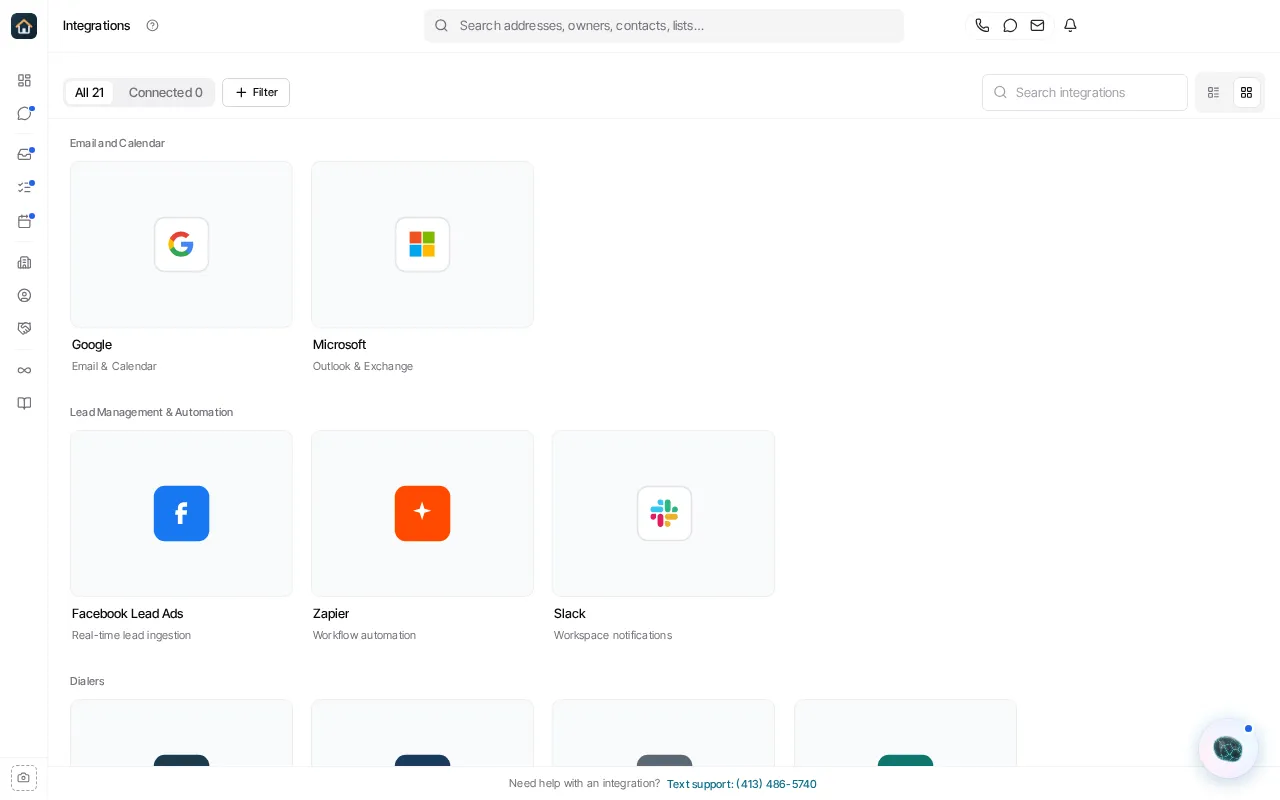
- Open the organization menu → Integrations and find Microsoft under Email and Calendar.
- Select the Microsoft card, then Connect Microsoft. If you already have a Microsoft account on the card, select Connect another Microsoft account instead.
- Complete the Microsoft authorization in the browser, using an account that is permitted to grant the requested access.
- Return to Goliath. The card lists the connected account and shows Connected (or a count when more than one account is connected).
Manage a connected account
Section titled “Manage a connected account”Each account row has its own controls. Use the row to set the default sending account, reconnect that account, open Manage Microsoft Account, or begin disconnecting it. The manage dialog controls whether email received from contacts assigned to you is shared with the organization.
Disconnecting an account can require you to resolve dependencies first. Read that dialog carefully, especially if the account is the default sender; if another connected account can become the default, Goliath reports the new default after disconnection.
Goliath’s current card describes Microsoft as an Outlook and Exchange email and calendar connection. It does not make a help-center promise about historical-mail backfill, a particular Exchange deployment, Outlook rules, or the exact provider permission text, because those details can vary with the account and Microsoft authorization flow.