
Set up automatic responses
An automatic response combines a configured AI Employee, a way for that employee to receive the inbound contact, and a working communication channel.
Set up inbound text or call responses
Section titled “Set up inbound text or call responses”- Hire an AI Employee and describe how it should handle new leads.
- Set up its texts and/or calls under Reaches by on the employee’s page (Automations → AI employees → the employee). The employee can use a number already attached to the contact or conversation; it does not need a phone line of its own.
- Choose how inbound contacts reach the employee:
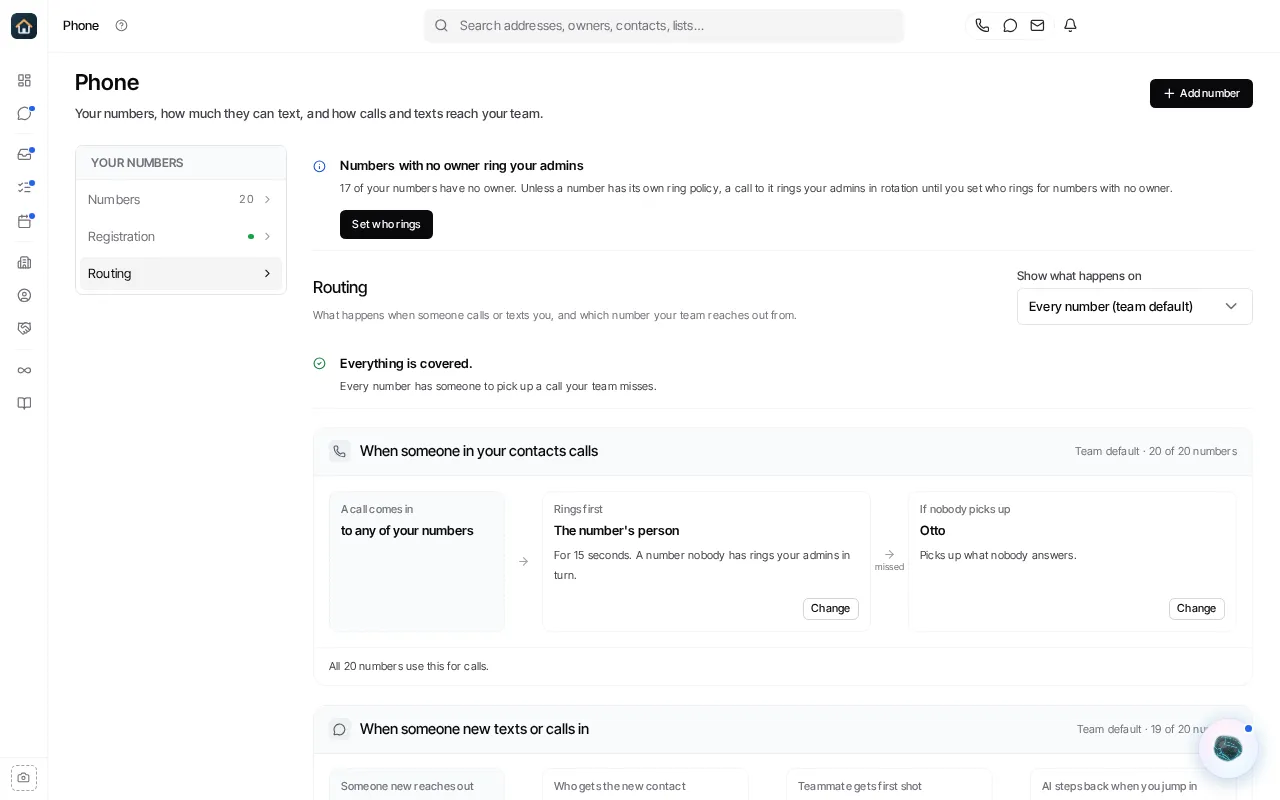
- Add the employee under Who gets the new contact in the organization menu → Phone → Routing for the organization default, or
- Configure a different inbound setup for a specific number from its owner’s phone management sheet.
- To have the employee pick up missed calls, open Automations, and on the Map tab under Phone calls open Calls to every number (or a number’s own row), and set the employee as the one who picks up. If the employee shares a line with a human, an organization administrator reviews Teammate gets first shot in the organization menu → Phone → Routing (its Change opens Head start on shared lines).
- Activate the employee after the configuration is ready.
For a configured text or email channel, inbound traffic wakes the employee. Turning off Send texts or Send emails stops new outbound messages but keeps the channel’s settings, and the employee still reads inbound traffic.
Set up inbound email responses
Section titled “Set up inbound email responses”- Set up the employee’s email under Reaches by.
- Make sure the intended contacts have access to a connected mailbox that the employee can use.
- Set a reply wait and emailing hours that match your business policy.
- Activate the employee. Its conversations show on each contact’s timeline and in the workspace Inbox.
Avoid accidental outreach
Section titled “Avoid accidental outreach”Keep the channel switches off while you are reviewing an employee. Before you turn a channel on, set its reply wait and hours. A channel shows a readiness note when something it needs is missing, rather than claiming it is ready.
For the phone-number side of this setup, read Phone routing, including Call routing, and Inbound setup.
Ask Goliath Reading: Set up automatic responses