
How do I send a bulk text?

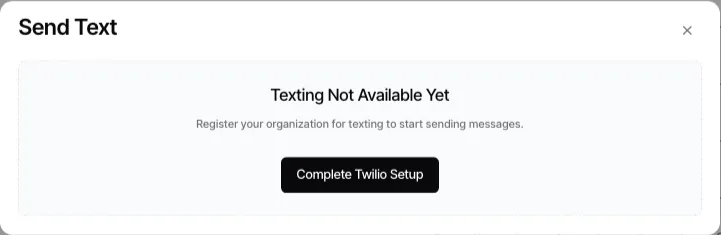
Goliath does not provide a separate manual “send this text to everyone” action. To send the same outreach process to selected contacts, use a live contact workflow with the text step and sender settings you intend to use.
- In Automations → Workflows, create or open a contact workflow and configure its text step. Save and activate the workflow only after reviewing its message, recipient, and sender settings.
- Open Contacts and select the contacts you intend to enroll.
- Use Trigger workflow in the bulk action bar.
- Choose one live contact workflow and confirm the action.
- Open the workflow’s runs to review what happened for individual contacts.
The Contacts bulk picker starts one chosen workflow; it does not combine several workflows into one bulk action. Check the selected-contact count and the workflow before you confirm, especially when the workflow can send immediately.
For scheduled follow-up, model the timing in the workflow with a wait step and its sending configuration. A manual text composer is for a single recipient, not for this bulk-enrollment flow.
Related guides
Section titled “Related guides” Ask Goliath Reading: How do I send a bulk text?