
Lookup tables
A lookup table holds values a workflow reads while it runs. Each row is matched on a key, such as a ZIP code, county, city, contact list or deal stage, and each column holds a value for that key. Use one when the same workflow needs different values for different markets or groups: the offer you make by ZIP code, how many days to wait by city, or how each market names itself in texts and emails.
Lookup tables are for organization admins. Open Library → Lookup tables.
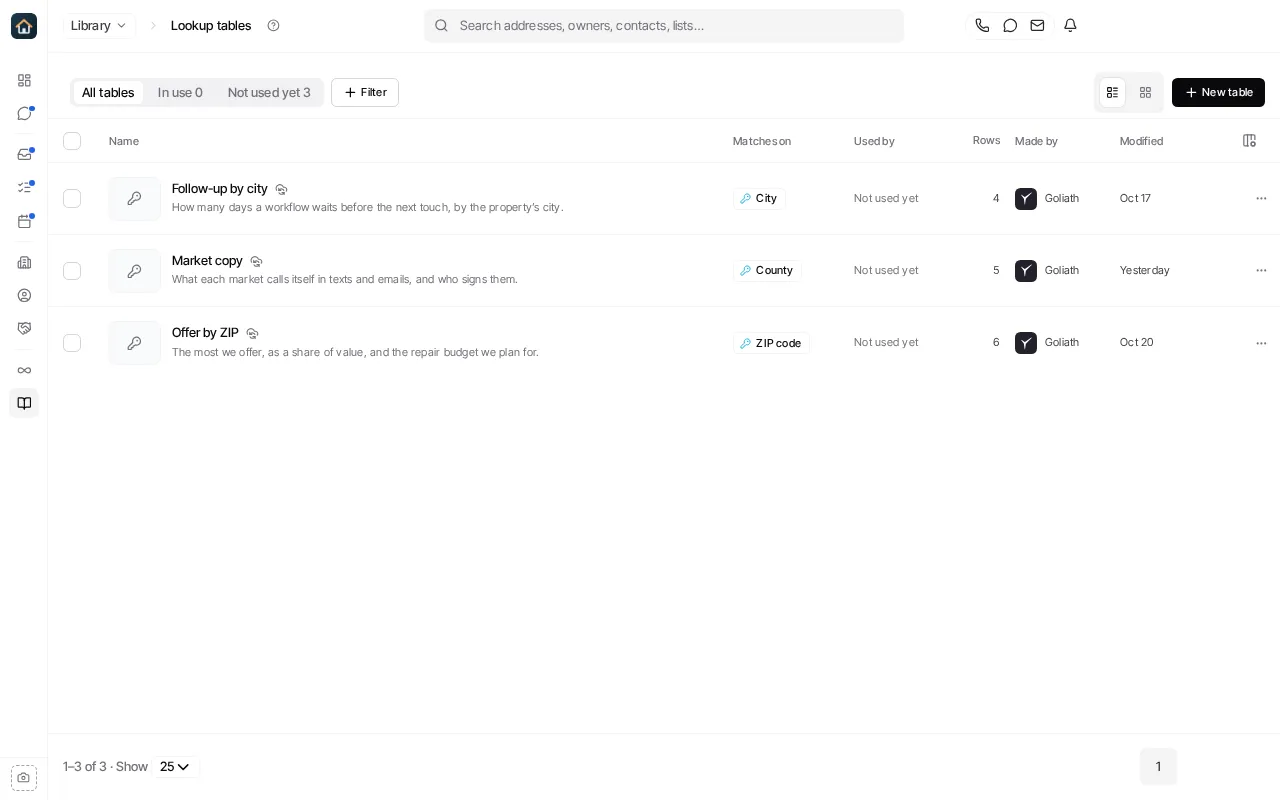
The tabs show All tables, the ones In use by a workflow, and the ones Not used yet. Each table shows what it matches on and how many rows it has.
Create a table
Section titled “Create a table”Select New table (or New → Lookup table on the Library home page).
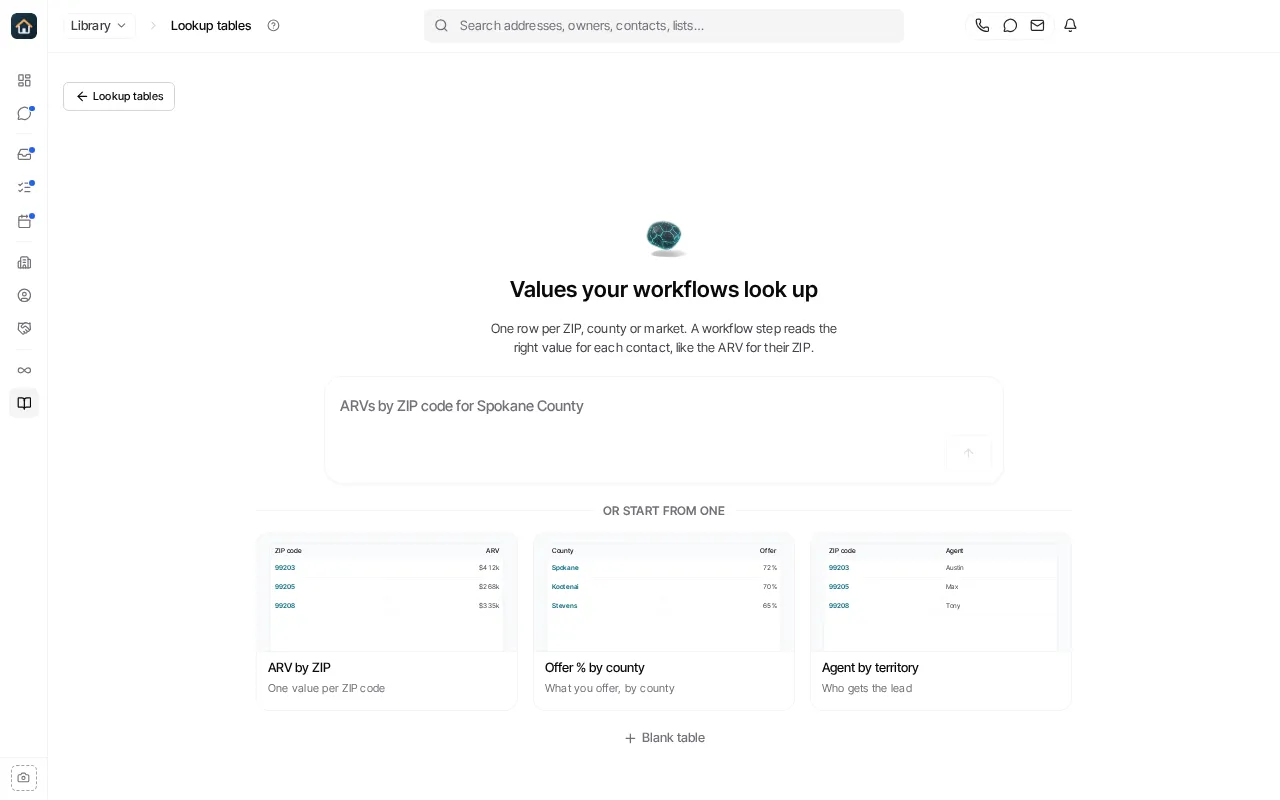
- Describe the table to Goliath, for example “ARVs by ZIP code for Spokane County”, and it builds it.
- Start from a starter such as ARV by ZIP, Offer % by county or Agent by territory.
- Or select Blank table, name it, choose what its rows are keyed on, and select Create table.
A table’s key is fixed when the table is created, so choose it carefully.
Edit a table
Section titled “Edit a table”Select a table to open it.
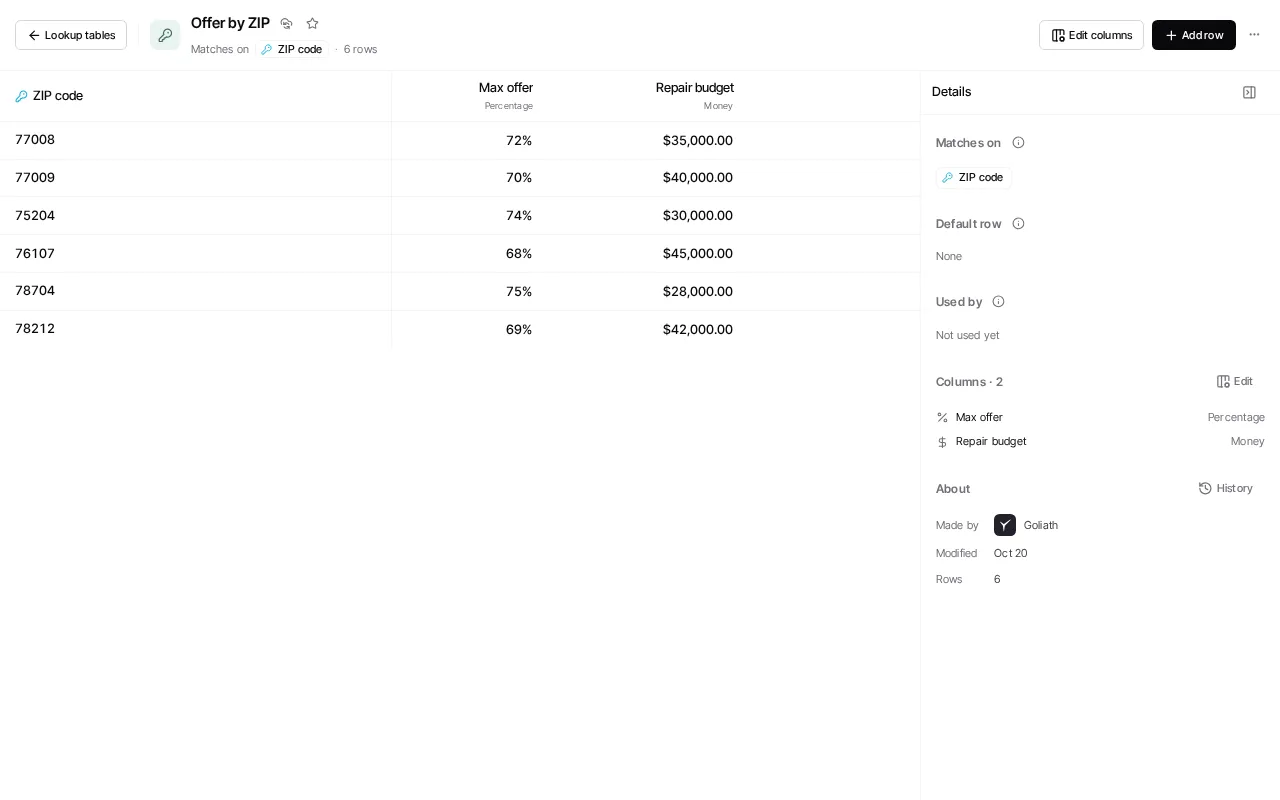
- Add row adds a row. Edit columns adds, renames or removes columns, and sets what each column holds (for example a percentage, an amount of money, or one of a fixed list of choices).
- A key can be a range (a start and an end) where the key kind allows it.
- The Default row is used when no other row matches. Only one row can be the default.
- Import CSV adds rows from a spreadsheet; Export CSV downloads the table.
- Preview lookup shows which row a given record would match.
- The Details panel shows what the table matches on, its default row, which workflows use it, and its columns. History there lists every change: who made it, and what it was before and after.
Goliath warns you before you leave a table with unsaved or failed changes.
Use a table in a template
Section titled “Use a table in a template”Lookup table values can be inserted in contact templates. Test the workflow that sends the template before relying on a value elsewhere. See Templates.