
Custom Fields on Deals
Custom fields let you track deal-specific data beyond the built-in fields Goliath provides. Deal fields are configured per pipeline, so each pipeline can track the fields that match its workflow. Common examples include Acquisition Cost, Rehab Budget, ARV (After Repair Value), Assignment Fee, Loan Type, or Lead Source.
Step-by-Step Guide
Section titled “Step-by-Step Guide”-
Open the Manage Pipelines dialog
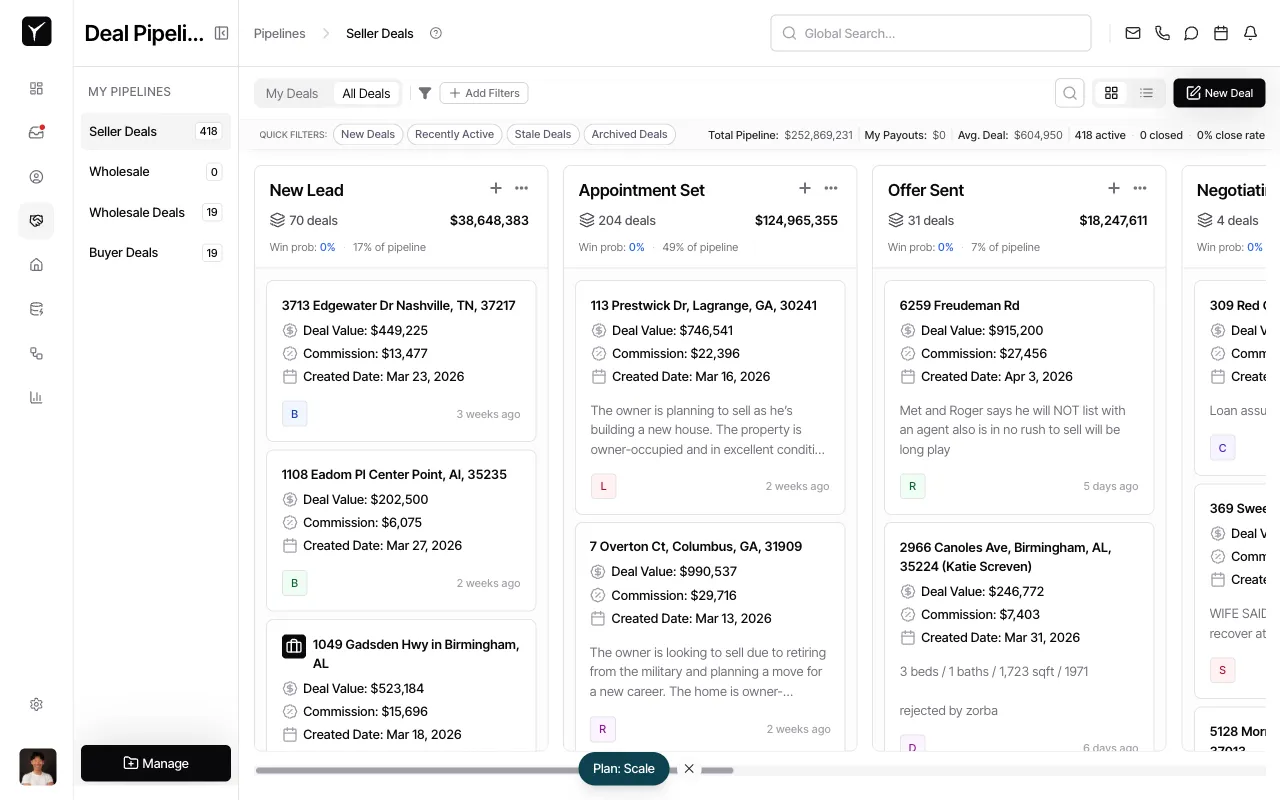
From any pipeline view, click the Manage button in the sidebar. This opens the pipeline management interface.
-
Navigate to All Fields
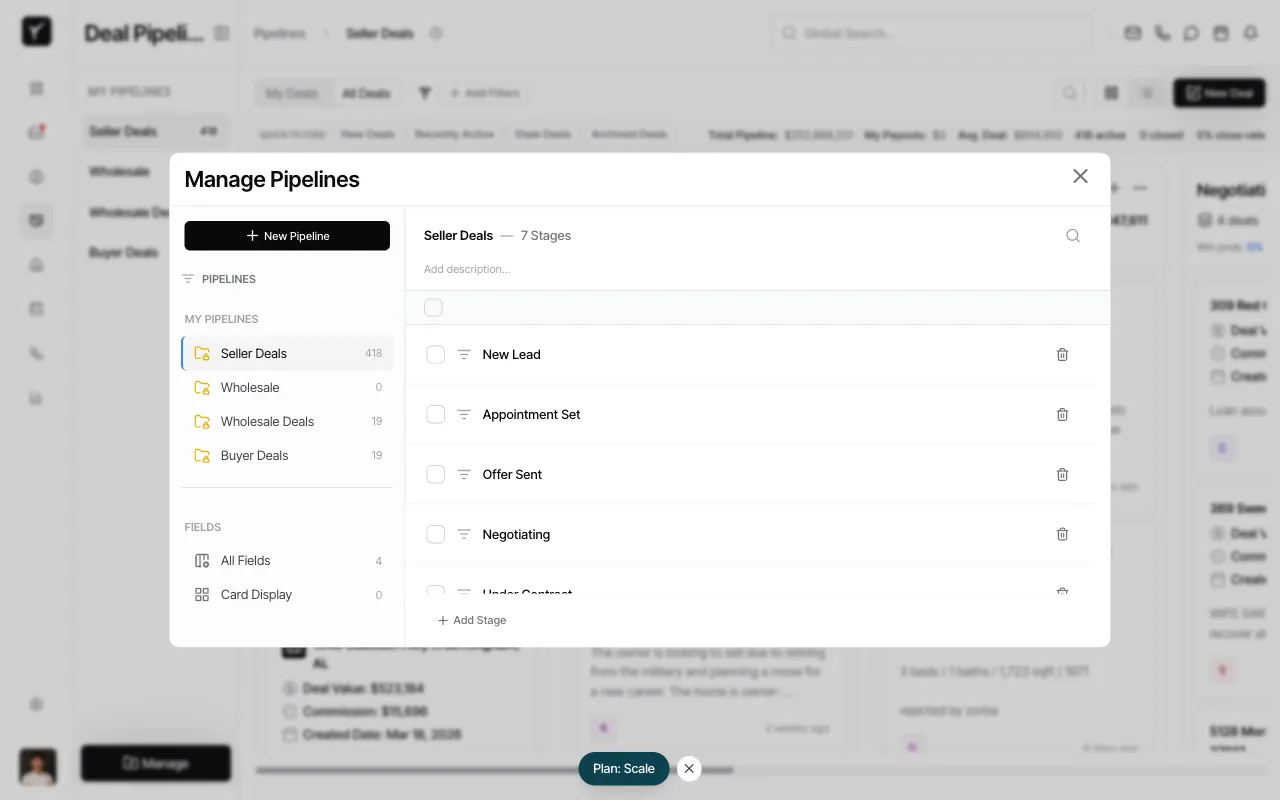
In the left sidebar under FIELDS, click All Fields. You’ll see the system fields for the selected pipeline, plus any custom fields already defined for that pipeline.
-
View or add custom fields
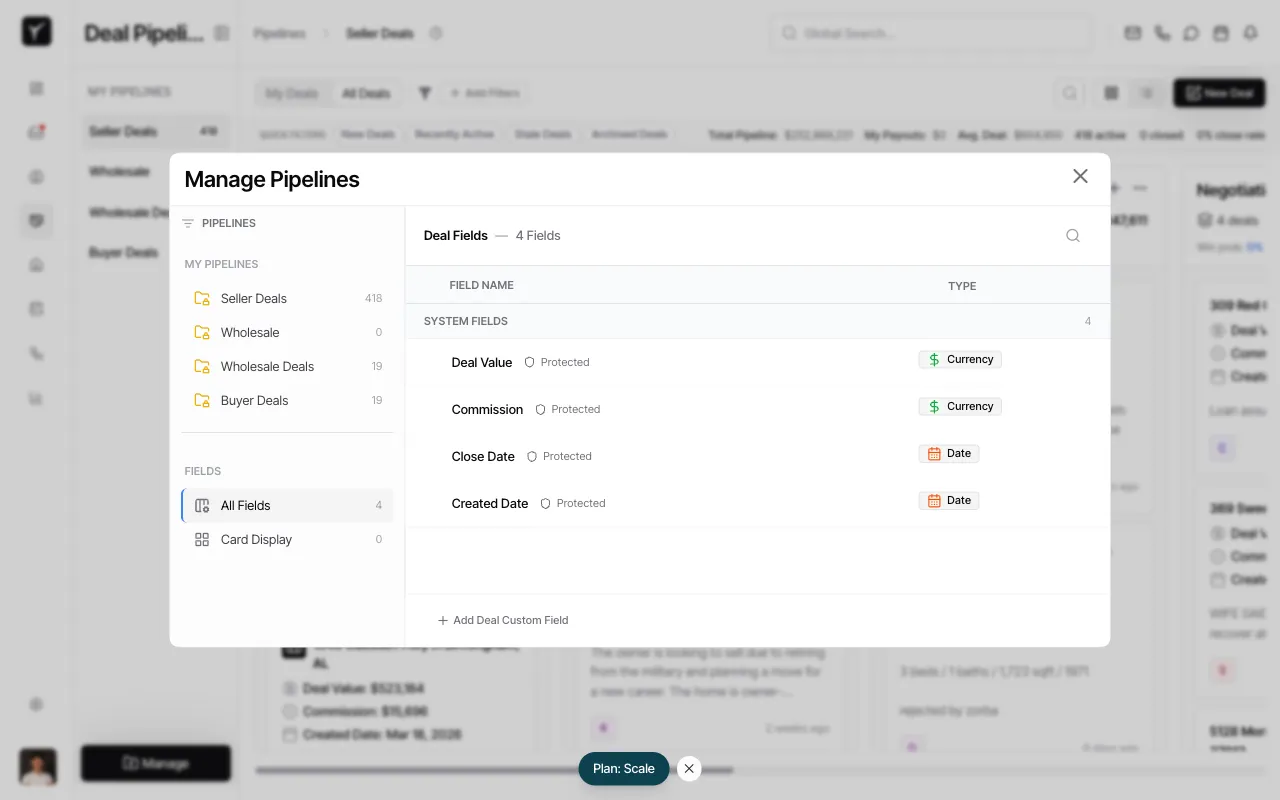
The Deal Fields panel displays the fields available on deal records in this pipeline. System fields are marked as Protected and cannot be edited or removed. Click + Add Deal Custom Field at the bottom to create a new field.
-
Configure Card Display settings
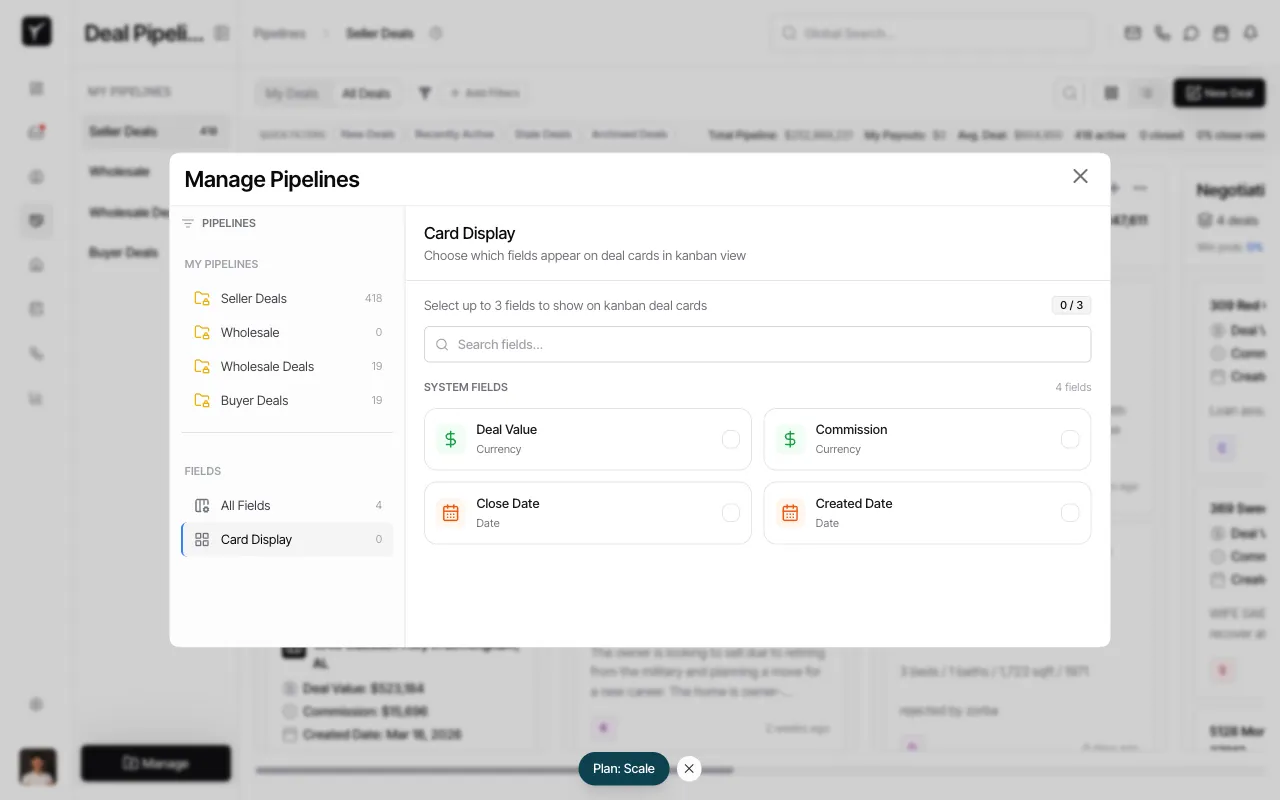
Click Card Display in the left sidebar to choose which fields appear on deal cards in the Kanban view. You can select up to 3 fields to display on each card. This keeps the board uncluttered while all fields remain accessible from the deal detail sheet.
-
Configure deal detail tabs
In All Fields, use the Shown checkbox to hide or show fields on the deal detail sheet. Use the Detail tab dropdown to leave a field in the default Details area or move it to a custom detail tab. Add, rename, reorder, or remove custom tabs from the Detail Tabs section, then click Save detail tabs.
Frequently Asked Questions
Section titled “Frequently Asked Questions”Q: Can I create pipeline-specific custom fields?
Section titled “Q: Can I create pipeline-specific custom fields?”Yes. Deal custom fields are pipeline-specific. Select the pipeline first, then manage its fields from Manage > Fields > All Fields.
Q: Who can create custom fields?
Section titled “Q: Who can create custom fields?”Only organization admins can define or edit custom fields. All team members can view and update field values on individual deals.
Q: What field types are supported?
Section titled “Q: What field types are supported?”Text, number, date, currency, and single- or multi-select dropdown.
Q: Can I use custom fields in filters and exports?
Section titled “Q: Can I use custom fields in filters and exports?”Yes. Once defined, custom fields can be filtered, sorted, included in deal exports, and referenced by automation workflows.
Q: What happens if I don’t set a custom field on a deal?
Section titled “Q: What happens if I don’t set a custom field on a deal?”The field will remain blank. Custom fields are optional by default unless you configure a workflow or validation rule requiring them.