
Building Your Campaign
The builder gives you a shell; the Editor is where the campaign becomes real. It’s a single screen with a persistent left rail and three sections — Audience, Message sequence, and AI auto-reply. Everything you change stays local until you press Save changes in the header, which saves the whole campaign at once.
The left rail always shows your live Reach (contact count) and Touches (number of messages), the recipient-local Quiet hours window, the attached purpose, and links to the three sections.
Section 1 — Audience
Section titled “Section 1 — Audience”Each campaign has its own set of contacts — “The people this campaign texts.” You add them here by uploading a CSV; there’s no separate list to pick from.
- Upload a CSV — “Enroll new people in this campaign.” Bring in a fresh file of contacts.
- Previous uploads — re-use a file you’ve already uploaded instead of preparing a new one.
- Enrolled contacts appear in the table below, and the rail’s Reach count reflects how many people the campaign will text.
Section 2 — Message sequence
Section titled “Section 2 — Message sequence”This is the drip builder and the heart of the Editor. A sequence is a series of touches. The first sends the instant a contact enters the campaign; every later touch waits a set number of days and only fires if the contact hasn’t replied. The goal is a few gentle, well-spaced nudges — not a barrage.
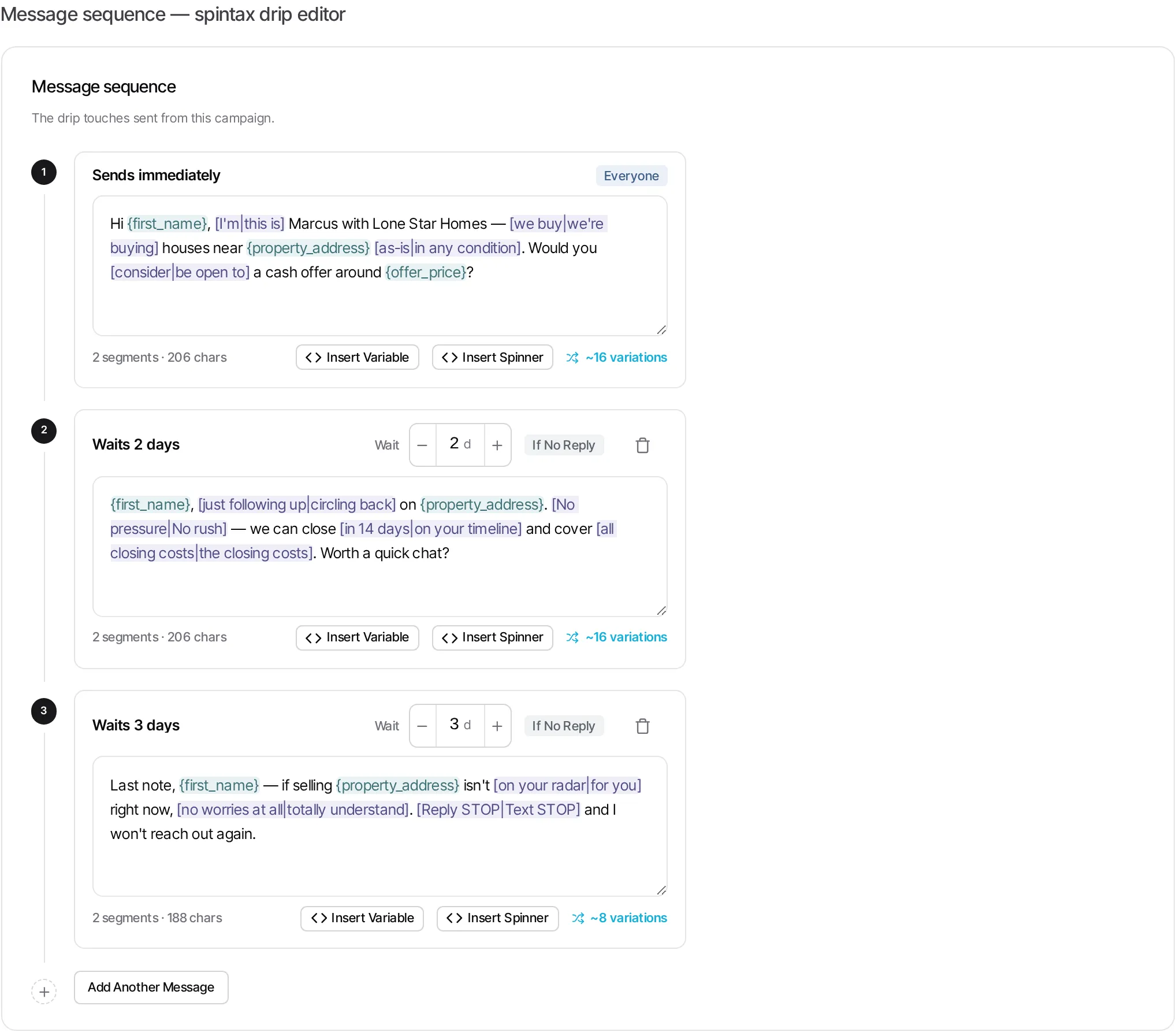
Anatomy of a touch
Section titled “Anatomy of a touch”- Timing — the first touch is labeled “Sends immediately.” Each following touch shows “Waits N days” with a stepper you can set from 1 to 30 days. Spacing touches a couple of days apart reads as human and keeps you clear of carrier rate limits.
- Who it goes to — the first touch carries an Everyone badge; follow-ups carry If no reply. As soon as someone replies, their remaining follow-ups stop automatically — the AI takes the conversation from there.
- The message body — written in the composer, with merge fields and spintax so no two sends read exactly alike.
Add another message appends a follow-up (defaulting to a 2-day wait); the trash icon removes one. The first touch always sends immediately.
Merge fields & spintax — why every text is unique
Section titled “Merge fields & spintax — why every text is unique”The composer has two power tools, and using them well is the single biggest lever on your results:
- Merge fields — Insert Variable drops a token like
{first_name}or{property_address}at your cursor. At send time each token is filled from that contact’s record, so every message is personal. - Spintax (spinners) — Insert Spinner adds a
[option A|option B]group. At send time one option is picked at random, so the same touch produces dozens of distinct wordings across your list.
As you type, the composer highlights tokens in teal and spinner groups in purple, and shows two live readouts: a segment/character count (2 segments · 206 chars) so you can watch SMS length, and a variation count (~16 variations) so you can see how much diversity your spinners create.
Quiet hours — compliance you don’t have to think about
Section titled “Quiet hours — compliance you don’t have to think about”The rail’s Quiet hours block controls when sends are allowed, in each recipient’s local time. The default window is 8:00 AM – 9:00 PM; tap edit to adjust with the two time pickers. Sends outside the window are held until it opens.
Section 3 — AI auto-reply
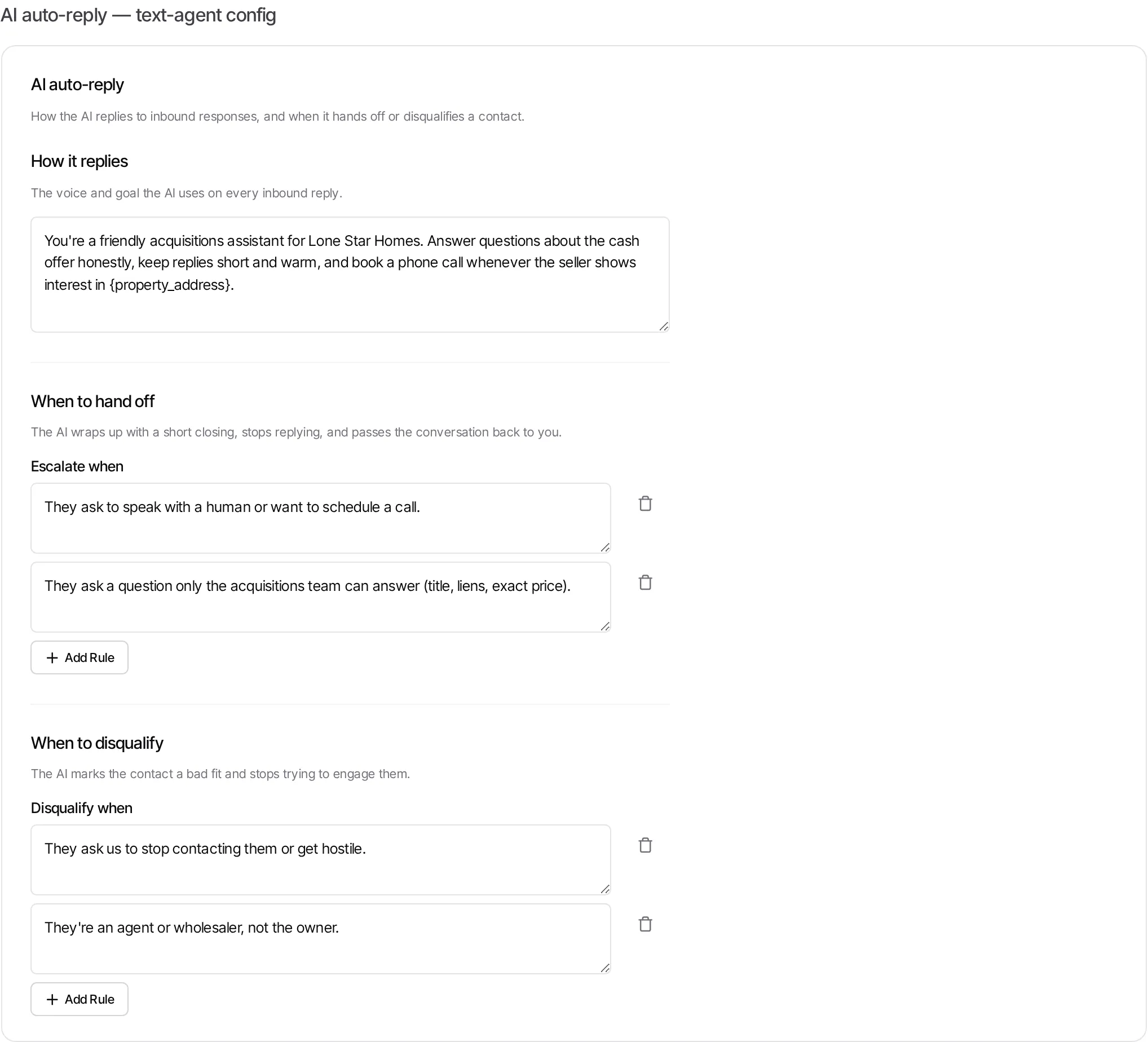
Section titled “Section 3 — AI auto-reply”Bulk outreach lives or dies on the follow-up. The AI auto-reply section configures an assistant that answers inbound replies in your voice around the clock — “How the AI replies to inbound responses, and when it hands off or disqualifies a contact.” It has three parts.
-
How it replies
A single prompt sets the assistant’s voice and goal — it’s used on every inbound reply. Be specific about tone (warm, brief, no hard sell), what it may say (offer range, timeline, process), and the outcome you want (usually: book a call).
-
When to hand off
Escalation rules are the safety valve. When any rule matches, “the AI wraps up with a short closing, stops replying, and passes the conversation back to you.” Under Escalate when you list the moments a human should take over — they ask for a human, want to schedule, or ask something only you can answer. You also choose who gets notified: teammates, a webhook, or a contact workflow that fires on the hand-off.
-
When to disqualify
Disqualification rules keep your pipeline clean. When one matches, “the AI marks the contact a bad fit and stops trying to engage them.” Under Disqualify when you describe the exits — they ask to stop, get hostile, or aren’t engaging seriously. Opt-outs are always honored; these rules simply let you codify the other dead-ends.
Launching
Section titled “Launching”When the campaign is ready, press Launch in the header (shown only while it’s a Draft). If the purpose is still with the carriers, the campaign stays a draft — it won’t send on its own. Once the purpose is approved, come back to the campaign and press Launch again. After launch, follow the send from the Live Console.