
Inside Goliath: an overview of the notifications center
Never miss an update again with built-in notifications

Austin Beveridge
Tennessee
, Goliath Teammate
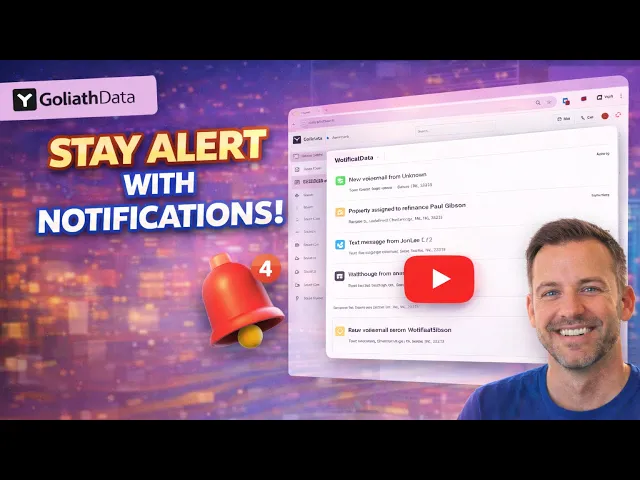
Notifications in Goliath are designed to keep you informed without slowing you down. This guide walks through how the notifications module works, how to identify updates that need attention, and how to filter and review activity from your deals and team. The goal is to help you stay aware of what’s happening, respond quickly when action is needed, and keep every update connected to the right contact.
What's covered in the video
1. Accessing Notifications
Navigate to the left sidebar of the Goliath platform
Locate the 'Notifications' section
Alternatively, find the notifications under the bell icon in the top right corner
2. Understanding Notification Types
Notifications are categorized into:
Reds: Notifications that require attention
Unreads: Notifications that you have not yet seen
Filtering Notifications
Use the filter options to narrow down notifications based on:
Assigned deals to you
Notes created by others
Mentions in notes
4. Marking Notifications as Viewed
Identify notifications that are complete
Mark them as viewed to remove them from your active notifications
5. Sorting Notifications by Team Member
By default, notifications are sorted for yourself
If applicable, sort notifications by team members to view their updates
6. Viewing Contact Details
Click on a notification to access the contact details page
Review the full contact details as needed
Use the back button to return to the notifications list
Best practices, tips and tricks
A few best practices
Review notifications at the start and end of each day to stay current on updates
Address red notifications first, as these require attention or action
Mark notifications as viewed once they’ve been handled to keep your list clean
When to use notifications
Use notifications to monitor activity and updates across deals and contacts
Use tasks for actions that require follow-ups or deadlines
If a notification requires action, create or update a task
Team visibility
Filter notifications by team member to understand who is working on what
Use mentions and notes to keep teammates aligned and informed
Check team activity regularly to avoid duplicate work or missed handoffs
Recommended daily workflow
Start your day by reviewing red and unread notifications
Open contact records directly from notifications when context is needed
Clear handled notifications throughout the day to stay focused
End the day with a final scan to ensure nothing urgent was missed
