
Inside Goliath: an overview of the data hub
Upload files, manage exports, and power custom data pipelines from one place.

Austin Beveridge
Tennessee
, Goliath Teammate
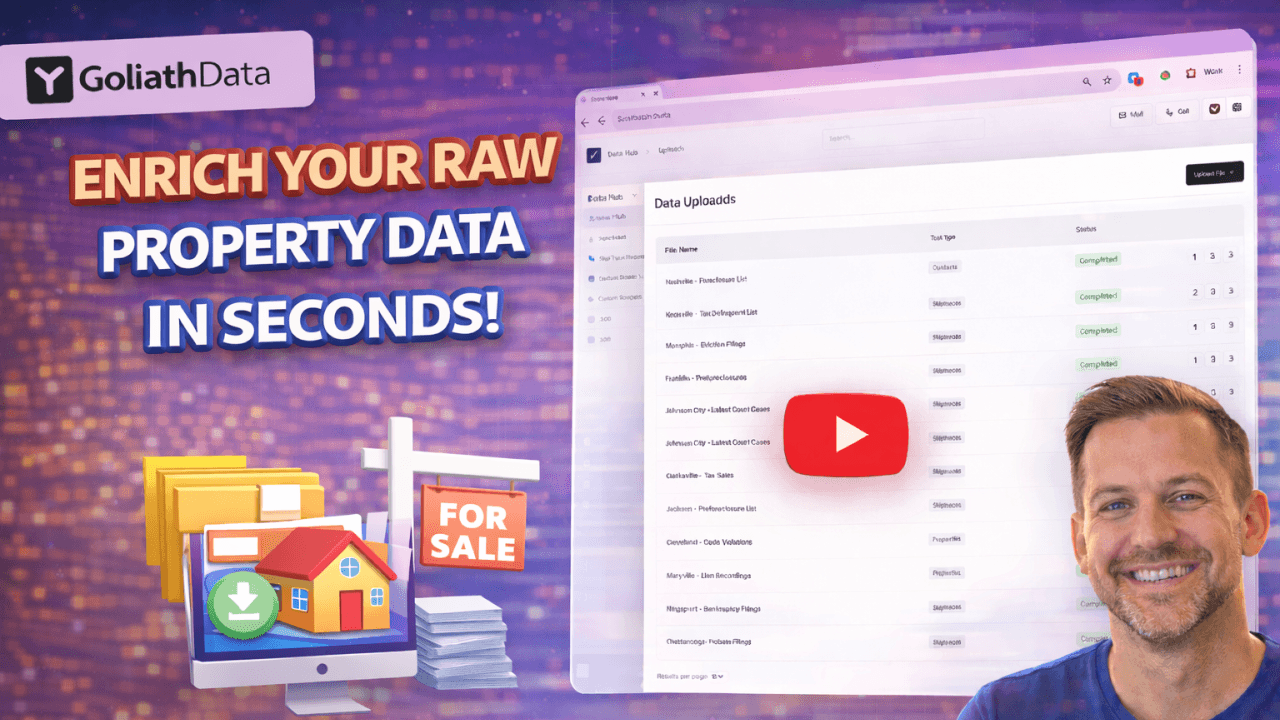
This guide explains how the Data Hub works inside Goliath and how to use it to manage your data workflows. You’ll learn how to upload and process files, download exports, manage skip trace requests, and request custom scrapers. The goal is to keep all of your data organized, accessible, and ready to use across the platform.
What's inside the video
1. Accessing the Data Hub
Navigate to the Data Hub section in Goliath
Understand that this is where all uploaded or exported files are stored
2. Uploading Files
Go to the Uploads tab
Select the file you wish to upload (contacts, properties, signals, etc.)
Drop the file into the designated area to start processing
3. Exporting Files
Navigate to the Export section of the Data Hub
Here you can find all previously exported files
You can relabel files and view associated contacts based on filters
4. Downloading Processed Files
On the right side of the Export section, locate the option to download processed files
Click to download whenever convenient
5. Managing SkipTrace Requests
Find the SkipTrace request section for individual addresses
Review any ongoing requests or kick off new ones
6. Accessing Custom Scrapers
Locate the Custom Scrapers section for your account
If on the scale plan, view your custom data pipelines
7. Requesting a Custom Scraper
If not on the scale plan, you can request a new scraper
Provide the following details:
Title of the scraper
URL to scrape
Specific locations
Detailed instructions (preferably a Loom video)
Submit the scraper request for processing
Best practices, tips and tricks
A few best practices
Use clear, descriptive names when uploading or exporting files
Double-check file formats before uploading to avoid processing issues
Review processed files before using them in downstream workflows
When to use the Data Hub
Use the Data Hub for all file uploads and exports tied to contacts, properties, or signals
Use it to manage skip tracing and custom data ingestion
Treat it as the source of truth for imported and exported datasets
Data organization and ownership
Keep uploads and exports clearly labeled so teams can find them easily
Avoid duplicate uploads by checking existing files first
Document the purpose of each custom scraper request for clarity
Recommended daily or weekly workflow
Check the Export section regularly to retrieve processed files
Monitor skip trace requests to ensure completion
Review custom scraper outputs for accuracy and relevance
Clean up or archive outdated files to keep the Data Hub organized
