
Inside Goliath: an overview of the contact management center
The easiest way to manage every prospect, lead, and client

Austin Beveridge
Tennessee
, Goliath Teammate
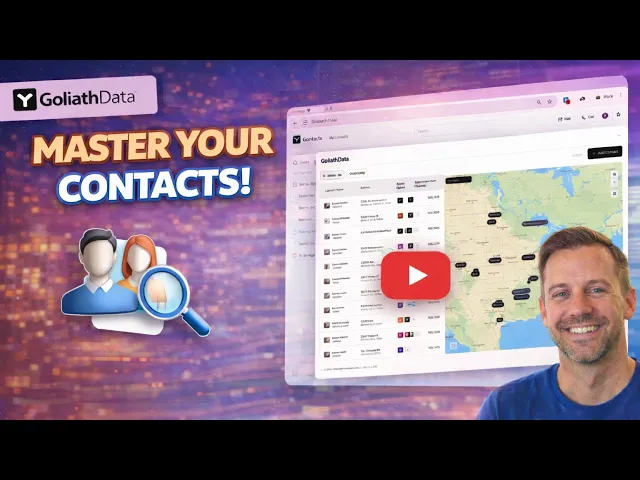
This guide breaks down the Contacts section in Goliath and shows how to manage prospects, leads, and past clients in one place. You’ll learn how to filter and segment contacts, view them on a map or list, take bulk actions, and add new contacts with the right details. The goal is to help you keep a clean, organized database that supports consistent follow-up and deal execution.
What's covered in the video
Purpose of the Contact Section
The Contact section is designed to manage different types of individuals related to real estate transactions:
Prospects: Individuals you have never spoken with before
Leads: Individuals you have previously spoken with and are qualified
Contacts: Previous clients you have assisted in buying or selling properties
The section is intended for anyone you wish to keep in touch with or follow up in the future
Filters in the Contact Section
The Contact section includes customizable filters to help narrow down your list of contacts:
Default Filters: Provided out of the box
Custom Filters: Users can create their own filters
Types of Filters:
Team Filters: Shared with team members
Personal Filters: Visible only to the user
Filters can be managed using the 'Manage Filters' button, allowing renaming and field adjustments
Additional Filtering Options
Users can apply additional filters to refine their contact list based on specific criteria:
Location: City, State, ZIP Code.
Status and Stage: Current status of the contact
Property Details: Ownership, number of bedrooms and bathrooms, property value
This allows users to create a targeted list of contacts that meet specific requirements
Viewing Contacts
Contacts can be viewed in two formats:
Split Map and List View: Displays contacts on a map alongside a list
List View Only: A simplified view of contacts
Users can select contacts using checkboxes for further actions
Quick Actions for Contacts
Once contacts are selected, users can perform various quick actions:
Add to List: Organize contacts into lists
Add to Deal: Associate contacts with specific deals
Add Task: Create tasks related to contacts
Trigger Workflow: Initiate workflows for selected contacts
Assign Contacts: Delegate contacts to team members
Enrich Contacts: Enhance contact information
Export: Download contact data
Archive: Hide contacts for future reference
Adding a New Contact
To add a new contact, users need to provide the following information:
Name: Full name of the contact
Phone Number: Contact's phone number
Email Address: Contact's email
Address: Optional property address
Custom Fields: Any additional fields as needed
Buy Box Preferences: For contacts looking to purchase assets
Best practices, tips and tricks
A few best practices
Keep contact records updated after every conversation
Use filters regularly to focus on the most relevant contacts
Archive contacts you no longer need to keep active views clean
When to use contacts
Use contacts to store anyone you may follow up with now or in the future
Use deals to track active transactions tied to those contacts
Use tasks and workflows to manage follow-ups related to contacts
Contact ownership and organization
Assign contacts to the appropriate team member to avoid overlap
Use lists to group contacts by purpose or strategy
Apply team filters when visibility across the team is needed
Recommended daily workflow
Review filtered contact views relevant to your current priorities
Update contact details and notes after conversations
Add tasks or trigger workflows directly from selected contacts
Scan for new or recently updated contacts before ending the day
