
Inside Goliath: an overview of the appointment scheduler
Learn how to schedule, edit, and manage appointments

Austin Beveridge
Tennessee
, Goliath Teammate
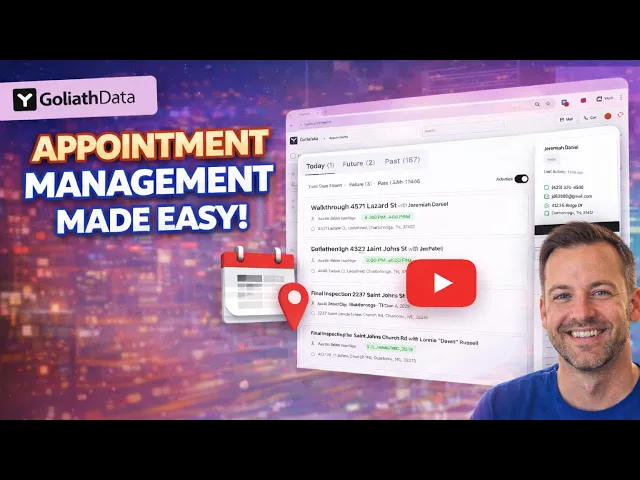
This guide explains how appointment management works inside the Goliath workspace. You’ll learn how appointments are organized, how to review today’s, upcoming, and past meetings, and how to view or update contact details tied to each appointment. The goal is to help you stay on schedule, keep records accurate, and ensure every appointment is connected to the right contact.
What's covered in the video
1. Appointment Categories
Appointments in the Goliath workspace are organized into three sections:
Today’s Appointments: Meetings scheduled for the current day.
Future Appointments: Meetings scheduled for upcoming dates.
Past Appointments: Completed or previously scheduled meetings.
This layout helps you quickly understand what’s happening now, what’s coming up, and what’s already been completed.
2. Reviewing Today’s Appointments
View all appointments scheduled for the day in one place.
Quickly scan upcoming times to plan your schedule.
3. Editing and Updating Appointments
Click on an appointment to open its details.
Use the pencil icon to edit:
Title
Date and time
Location
Description
Assigned teammates
Save changes to update the appointment and sync changes directly to your calendar.
4. Using Descriptions and Notes for Context
Add descriptions to capture important details or reminders.
Use notes to keep appointments aligned with conversations and next steps.
5. Accessing Full Contact Details
Click View Contact Portal from the appointment view.
Open the full contact record to review communication history and details.
Use this view to prepare before or follow up after an appointment.
6. Staying Organized and Avoiding Missed Appointments
Review today’s and future appointments regularly.
Update appointments promptly when changes occur.
Keep contact records accurate to support smooth follow-ups.
Best practices, tips and tricks
A few best practices
Review today’s appointments at the start of each day to plan your schedule.
Update appointments immediately when details change to keep calendars accurate.
Use the description field to add context, goals, or reminders for each meeting.
When to use appointments
Use appointments for scheduled conversations, meetings, or walkthroughs.
Use tasks for follow-ups or actions that happen before or after an appointment.
If a meeting is scheduled, it should exist as an appointment, not just a task.
Appointment ownership
Each appointment is tied to a specific contact and assigned user.
Assign teammates when multiple people need visibility or involvement.
Review assigned appointments daily to avoid missed meetings or overlaps.
Recommended daily workflow
Start your day by reviewing today’s appointments.
Open the contact record before each meeting to review history and notes.
Update appointment details or add notes immediately after the meeting.
Review future appointments at the end of the day to prepare ahead.
