
Inside Goliath: an overview of the command center
Take a closer look at the dashboard inside the Goliath platform

Austin Beveridge
Tennessee
, Goliath Teammate
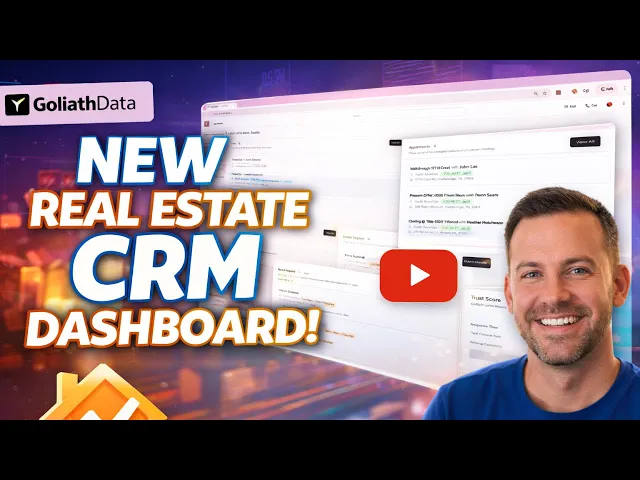
The Goliath dashboard is your command center for turning real seller and buyer signals into action. It pulls together tasks, appointments, and contact updates in one place so nothing slips through the cracks. This video walks through how to use the dashboard day to day, from managing follow-ups and walkthroughs to reviewing new leads and keeping your Trust Score strong. The goal is simple. Help you stay organized, move faster on the right opportunities, and consistently show up as a reliable operator inside the Goliath ecosystem.
What's covered in the video
1. Accessing Tasks
Locate the Tasks section on the top left of the dashboard.
Review tasks sorted by due dates, including:
Follow-ups
Call-closes
Appointments
Walk-throughs
Click on View All to access the complete task list.
2. Managing Appointments
Find the Appointments section to view scheduled appointments and call-backs.
Check for today's appointments or future appointments if none are scheduled for today.
Click on View All to see all appointments.
3. Reviewing New Contacts
Navigate to the New Contacts section at the bottom left of the dashboard.
This section displays contacts added recently from various campaigns (PPC, PPL, Facebook ads, etc.).
Click on a contact to view their details.
4. Updating Contacts
Check the Updates Required section for contacts that haven't been updated in the last seven days.
Aim to keep these contacts up to date to maintain effective communication.
5. Understanding Trust Score
Review your Trust Score to see how you rank within the Goliath ecosystem.
A higher score increases your chances of being accepted into the Blackbook program, which provides leads to close.
Best practices, tips and tricks
A few common best practices
Set a daily routine to check the dashboard for tasks and appointments to stay organized.
Utilize the View All feature to get a comprehensive overview of tasks and appointments, which can help in planning your day effectively.
Regularly update contacts to keep your database current and improve your Trust Score.
When to Use the Dashboard
Start and end your day here
Use it as the source of truth for active work
Check it before reaching out to any contact
Task vs Appointment vs Contact Updates
Tasks represent required actions
Appointments represent scheduled commitments
Contact updates keep records fresh and accurate
Daily Workflow Recommendation
Review tasks due today
Check upcoming appointments
Scan new contacts and updates required
Plan follow-ups using View All
